
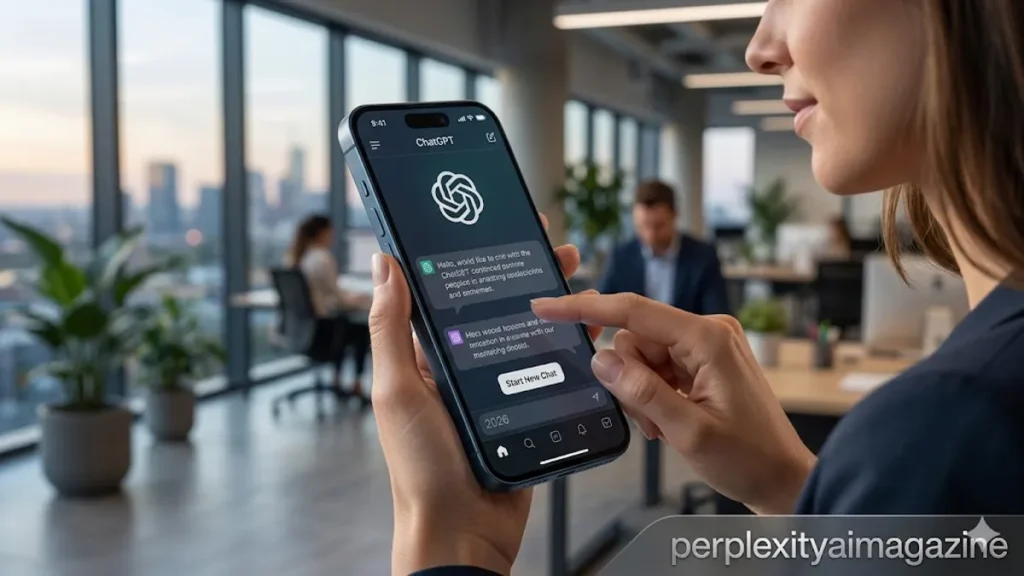
Learning how to use ChatGPT on iPhone in 2026 is slightly different from the desktop experience — not because the features are different, but because mobile-first features like voice mode, camera input, and widgets make the iPhone version uniquely powerful for on-the-go use. ChatGPT has been downloaded over 1.44 billion times across iOS and Android, with the iPhone app maintaining a 4.9/5 rating based on over 800,000 reviews. This guide covers the complete iPhone experience from download through advanced shortcuts.
Download and Setup
- 1Download from the App StoreSearch “ChatGPT” on the App Store. Developer: OpenAI. Free download. Requires iOS 16 or later. The official app has the OpenAI logo — avoid unofficial third-party apps that charge for free features.
- 2Sign in with your accountUse your existing OpenAI account. Your plan (Free, Plus, Pro) carries over automatically — no separate mobile purchase required. All your conversation history and memory sync from desktop.
- 3Set up voice modeTap the headphone icon in the conversation screen to activate voice mode. ChatGPT listens and responds with voice — conversational AI rather than text. On Plus, advanced voice mode enables real-time video from your camera.
- 4Enable Siri integrationGo to iPhone Settings → Apps → ChatGPT → Siri & Search → Enable. You can then invoke ChatGPT through Siri with a custom phrase, or set it as a Siri shortcut.
iPhone-Specific Features Worth Using
🎤 Voice Mode
Full conversational AI by voice. No typing required. Available on free and paid plans. Advanced Voice Mode with video input on Plus.
📷 Camera Input
Point your camera at anything — a menu, a diagram, a product label, a maths problem — and ask ChatGPT about it. Tap the camera icon in the message bar.
🔘 Action Button
iPhone 15 Pro, 16, and 16 Pro only. Settings → Action Button → ChatGPT. Press from any screen for instant ChatGPT access.
📊 File Analysis
Share PDFs, photos, spreadsheets from Files or Photos app directly into ChatGPT via the share sheet — no app switching required.
🔒 Lock Screen Widget
Long press Lock Screen → Customise → add ChatGPT widget. Access ChatGPT from the Lock Screen without unlocking.
🔗 Share Extension
Highlight text in any app → Share → ChatGPT → ChatGPT receives the text in a new conversation for instant analysis.
Voice Mode on iPhone — The Most Underused Feature
Voice mode on the ChatGPT iPhone app is one of the most capable AI voice interfaces available in 2026. It handles follow-up questions, maintains context across a multi-turn voice conversation, and on Plus plans with advanced voice mode, can see what you are pointing your camera at while you speak. This makes it genuinely useful for hands-free research while commuting, walking, or any situation where typing is impractical.
To activate: tap the headphone icon in any ChatGPT conversation on iPhone. The interface switches to voice mode with a visual indicator. Speak naturally — ChatGPT processes the full conversational context including everything said earlier in the session. Tap the headphone icon again to return to text mode while keeping the conversation open.
💡 Action Button shortcut (iPhone 15 Pro, 16, and 16 Pro)Go to Settings → Action Button → select ChatGPT from the app list. Now pressing the Action Button from any screen — including the Lock Screen — opens ChatGPT instantly. Combine with voice mode: press Action Button → immediately tap the microphone icon → speak your question. This is the fastest possible path from any activity to a ChatGPT response on iPhone.
Unlock everything in Perplexity Hub—click here to explore the full collection.
Frequently Asked Questions
Is ChatGPT free on iPhone?
Yes. The ChatGPT iPhone app is a free download and the free plan is available with no payment required. Free users get GPT-5.3 access with a limit of 10 messages every five hours, then unlimited GPT-5.3 Mini. Voice mode (standard) is free. Camera input is free. ChatGPT Plus at $20/month unlocks advanced features including GPT-5.4, Advanced Voice Mode with video, Deep Research, and Sora video generation.
How do I use ChatGPT voice on iPhone?
Open the ChatGPT app, start or continue a conversation, and tap the headphone icon in the interface. ChatGPT switches to voice mode — speak your question and it responds with voice. Tap the headphone icon again to return to text while keeping the conversation. Advanced voice mode on Plus enables real-time video input — point your camera while speaking for visual context in your conversation.
Can I use ChatGPT on iPhone without internet?
No for generating new responses — ChatGPT requires an active internet connection for all AI processing. Previously saved conversations in your history are accessible offline for reading. If you need AI that works offline, some on-device AI tools exist, but ChatGPT is cloud-based and requires connectivity. The app functions in low-bandwidth conditions better than older versions, but cannot generate responses without any network connection.
