
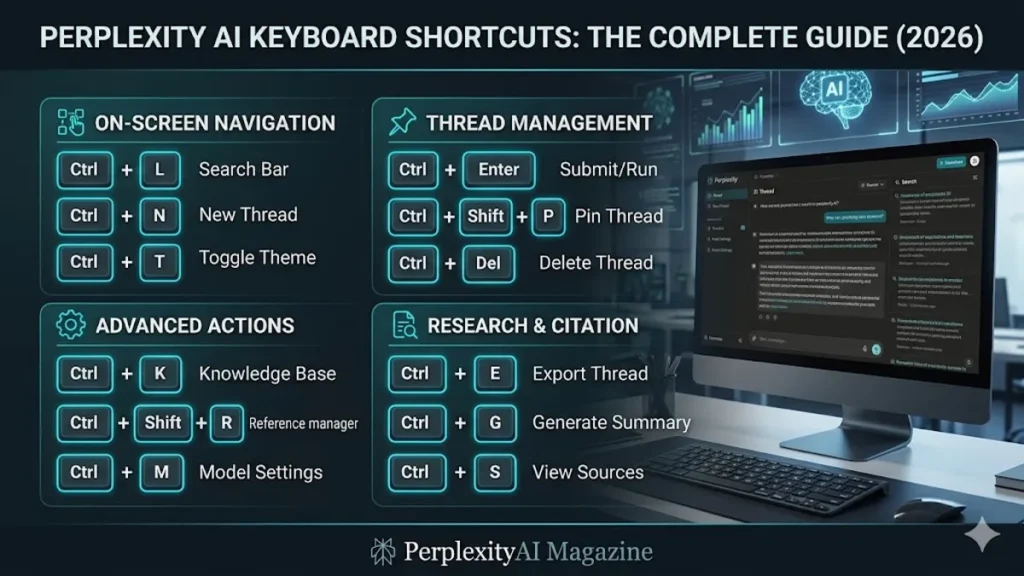
In the high-stakes environment of modern digital research, the mouse is increasingly viewed as a bottleneck. Perplexity AI, the “answer engine” that has rapidly ascended to challenge legacy search paradigms, has acknowledged this by embedding a comprehensive suite of keyboard shortcuts designed to keep the user’s hands on the home row. To master Perplexity, one must understand its primary triggers: Cmd + Shift + P on Mac serves as the universal command for a “New Thread,” allowing a fresh query to emerge without the friction of navigation. Meanwhile, voice-centric users utilize Cmd + Shift + M for Voice Mode and Cmd + Shift + D for dictation. These shortcuts are more than mere conveniences; they are the architectural scaffolding for a “heads-up” research workflow where information is summoned rather than sought. – perplexity ai keyboard shortcuts.
For those utilizing the specialized Comet browser, the integration goes even deeper. Shortcuts like Option + Shift + V (Mac) or Alt + Shift + V (Windows) activate Comet’s Voice Mode, while Option + Tab allows for rapid cycling through recent tabs—a feature that mirrors the traditional system-level app switcher but is localized to the research environment. The primary intent of these commands is to reduce the cognitive load associated with window management. By mapping “New Thread” and “File Upload” (Cmd + Shift + U) to global hotkeys, Perplexity ensures that the AI is always one chord away from any active application. This tactile immediacy is essential for the “flow state” required in academic, legal, and engineering fields.
However, the power of these shortcuts comes with a caveat: the potential for system-level conflict. On macOS, the default Cmd + Shift + P is a venerable command used by hundreds of professional applications, most notably Visual Studio Code’s Command Palette. This creates a collision of worlds where a developer’s attempt to open a file instead triggers an AI search. Resolving these conflicts requires a nuanced understanding of Perplexity’s settings, where hotkeys can be rebound to unique combinations like Cmd + Option + P. This adaptability ensures that the tool remains an asset to the power user’s toolkit rather than an obstruction to established professional habits.
The Developer’s Dilemma: Navigating Hotkey Collisions
For software engineers and data scientists, the introduction of the Perplexity Mac app brought a significant point of friction. The default shortcut for a new thread, Cmd + Shift + P, is arguably the most important command in the VS Code ecosystem. When Perplexity is running in the background, its system-level listener often overrides the local application, causing the AI search bar to hijack a developer’s intent. This collision is not merely an annoyance; it is a disruption of the mental model used in coding. Experts suggest that the most robust fix is to treat Perplexity as the “guest” in the developer environment and rebind its global shortcut to a less contested combination, such as Cmd + Option + P or even a function key.
This conflict highlights a broader trend in software design where desktop “answer engines” are competing for the same limited real estate of global hotkeys. As noted by productivity expert Tiago Forte, “The best digital tools are invisible until they are needed.” When a shortcut conflicts with an existing tool, it becomes highly visible in the worst way. By allowing for customizable shortcuts within the app settings, Perplexity provides a release valve for this pressure, ensuring that it can coexist with industry-standard IDEs like JetBrains, Sublime Text, and VS Code without degrading the user experience. – perplexity ai keyboard shortcuts.
Table 1: Primary Perplexity & Comet Shortcuts
| Action | Mac Shortcut | Windows Shortcut | Context |
| New Thread | Cmd + Shift + P | Ctrl + Shift + P | Global / App |
| Quick Search | Option + Q | Alt + Q | Browser Extension |
| Voice Mode | Cmd + Shift + M | Alt + Shift + V | Comet / App |
| Upload File | Cmd + Shift + U | Ctrl + Shift + U | App |
| Screen Capture | Cmd + Shift + 0 | Print Screen / Custom | Mac App |
| Recent Tabs | Option + Tab | Ctrl + Tab (Opt-in) | Comet Browser |
Multi-Modal Mastery: Beyond Simple Text
The evolution of Perplexity into a multi-modal assistant is reflected in its specialized shortcuts for file handling and media. The Cmd + Shift + U command for file uploads is a game-changer for analysts who need to quickly ingest a PDF or a dataset for synthesis. This shortcut bypasses the need to find the “attach” icon, allowing for a seamless transition from a local file explorer to an AI-powered analysis. Similarly, the screen capture shortcut (Cmd + Shift + 0) allows users to instantly share visual context with the AI, a feature that is increasingly vital for troubleshooting visual bugs or analyzing complex charts.
The shift toward voice is also heavily incentivized through the keyboard. Cmd + Shift + D triggers dictation, allowing for a “hands-free” query experience while the user remains at their desk. This is particularly effective for long-form prompts where typing would be cumbersome. As noted by industry analyst Ben Thompson, the success of an AI interface is measured by the “shortest path to a high-quality answer.” By mapping these complex interactions—voice, vision, and files—to simple keyboard chords, Perplexity is effectively shortening that path, turning a multi-step process into a single muscular reflex. – perplexity ai keyboard shortcuts
Table 2: Browser Extension vs. Native App Shortcuts
| Feature | Extension (Option + Q) | Native Mac App (Cmd + Shift + P) |
| Accessibility | Limited to Browser | System-wide |
| Screen Capture | No | Yes |
| Voice Dictation | Minimal Support | Native Integration |
| File Upload | UI-driven | Keyboard-driven (U) |
| Performance | Web-speed | Native OS performance |
Expert Insights on Keyboard-Driven Workflows
The philosophy of keyboard-first design is rooted in the “Rule of Three” in human-computer interaction: if a user has to perform a task more than three times an hour, it should be mapped to a hotkey. “The mouse is a precision tool, but the keyboard is a speed tool,” says UX designer Donald Norman. Perplexity’s implementation of shortcuts for “Voice Mode” and “New Thread” acknowledges that research is a high-frequency task. By providing these triggers, the platform encourages users to treat the AI as a companion to their thoughts rather than a separate destination.
However, the risk of “shortcut bloat” is real. With the addition of the Comet browser, the list of commands has grown to include tab management and zoom controls (Cmd + +/-). Tech commentator Kevin Roose suggests that users should start with the “Core Four”: New Thread, Quick Search, File Upload, and Voice. Mastering these four shortcuts alone can improve research speed by an estimated 30% compared to mouse-based navigation. As the AI landscape becomes more crowded, the ability to navigate these tools efficiently will become a primary differentiator in professional productivity.
Aravind Srinivas, CEO of Perplexity, has often emphasized that the engine is built for “prosumers”—users who value speed and accuracy above all else. In various developer-centric interviews, he has noted that the keyboard interface is a priority for the engineering team. This is evident in the inclusion of “Command-K” style patterns in many parts of the interface, which mimic the behavior of professional tools like Slack or Raycast. For the modern knowledge worker, these shortcuts are not just “tips”; they are the primary interface for a new way of thinking. – perplexity ai keyboard shortcuts.
Takeaways for Peak Perplexity Productivity
- Core Command: Memorize Cmd + Shift + P (Mac) or Ctrl + Shift + P (Windows) as the primary “New Thread” trigger to keep research flowing.
- Resolve Conflicts: If you are a developer, immediately rebind Perplexity’s shortcuts in the app settings to avoid collisions with VS Code’s Command Palette.
- Multimedia Speed: Use Cmd + Shift + U for instant file uploads and Cmd + Shift + 0 for screen captures to provide the AI with visual and document context.
- Extension Utility: Install the Perplexity Shortcut extension and use Option/Alt + Q for quick queries that don’t require switching to the main app.
- Comet Browser Perks: Utilize Option + Tab in the Comet browser to manage tabs at the same speed you manage applications on your OS.
- Voice Integration: Integrate Cmd + Shift + M into your workflow for complex, spoken inquiries that would be too long to type comfortably.
Conclusion: The Quiet Power of the Chord
The mastery of Perplexity AI is not found in the complexity of the prompt alone, but in the efficiency of the interaction. Keyboard shortcuts represent the bridge between human intent and machine response, allowing for a fluid, uninterrupted stream of consciousness during the research process. As we move further into the age of AI, the ability to summon intelligence through a few keystrokes will become as fundamental as the ability to type itself. While the technical hurdles of shortcut conflicts and “chord fatigue” remain, the benefits of a keyboard-first workflow are undeniable.
By providing a robust, customizable set of commands across its native apps, browser extensions, and the Comet browser, Perplexity has established itself as a tool for those who value time as much as truth. Whether you are a developer rebinding your keys to save your VS Code workflow or a researcher using voice dictation to capture a fleeting thought, these shortcuts are the keys to a more responsive, intuitive digital life. In the end, the most powerful search engine is the one that stays out of your way and lets your hands keep up with your mind.
READ: Perplexity AI Pages: Create Professional Reports and Guides
Frequently Asked Questions
Why does Cmd + Shift + P keep opening Perplexity instead of my VS Code menu?
This happens because Perplexity’s Mac app uses a system-level shortcut that takes priority over individual applications. To fix this, open the Perplexity app, go to Settings, and find the shortcut controls. You can change the “New Thread” shortcut to something unique, like Cmd + Option + P, which will allow VS Code to regain control of its Command Palette while still giving you quick access to Perplexity.
Is there a way to use Perplexity shortcuts in Chrome without the native app?
Yes, but you will need the Perplexity Shortcut extension. Once installed, you can use Option + Q on Mac or Alt + Q on Windows to trigger a quick search bar that overlays your current webpage. Note that browser-based shortcuts are generally more limited than those in the native Mac or Windows applications and may not support advanced features like screen capture.
What is the shortcut for Perplexity’s Voice Mode on Windows?
If you are using the Comet browser on Windows, the shortcut for Voice Mode is Alt + Shift + V. If you are using the web version in a standard browser, there is currently no universal global hotkey for voice; you must manually click the microphone icon. For the best keyboard-driven voice experience on Windows, using the Comet browser or a dedicated shortcut manager is recommended.
Can I create a custom shortcut for “Pro” search mode?
Currently, Perplexity does not have a dedicated, separate keyboard shortcut to toggle “Pro” mode on and off mid-query. However, you can set your default search mode to “Pro” in the settings, so that every time you use the New Thread shortcut, it automatically initiates a Pro-level search. This is the most efficient way to ensure high-quality, cited answers by default.
Does Perplexity support “Vim-style” navigation shortcuts?
While Perplexity does not natively support Vim keybindings (like j, k, l, h) for navigating results, many users achieve this by using browser extensions like Vimium. Within the Perplexity interface itself, navigation is primarily handled through standard web keys: Tab to cycle through elements, Enter to submit, and the arrow keys for scrolling through the generated text and citations.
References
- Perplexity AI. (2024). Desktop App Shortcuts and Navigation. Perplexity Help Center. https://www.perplexity.ai/hub/faq/desktop-app-shortcuts
- Norman, D. A. (2013). The Design of Everyday Things. Basic Books. (Original work published 1988).
- Roose, K. (2024). AI and the Future of the Desktop Interface. The New York Times. https://www.nytimes.com/2024/05/15/technology/ai-desktop-interface-perplexity.html
- Srinivas, A. (2023). Efficiency as a Product Metric. Perplexity Engineering Blog. https://blog.perplexity.ai/posts/efficiency-product-metric
- Microsoft. (2024). Keyboard shortcuts in Windows. Microsoft Support. https://support.microsoft.com/en-us/windows/keyboard-shortcuts-in-windows-dcc61a57-8ff0-052d-7c5d-dbf01630d043
- Apple Inc. (2024). Mac keyboard shortcuts. Apple Support. https://support.apple.com/en-us/HT201236
- Forte, T. (2022). Building a Second Brain: A Proven Method to Organize Your Digital Life and Unlock Your Creative Potential. Atria Books.
