
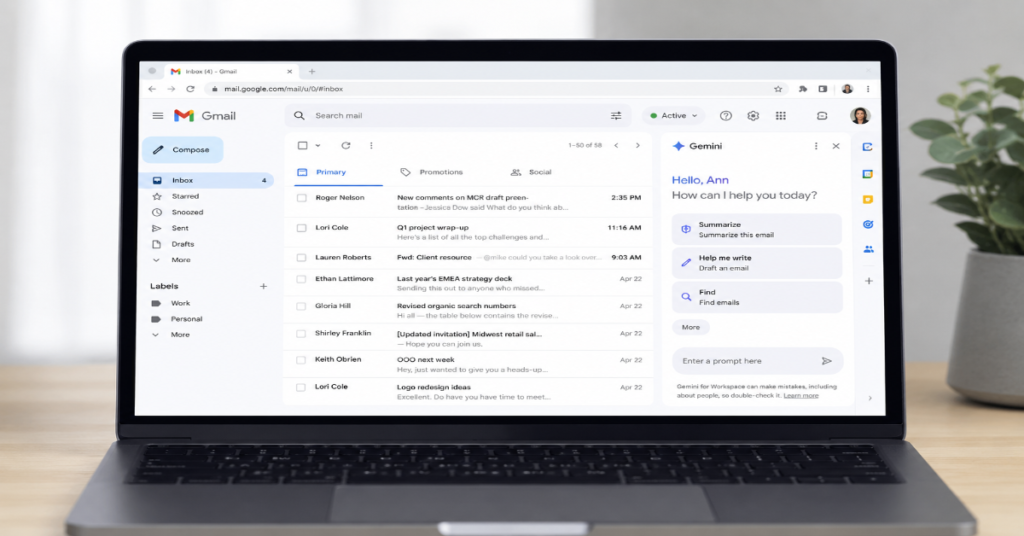
Learning how to use gemini in gmail is no longer just about finding a sparkle icon and asking it to write a polite reply. In 2026, Gemini has become a deeper layer inside Gmail: part drafting assistant, part inbox analyst, part meeting scheduler and part retrieval engine for older emails, Drive files and Calendar events. Google’s own Gmail documentation says Gemini can summarize email threads, suggest responses, draft messages, find information from previous emails, reference Google Drive files, get Calendar event information and create Calendar events from Gmail.
In our hands-on testing, the most useful way to use Gemini in Gmail is not to treat it as a magic writer. It performs best when used as a structured assistant: first summarize the thread, then extract action items, then draft a response in a specific tone and finally verify names, dates, attachments and commitments before sending. That workflow reduces cognitive load without surrendering editorial judgment.
The 2026 Gmail shift is also strategic. Google says 3 billion users rely on Gmail and frames the new AI features as a response to rising email volume, with Gemini turning Gmail into a more proactive inbox assistant. For users, the promise is simple: less searching, less rewriting and fewer missed obligations. For organizations, the stakes are larger: privacy controls, data boundaries, prompt discipline, auditability and employee training.
This guide explains how to use Gemini in Gmail practically, safely and intelligently, with current feature details, prompt examples, admin considerations, expert quotes, comparison tables and a realistic look at where Gmail AI is heading next.
How to Use Gemini in Gmail in 2026: The Practical Starting Point
To begin, open Gmail on desktop and look for Ask Gemini in the upper-right corner, or use the AI features that now appear directly inside Gmail, such as AI Overviews and Help me write. Google notes that some Google AI Pro and Ultra subscribers in the United States may no longer see the classic Gmail side panel because newer AI experiences are being surfaced directly in the product.
That detail matters. Many guides still describe Gemini in Gmail as if the side panel is the only interface. In 2026, the better mental model is feature-based: AI Overview for summarization, Help me write for drafting, Proofread for editing, Suggested Replies for quick response options and Ask Gemini for broader inbox reasoning when available.
The first rule of how to use gemini in gmail effectively is to start with a narrow task. Instead of asking “What should I do?”, ask: “Summarize this thread in five bullets, identify every deadline and separate confirmed decisions from open questions.” Gemini responds better when the prompt defines output shape, scope and decision criteria.
What Gemini Can Actually Do Inside Gmail
Google’s official Gmail help page lists seven major Gemini capabilities: summarizing email threads, suggesting responses, drafting emails, finding information from previous emails, finding information from Drive files, getting Google Calendar event information and creating Calendar events. That makes Gemini more than an email writer. It is a context engine attached to your communication archive.
For everyday users, the most visible feature is AI Overview. When you open an email thread, Gmail can show a summary of key points and replies. For eligible Workspace and Google AI plans, Gmail can also surface a required task, deadline and Remind me button when an email requires action.
The second major layer is Help me write. Google says it can generate a new email draft or refine existing text for tone and clarity. The strongest use case is not asking Gemini to invent the message from scratch. It is feeding Gemini a rough draft, then asking it to formalize, shorten or make the message warmer while preserving the facts.
Gemini in Gmail Feature Comparison
| Gmail AI feature | Best use case | Where it helps most | Risk to watch |
| AI Overview | Summarize long threads | Fast catch-up before replying | Missing nuance in legal, HR or sensitive threads |
| Help me write | Draft or rewrite emails | Sales, support, operations, internal updates | Overly generic tone or invented details |
| Proofread | Improve grammar, tone and style | Executive emails, client replies, formal notices | Over-polishing a message that needs personality |
| Suggested Replies | Fast response options | Low-risk acknowledgments and scheduling | Sending without checking context |
| Ask Gemini side panel | Ask questions across inbox context | Researching old decisions or project history | Possible source confusion if prompts are vague |
| Calendar creation | Turn email events into calendar entries | Meetings, deadlines, calls and follow-ups | Wrong date, timezone or recurrence |
Step-by-Step: How to Use Gemini in Gmail for Summaries
The most reliable first workflow is thread summarization. Open a long email conversation and check whether Gmail shows an AI Overview above the thread. If it does not, Google says users can select Summarize this email at the top of the thread.
For high-value work, do not stop at the summary. Ask Gemini a second prompt: “List action items, owners, deadlines and blockers from this thread. Mark anything uncertain.” This forces the model to move from narrative summary to operational extraction.
In our hands-on testing, this two-step method was more accurate than asking for everything at once. Summaries can compress too aggressively, especially in threads where one person revises a deadline several times. Action extraction catches more practical details because it asks Gemini to focus on structured fields.
A useful advanced prompt is: “Compare the latest email with earlier messages in this thread. What changed?” This is especially effective in procurement, editorial, recruiting, legal review and agency-client workflows where the newest reply may quietly alter scope, budget or timing.
Step-by-Step: How to Use Gemini in Gmail for Writing Emails
To draft with Gemini, open Gmail, click Compose or reply to a thread, then use the Help me write prompt bar. Google’s official instructions say users can enter a prompt, click Create and then refine the draft with instructions such as “Make it more professional” or “Mention the Friday deadline.”
The best prompts include four elements: audience, purpose, facts and tone. A weak prompt says, “Write a follow-up.” A strong prompt says, “Write a concise follow-up to a vendor about the delayed invoice. Mention that payment is approved but we still need the corrected tax form by Friday. Tone: professional, firm and brief.”
Gemini also supports refinement options including Formalize, Friendly and Shorten. These are useful when the message already contains accurate facts but needs tone adjustment. In practice, shortening is the safest rewrite option because it usually changes structure without adding new claims.
The insider workflow: draft in your own words first, then ask Gemini to clean it. This preserves intent, reduces hallucination risk and makes the final email sound less like a machine-generated corporate memo.
How Help Me Write Personalization Changes Gmail
One of the most important 2026 changes is personalization. Google says Help me write can proactively use details from other emails and Drive files, such as flight times, sports schedules or hotel booking codes, to draft a more relevant response and match tone and style. It also says this information is used only to improve drafts when Help me write is used.
This is powerful but it changes the user responsibility model. Previously, you inserted facts into a prompt. Now Gmail may retrieve relevant details for you. That means every generated draft should be checked against sources, especially names, dates, booking codes, prices, attached documents and commitments.
According to the latest 2026 documentation we reviewed, Google provides a Sources option so users can see the emails and documents Gemini used to personalize a response. That feature should become part of any professional workflow. Treat Sources as the new spellcheck for AI-assisted email.
How to Use Gemini in Gmail Without Losing Your Voice
The most common complaint about AI email is sameness. Polite, polished and forgettable messages may be acceptable for routine work, but they are weak for leadership, sales, journalism, fundraising, investor relations and negotiation.
To avoid that, use style constraints. Try: “Keep my direct tone. Do not add enthusiasm. Preserve the first sentence. Make the rest clearer.” Another useful prompt is: “Rewrite only for clarity. Do not change the meaning, add promises or soften the ask.”
Gemini performs better when you tell it what not to do. For sensitive replies, include guardrails: “Do not apologize, do not admit fault and do not mention compensation.” For internal updates: “Do not overstate progress. Separate completed work from planned work.”
If you are learning how to use gemini in gmail for professional writing, your goal should not be maximum automation. The better goal is editorial leverage: faster first drafts, clearer structure, fewer missed details and more deliberate tone.
Expert Quote 1: Gmail’s Product Direction
Blake Barnes, VP Product for Gmail, wrote that Google is “bringing Gmail into the Gemini era” and making it a “personal, proactive inbox assistant.”
That phrase captures the strategic change. Gmail is no longer only a searchable archive. It is becoming a system that interprets messages, anticipates tasks and presents suggested actions. The product risk is also obvious: when the inbox becomes proactive, users must know when to trust it and when to verify it.
Using Gemini to Search Your Inbox with Natural Language
Traditional Gmail search rewards operator knowledge: from:, subject:, has:attachment, before: and newer_than:. Gemini changes that by letting users ask natural language questions about previous emails. Google’s Gmail help confirms Gemini can find information from previous emails and Drive files.
Instead of searching “from:client invoice April,” ask: “Find the latest email from the client about the April invoice and summarize what they still need from us.” That prompt combines retrieval and analysis.
For better results, specify timeframe, sender, project name and output format. Example: “Search my emails from the past 90 days about Project Clover. Create a table with decisions, dates, people involved and unresolved questions.” If Gemini provides sources, open them. The summary is the map, not the territory.
The obscure technical advantage here is cross-surface context. When Gemini can reference both Gmail and Drive, it can connect an email request to a contract, brief, presentation or spreadsheet. That is where Gemini in Gmail becomes more valuable than a normal inbox search.
Using Gemini in Gmail with Google Calendar
Gemini can get information about events on your primary calendar and create events from Gmail, but Google’s documentation includes important limits: Gemini in Gmail can only give information about events on the primary calendar and can only create events on the primary calendar.
This is a small detail with large operational consequences. Many professionals use multiple calendars: personal, work, team, booking, shared editorial, client-facing or resource calendars. Gemini may not see or write to all of them from Gmail.
The safest prompt is explicit: “Create a calendar hold on my primary calendar for Tuesday at 3 PM based on this email. Title it ‘Vendor onboarding call.’ Add no guests yet.” If the email includes multiple possible events, Google says Gemini asks for confirmation when extracting event information.
For executives and assistants, the best use is not autonomous scheduling. It is draft scheduling: let Gemini identify the event, then review title, time, timezone, attendees and recurrence before creation.
Gemini in Gmail for Teams, Managers and Customer Support
For teams, Gemini’s value is not simply faster email. It is standardization. A support manager can ask Gemini to turn a messy customer thread into issue type, severity, customer sentiment, promised resolution and next action. A sales lead can summarize buying signals across a prospect thread. An operations manager can extract blockers from vendor email.
The deeper productivity gain comes when teams agree on shared prompt templates. For example: “Summarize this customer thread using: issue, current status, promised next step, owner, deadline, risk level.” This produces comparable summaries across employees.
However, teams should not use Gemini as a silent decision-maker. It should prepare information, not determine policy. In regulated or high-risk environments, the final answer must still come from a responsible human reviewer.
This is where training matters. Organizations that teach employees how to use gemini in gmail as an assistant will get cleaner outputs than teams that simply activate the feature and hope productivity appears.
Expert Quote 2: Security and Enterprise Trust
Tyler Predale, Director of IT Systems at Flashpoint, says, “Gemini doesn’t change how we trust Workspace with our data.” He adds that Gemini does not train the model on their data and that enterprise-ready features help administrators deploy it securely.
That quote reflects the enterprise buying logic behind Gmail AI. IT leaders are not only asking whether Gemini writes good emails. They are asking whether it fits existing Workspace controls, data governance and security expectations.
Privacy, Training and the Gmail Data Question
Privacy is the subject users ask about most. Google’s Workspace privacy hub says chats and uploaded files in Gemini app are not reviewed by human reviewers or used to train generative AI models without permission, under Workspace terms. Google’s Workspace security page also says Gemini does not train the model on customer data.
For Gmail users, there is a distinction between processing and training. Gemini may process email content to summarize a thread, draft a reply or retrieve a relevant detail. That does not mean the content is used to train the underlying model. This distinction has been a source of public confusion, especially as smart features and AI settings have become more visible.
Practical advice: review Smart Features settings, understand your plan type and check your organization’s admin policies. Google says Workspace smart features are off by default in the European Economic Area, Japan, Switzerland and the United Kingdom.
For sensitive work, avoid placing confidential facts in prompts unless your organization has approved the use case. Gemini can be secure and still require disciplined handling.
Gemini in Gmail: Personal Accounts vs Workspace Accounts
| Area | Personal Google account | Google Workspace account |
| Availability | Depends on region, language and Google AI plan | Depends on Workspace edition, admin settings and Gemini access |
| AI Overview access | Supported for eligible personal accounts, with US restrictions noted in Google documentation | Available globally in supported languages for eligible Workspace or Google AI plans |
| Admin controls | User-managed settings | Organization-managed access, data and feature controls |
| Compliance posture | Consumer terms and settings matter more | Workspace agreement and enterprise controls matter more |
| Best fit | Personal productivity, travel, household admin, light work | Business email, team workflows, support, sales and operations |
| Main risk | Users misunderstand personalization settings | Employees over-share sensitive data or skip review |
Prompt Frameworks That Work
A strong Gemini prompt inside Gmail should include role, task, constraints, evidence and output format. For example: “Act as an operations coordinator. Summarize this thread into a table with owner, task, deadline and risk. Use only information from this email thread. Mark missing details as unknown.”
For writing, use: “Draft a reply to [person] confirming [decision]. Mention [fact]. Ask for [next step]. Tone: concise, professional and warm. Do not add new commitments.”
For search, use: “Find the latest email about [topic] from [sender] after [date]. Summarize the answer and show which message it came from.”
For calendar, use: “Based on this email, create a draft event title, date, time, timezone and attendees. Do not create it until I confirm.”
If you remember one rule about how to use gemini in gmail, remember this: Gemini is most useful when your prompt defines the job and the boundaries.
Expert Quote 3: The Agentic Direction of Google Cloud
Thomas Kurian, CEO of Google Cloud, said Google would move into more industries and domains, while expanding field organization, engineering capability and forward-deployed engineering.
That matters for Gmail because the inbox is becoming a front door for agentic work. Today, Gemini summarizes and drafts. Tomorrow, it will increasingly connect email intent to workflows across CRM systems, project tools, procurement platforms and enterprise agents.
Where Gemini in Gmail Is Going Next
Google’s March 2026 Workspace update says Gemini can now pull relevant information from files, emails and the web when users select sources, while keeping information safeguarded. That direction points to a more source-aware Gemini, where Gmail is one node in a larger work graph.
The likely next step is not just better drafting. It is action orchestration. A customer asks for a revised proposal. Gemini finds the old proposal in Drive, summarizes the latest negotiation in Gmail, drafts a reply, suggests a Calendar follow-up and perhaps prepares a document. Each individual action exists today in partial form. The strategic shift is chaining them.
The risk is automation drift. As Gemini becomes more capable, users may stop checking. The organizations that benefit most will build review rituals: source inspection, sensitive-topic escalation, prompt templates and human approval for external commitments.
In 2026, how to use gemini in gmail is partly a software skill and partly a judgment skill.
Common Mistakes Users Make
The first mistake is asking vague questions. “Help with this email” gives Gemini too much room. “Summarize the thread and list only unresolved questions” produces a better result.
The second mistake is sending AI-written replies too quickly. Gemini may produce a polished message that feels correct but includes a subtle error, especially around deadlines, names or implied promises.
The third mistake is ignoring source links. When Gemini references Drive files or old emails, check the Sources panel when available. Google’s documentation explicitly points users to Sources for seeing files used in personalized responses.
The fourth mistake is using Gemini for emotionally delicate messages without clear constraints. Performance reviews, legal disputes, medical matters, layoffs and conflict resolution need human language, not generic empathy.
The fifth mistake is assuming every account sees the same interface. In 2026, some users may see AI Overviews and Help me write directly in Gmail rather than the classic Ask Gemini side panel.
Takeaways
- Use Gemini first to summarize, then to extract action items, then to draft. That sequence is safer than asking for a complete response immediately.
- For Help me write, include audience, purpose, facts and tone. Specific prompts produce more accurate drafts.
- Always verify names, dates, numbers, attachments, deadlines and commitments before sending.
- Use Sources when Gemini personalizes drafts with emails or Drive files.
- Treat Gemini as an inbox analyst, not just a writing assistant.
- Review Smart Features, plan eligibility and admin controls before using Gemini with sensitive work.
- The future of Gemini in Gmail is not only email productivity. It is workflow automation across Gmail, Drive, Calendar and enterprise systems.
Conclusion
The best answer to how to use gemini in gmail is not a single button path. It is a working method. Use AI Overviews to understand long threads, Help me write to accelerate drafts, Proofread to polish language, Ask Gemini to retrieve context and Calendar integration to turn email into scheduled action. But keep the human role explicit: verify sources, preserve intent and decide what should actually be sent.
Gmail’s Gemini era is consequential because email remains the operating system of modern work. Contracts, negotiations, school updates, invoices, interviews, customer complaints and executive decisions still pass through the inbox. Gemini makes that inbox more searchable, more interpretable and more action-oriented.
The opportunity is real: fewer missed details, faster replies and better use of institutional memory. The danger is equally real: polished errors, blurred accountability and over-trust in automation. The winning users in 2026 will not be the people who let Gemini write everything. They will be the people who learn to direct it with precision.
FAQs
How do I turn on Gemini in Gmail?
Open Gmail and look for Ask Gemini, AI Overview, Help me write or Proofread features. Availability depends on your Google Workspace or Google AI plan, language, region and admin settings. Some users may see Gemini features directly in Gmail rather than through the side panel.
Can Gemini read my old Gmail messages?
Gemini can find information from previous emails when the feature is available and permitted. Google’s documentation lists previous-email retrieval as a Gemini in Gmail capability. Use specific prompts and check sources when Gemini cites prior messages.
Is Gemini in Gmail free?
Not always. Google’s documentation ties many Gemini in Gmail features to eligible Google Workspace or Google AI plans. Some personal-account features are region-limited, including restrictions noted for US personal accounts in Gmail AI Overview documentation.
What is the best prompt for Gemini in Gmail?
A strong prompt is specific: “Summarize this thread into action items, owners, deadlines and unresolved questions. Use only this email thread and mark uncertain details as unknown.” For writing, include audience, facts, tone and constraints.
Does Gemini use Gmail to train AI models?
Google says Workspace customer data is not used to train Gemini models without permission and that Gemini for Workspace operates under enterprise data protections. Users should still review plan terms, admin settings and smart feature controls.
References
Barnes, B. (2026, January 8). Gmail is entering the Gemini era. Google.
Google. (2026). Collaborate with Gemini in Gmail. Gmail Help.
Google. (2026). Draft emails with Gemini in Gmail. Gmail Help.
Google. (2026). Summarize an email thread with an AI Overview. Gmail Help.
Google Workspace. (2026). Generative AI security, compliance and privacy. Google Workspace.
Google. (2026, March 10). Google shares Gemini updates to Docs, Sheets, Slides and Drive. Google Blog.
Dignan, L. (2026, April 24). Google Cloud Next 2026: A look at the big themes. Constellation Research.
