
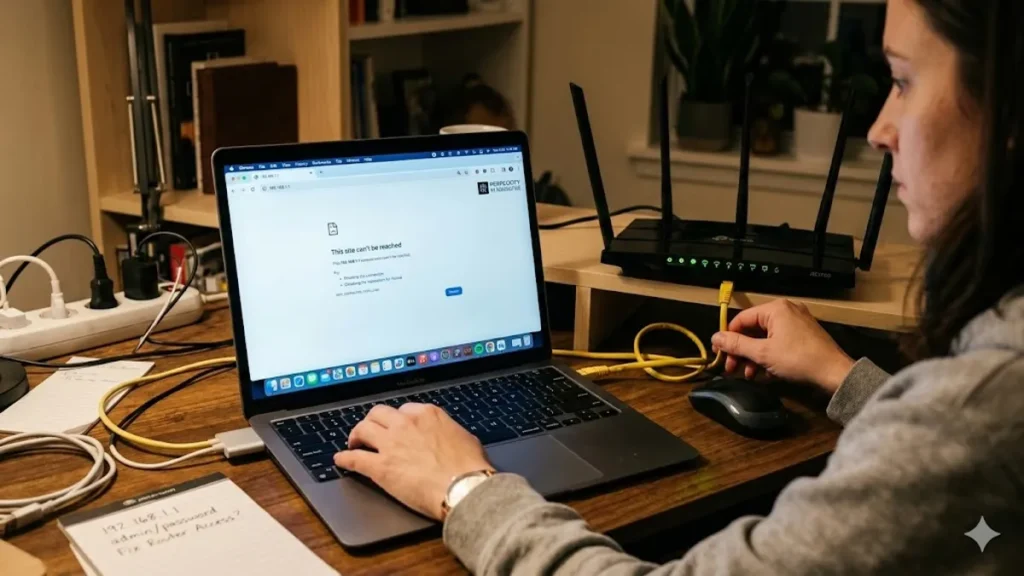
I have lost count of how many times I have heard the same frustrated sentence: the internet works perfectly, but 192.168.1.1 refuses to load. The browser spins. The page times out. The address bar flashes an error. Meanwhile, videos stream and email flows without interruption. The contradiction feels absurd.
The explanation is almost always simple. If you cannot access http://192.168.1.1 or mistakenly try http://192.168.1.1/0, the issue typically falls into one of four categories: the router’s IP address is different, your computer is not properly connected to the local network, browser security features are blocking plain HTTP connections, or a firewall or VPN is interfering with local traffic. The working internet connection proves your modem and external connectivity are functioning. The failure lies inside the local network.
Consumer routers have used private IP ranges since the 1990s, standardized under RFC 1918 by the Internet Engineering Task Force in 1996. Addresses such as 192.168.1.1, 192.168.0.1, and 10.0.0.1 are reserved for private networks. They are not websites on the public internet. They are doors into your own hardware.
Understanding why that door does not open requires looking at how routers assign gateway addresses, how browsers enforce HTTPS security, and how modern operating systems manage local connections.
Read: ChromiumFX: Embedding Chromium in .NET Apps
Understanding 192.168.1.1 and Private IP Addresses
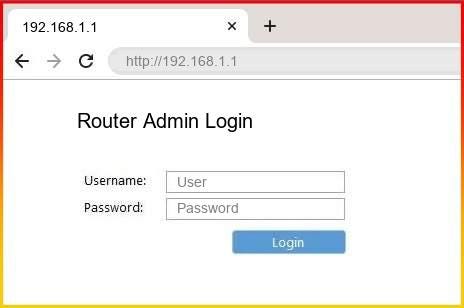
The address 192.168.1.1 is not magical. It is simply one possible default gateway within the private IP block defined by RFC 1918 in 1996. These ranges include 192.168.0.0 to 192.168.255.255 and 10.0.0.0 to 10.255.255.255. They exist exclusively for internal networks.
Your router acts as a gateway between your local network and the broader internet. When your computer needs to reach a website, it sends traffic to the default gateway. That gateway forwards requests outward through your internet service provider.
The administrative page hosted at 192.168.1.1 is served locally by the router itself. It does not require external internet connectivity. That is why you can have working internet yet still fail to load the router interface. The two functions are technically separate.
As the Internet Engineering Task Force explained in RFC 1918, private addressing was introduced to conserve global IPv4 space and allow internal network flexibility. Your router’s login page exists inside that private space.
Verifying the Correct Gateway Address
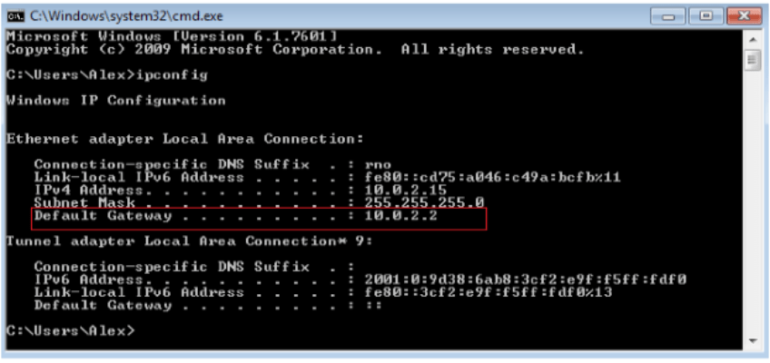
The most common mistake is assuming the router address is 192.168.1.1 when it is not.
On Windows, open Command Prompt and run:
ipconfig
Look for the line labeled “Default Gateway” under your active adapter. That IP address is the router’s actual address.
On macOS or Linux, use:
ip route
orifconfig
If the gateway reads 192.168.0.1 or 10.0.0.1, typing 192.168.1.1 will fail because it is the wrong destination.
According to Microsoft’s networking documentation, ipconfig retrieves the IP configuration assigned by DHCP servers or manual configuration. The default gateway field identifies the device that routes traffic outside the subnet.
Once you confirm the correct IP, enter it explicitly in your browser with HTTP, not HTTPS. A small difference in digits makes a complete difference in results.
Why the Internet Works but the Router Page Does Not

It feels contradictory, yet it is entirely logical.
Internet connectivity depends on the router’s WAN interface communicating with your ISP. Accessing 192.168.1.1 depends on your device communicating with the router’s LAN interface.
If your device is connected to a guest network, secondary access point, or mesh node configured differently, you may have internet access without direct administrative visibility.
In dual router setups, one router may assign IP addresses while another serves as a bridge. In such cases, 192.168.1.1 might belong to the upstream device rather than the unit sitting on your desk.
Networking expert Radia Perlman has described routing as layered logic rather than a single pathway. When the internet works but the admin page fails, the external layer is functioning while the internal management path is blocked or misdirected.
Understanding that separation removes much of the confusion.
Browser Security: HTTPS Only Mode and Automatic Upgrades
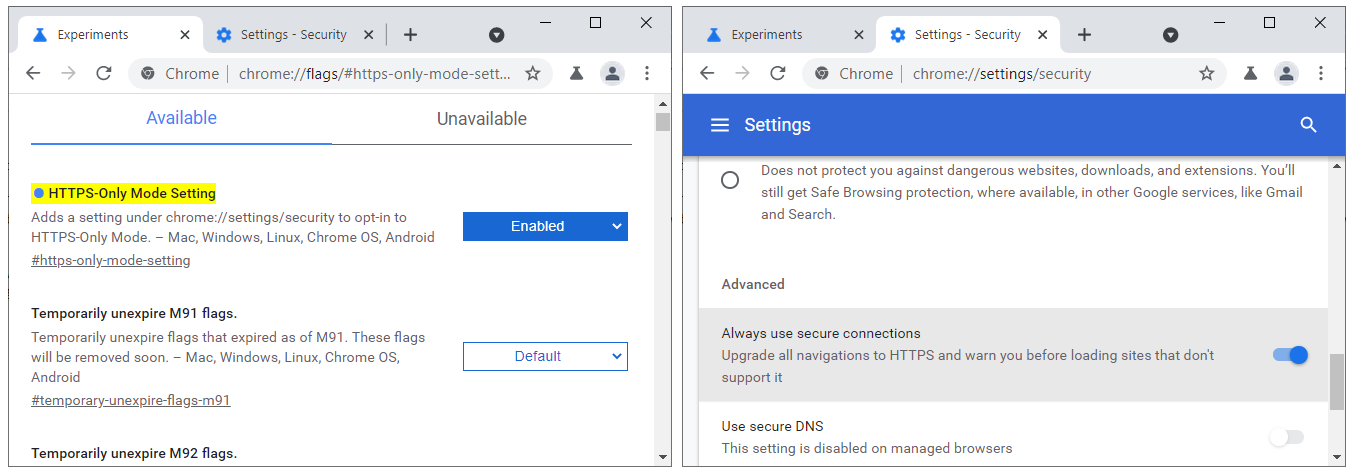
Modern browsers increasingly enforce encrypted connections by default. Google Chrome, Mozilla Firefox, and Microsoft Edge now offer HTTPS Only modes that automatically upgrade HTTP requests.
Most consumer routers still serve their admin interface over plain HTTP or use self signed certificates. When a browser forces HTTPS, it may block or refuse the connection entirely.
The Electronic Frontier Foundation has long advocated for HTTPS everywhere, emphasizing encryption as a standard of safety. Yet local router pages exist outside traditional public certificate systems. They often cannot present a certificate trusted by browsers.
To test whether this is the issue:
- Disable HTTPS Only mode temporarily.
- Turn off secure DNS features.
- Try an incognito window.
- Switch browsers.
Typing http:// explicitly can prevent automatic upgrades. Sometimes the problem is not the router at all but the browser protecting you from what it perceives as an insecure connection.
VPNs, Firewalls, and Proxy Interference
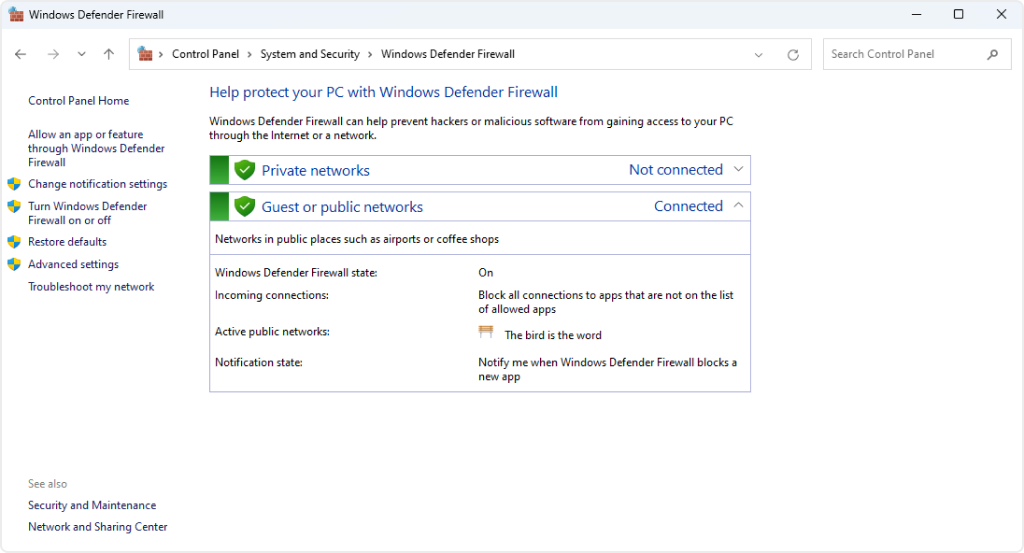
Virtual private networks reroute traffic through encrypted tunnels. In some configurations, they intercept or block access to local IP ranges.
Antivirus software with built in firewall capabilities may treat local router pages as suspicious destinations. Corporate endpoint protection tools often restrict administrative network access.
Disable VPN clients temporarily. Turn off antivirus firewall features for testing. Check system proxy settings.
The Cybersecurity and Infrastructure Security Agency advises that layered security tools can sometimes conflict with legitimate local services. Troubleshooting requires isolating each layer.
If access returns when these tools are disabled, you have identified the culprit. Reconfigure rather than permanently disabling security protections.
Ethernet Versus WiFi: Why a Cable Can Solve It

Switching from WiFi to Ethernet often resolves router access issues instantly.
Wireless networks may place users on guest VLANs or isolated segments. Ethernet typically connects directly to the primary LAN.
Plug one end of the cable into your computer and the other into a LAN port on the router. Disable WiFi temporarily to avoid dual routing confusion.
Run ipconfig again. Confirm that the Ethernet adapter shows a local IP within the same subnet as the router.
A wired connection eliminates signal interference, guest isolation, and roaming complexities. It creates a direct administrative path that WiFi configurations sometimes obscure.
Clearing DNS and Resetting Network Configuration
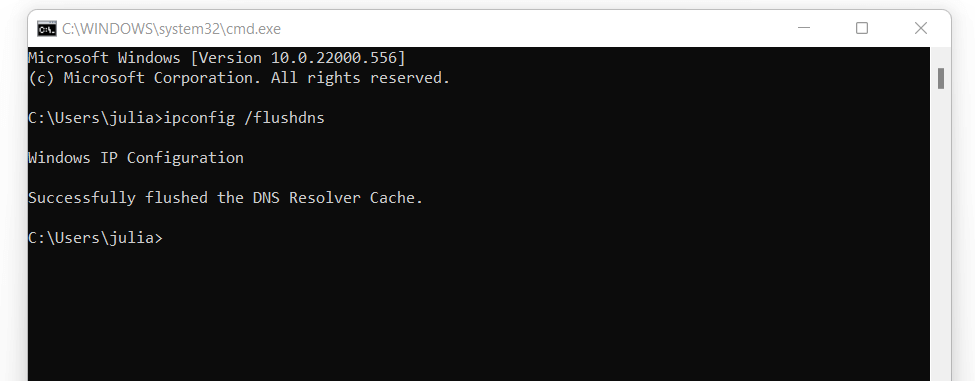
DNS caching rarely affects private IP access, yet clearing it removes potential confusion.
On Windows:ipconfig /flushdns
On macOS:sudo dscacheutil -flushcache
Restart the browser. Restart the computer if needed.
Network configuration conflicts can also be resolved by temporarily disabling and re enabling the adapter. In Windows 11, the Network Reset option reinstalls adapters and clears settings.
These steps remove stale routing entries or cached configurations that may interfere with local communication.
Default Router Credentials and Security
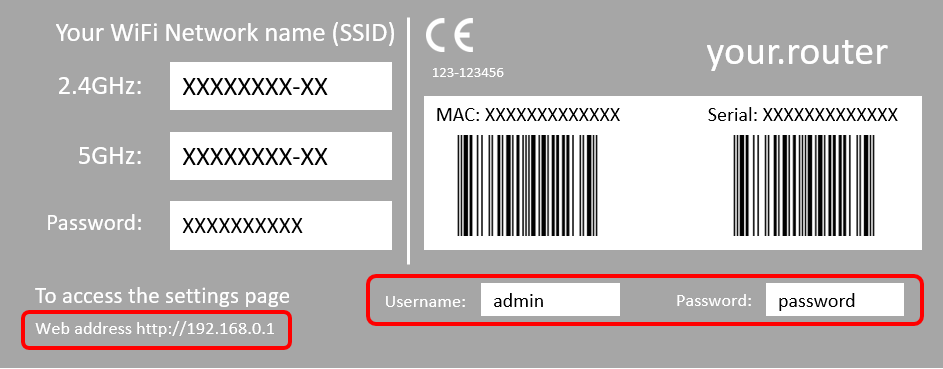
Even after reaching the login page, authentication may fail.
Common default credentials include:
| Brand | Default Username | Default Password |
|---|---|---|
| TP Link | admin | admin |
| D Link | admin | admin or blank |
| Netgear | admin | password |
| Linksys | admin | admin |
Manufacturers print credentials on stickers attached to the device.
If you changed the password previously and forgot it, a factory reset may be required. After resetting, change the password immediately.
In 2018, the Federal Trade Commission sued router manufacturer D Link for alleged security failures tied to weak default protections. The case highlighted the risks of leaving factory credentials unchanged.
Accessing the router is only the first step. Securing it is equally essential.
The Hard Reset: A Last Resort
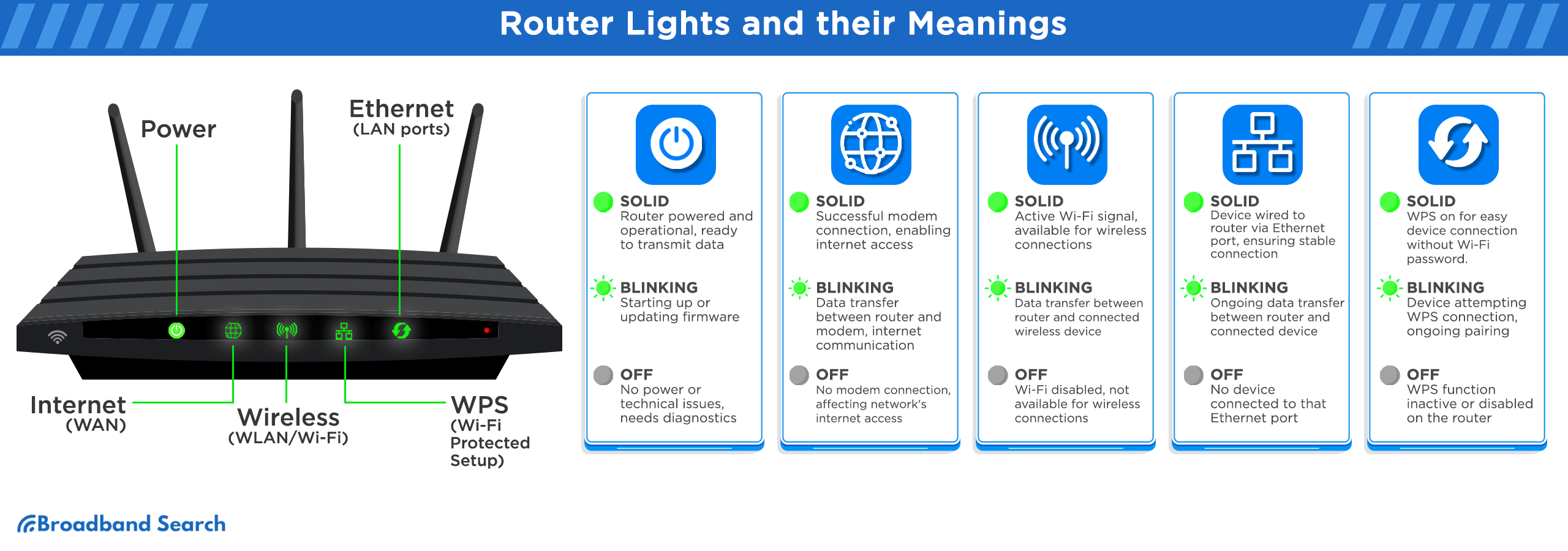
A hard reset restores factory defaults and erases all custom settings.
Locate the reset pinhole. Insert a paperclip and hold for 10 to 30 seconds until lights flash. Release and wait for reboot.
After reset:
- Connect via Ethernet or default WiFi credentials.
- Run ipconfig to confirm gateway.
- Log in with default username and password.
- Reconfigure internet and WiFi settings.
This step should follow all others. It solves forgotten credentials and misconfigurations but removes port forwards, custom DNS settings, and wireless passwords.
Resetting is powerful, yet disruptive. Use it carefully.
Quick Comparison of Common Causes
| Problem Category | Likely Symptom | Solution |
|---|---|---|
| Incorrect Gateway | Page not found | Check ipconfig default gateway |
| HTTPS Blocking | Secure connection error | Disable HTTPS Only mode |
| VPN Interference | Connection timeout | Disable VPN temporarily |
| Guest Network | Internet works but no admin access | Connect via Ethernet |
| Forgotten Password | Login rejected | Factory reset router |
Takeaways
- The router admin page is local, not part of the public internet.
- Verify the actual default gateway before assuming 192.168.1.1.
- Browser HTTPS enforcement frequently blocks router interfaces.
- VPNs and antivirus firewalls can prevent local IP access.
- Ethernet connections provide the most direct troubleshooting path.
- Factory resets restore access but erase custom configurations.
Conclusion
When 192.168.1.1 refuses to load, frustration often outweighs logic. The internet streams without interruption. Email loads. Yet the router page stands silent.
The explanation usually rests within the local network: an incorrect gateway address, browser security enforcement, or a layered protection tool intercepting traffic. Modern connectivity is intricate. Routers manage WAN and LAN traffic separately. Browsers enforce encryption aggressively. VPNs reshape routing paths.
Accessing a router is not about reaching the wider internet. It is about reaching the device sitting in your home. Once that distinction becomes clear, the troubleshooting path becomes methodical rather than mysterious.
In most cases, the solution is a few commands away. Confirm the gateway. Switch to Ethernet. Disable HTTPS Only mode. Reboot carefully. Reset only when necessary.
The blinking error page does not signal a broken internet. It signals a small misalignment inside your own network, waiting to be corrected.
FAQs
1. Why does http://192.168.1.1/0 not work?
The “/0” suffix is malformed and unnecessary. Use only the correct gateway IP, such as http://192.168.1.1.
2. Can I access my router without internet service?
Yes. The router’s admin page is local and does not require an active ISP connection.
3. Why does my browser force HTTPS on 192.168.1.1?
Modern browsers upgrade connections for security, which may block routers serving only HTTP.
4. What if ipconfig shows no default gateway?
Ensure you are connected to the correct network and that DHCP is enabled.
5. Will resetting my router delete WiFi passwords?
Yes. A factory reset erases all custom settings, including WiFi names and passwords.
