
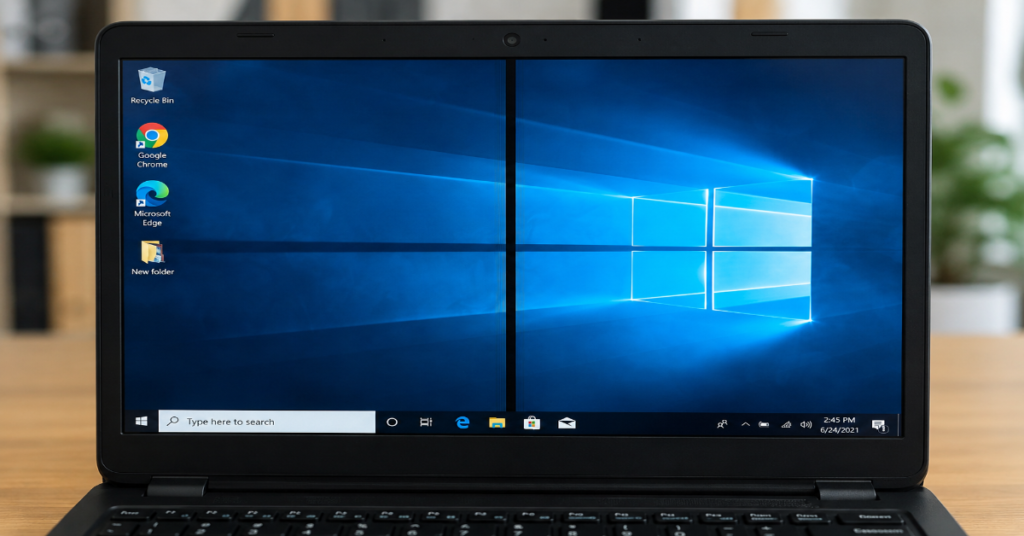
A black line on computer screen usually means one of four things: the display signal is unstable, the graphics driver is misbehaving, the cable connection is weak or the display panel itself is damaged. The first step is not to replace the screen. The first step is to separate a software problem from a hardware problem.
Restart the computer and watch the screen before Windows or macOS fully loads. If the black line appears during the manufacturer logo, BIOS screen or built-in diagnostics, the problem is probably at the hardware level. If it appears only after the operating system loads, drivers, refresh rate settings, display scaling or a problematic app may be involved.
This distinction matters because repair costs change quickly. A loose HDMI cable may cost nothing. A bad DisplayPort cable may cost a few dollars. A driver rollback may take ten minutes. A failed laptop LCD panel, however, can require a full screen replacement. Asurion lists loose display cables, faulty graphics drivers, resolution settings and physical screen damage as common causes of black lines on HP laptop screens. Microsoft also notes that screen flickering in Windows 10 and Windows 11 is often tied to display drivers or incompatible apps, which is why software checks should come before paid repair.
This guide explains the safest order to diagnose the issue, what each result means and when to stop troubleshooting and use a professional repair service.
What a Black Line Usually Means
A black line on computer screen can be vertical, horizontal, thin, thick, fixed, flickering or intermittent. Each pattern gives a clue.
A fixed vertical line often points to a panel column fault, damaged internal ribbon cable or display controller issue. A horizontal line can also come from panel damage, though it may sometimes be linked to refresh behavior or signal problems. A line that changes when you move a laptop lid often points toward an internal display cable. A line that appears only after Windows loads may be linked to the GPU driver, resolution, refresh rate or display scaling.
Dell recommends using integrated self-test or built-in diagnostics when a monitor shows abnormalities such as flickering, distortion, clarity issues, horizontal lines, vertical lines or color fade. That advice is important because built-in diagnostics remove the computer’s operating system from the test. If the line appears during the monitor’s own test pattern, the monitor itself is the likely source.
Quick Diagnosis Table
| Symptom | Most likely cause | What to test first | Repair urgency |
| Line appears during boot logo or BIOS | Panel, cable or display hardware | BIOS screen or hardware diagnostics | High |
| Line appears only after Windows loads | Driver, app conflict or display setting | Safe Mode, driver update, driver rollback | Medium |
| Line disappears on external monitor | Laptop LCD panel or internal ribbon cable | External monitor test | High |
| Line appears on external monitor too | GPU, driver or system software | Driver reinstall, GPU check | Medium to high |
| Line changes when laptop lid moves | Loose or damaged display cable | Lid-angle test | High |
| Line appears only on one external monitor | Cable, port or monitor fault | Swap cable and port | Low to medium |
Step 1: Restart and Check the Startup Screen
Start with a full restart. Do not only close the lid or wake the device from sleep. Watch carefully during the manufacturer logo, startup animation and login screen.
If the black line on computer screen is visible before the operating system loads, software is less likely. The graphics driver has not fully taken control yet, so the issue may be a display panel, internal cable, monitor board or GPU-level problem.
For HP laptops, HP community guidance recommends a full power reset, HP PC Hardware Diagnostics and a display video test when black lines appear on the touchscreen. The same guidance says that if lines appear during the display test, it confirms a hardware-level screen issue.
For Dell laptops, Dell’s LCD built-in self-test is specifically designed to diagnose display issues such as lines, black screens, flickering and cracked glass.
Step 2: Check Cables, Ports and Docking Stations
For desktop PCs and external monitors, cables are the easiest failure point to rule out.
Unplug the HDMI, DisplayPort, USB-C, DVI or VGA cable, then reconnect it firmly. If the monitor is connected through a dock, adapter or hub, bypass that accessory and connect directly to the computer. Try another cable if possible. Try another monitor port if the device has one.
Lenovo’s display troubleshooting guidance includes checking power, checking the logo or BIOS screen, checking cables and reviewing monitor settings. That sequence is practical because it begins with the external signal chain before assuming the screen is broken.
This is especially relevant for work-from-home setups where laptops may connect through USB-C docks, HDMI adapters or multi-monitor hubs. Perplexity AI Magazine’s remote work setup guide notes that two monitors are common for productivity workflows, which also increases the number of cables, ports and adapters that can fail.
Step 3: Test With an External Monitor
The external monitor test is the most useful step for laptops.
Connect the laptop to a TV or another monitor using HDMI, USB-C, DisplayPort or another supported output. Then duplicate the display. On Windows, press Windows + P and choose Duplicate.
Interpret the result carefully:
| External monitor result | What it means | Likely next step |
| Line does not appear externally | Laptop screen or internal display cable is likely faulty | Screen inspection or repair |
| Line appears externally too | Driver, GPU or software issue is more likely | Driver troubleshooting |
| External monitor shows no image | Output setting, cable, adapter or GPU issue | Try another cable or port |
| Line appears only on external monitor | External monitor, cable or port is likely faulty | Run monitor self-test |
Asurion gives the same logic: if the black line does not appear on an external screen, the laptop LCD panel is likely broken; if it appears on the external screen, the issue may involve the graphics card or software.
Step 4: Update, Roll Back or Reinstall the Graphics Driver
A black line on computer screen is not always physical damage. Display drivers translate operating-system instructions into GPU output. When a driver is outdated, corrupted or recently changed, visual artifacts can appear.
On Windows:
- Right-click Start.
- Select Device Manager.
- Expand Display adapters.
- Right-click the graphics device.
- Choose Update driver.
- Restart after installation.
If the problem began immediately after a driver update, use the Driver tab and choose Roll Back Driver where available. Microsoft’s Device Manager guidance explains that users can roll back a driver from the device Properties window and restart if prompted. Microsoft’s screen-flickering guide also recommends updating, rolling back or uninstalling display drivers depending on whether Task Manager flickers with the rest of the screen.
For users with older laptops, graphics updates should ideally come from the laptop maker first, then Intel, AMD or NVIDIA if the manufacturer driver is outdated. This is because laptop display behavior can depend on OEM-specific power, panel and graphics switching settings.
Step 5: Check Resolution and Refresh Rate
Incorrect display settings can sometimes make screen artifacts worse, especially on external monitors.
Open display settings and confirm that the screen is using its recommended resolution. Then check the refresh rate. A monitor designed for 60 Hz may behave badly if forced into an unsupported mode. A gaming monitor may show strange output if a cable cannot handle the chosen resolution and refresh rate combination.
This is where older cable standards matter. DVI, HDMI, DisplayPort and USB-C do not all support the same bandwidth. A DVI-based setup, for example, may still work for older office monitors but can be limiting for modern high-resolution displays. Perplexity AI Magazine’s DVI cable guide explains that DVI was introduced in 1999 to standardize digital video output for computers, monitors, projectors and some televisions.
Step 6: Run Brand Diagnostics Before Paying for Repair
Before replacing a screen, use built-in diagnostics where possible.
| Brand or device type | Useful diagnostic path | What a failed test suggests |
| HP laptop | HP PC Hardware Diagnostics, Display or Video Test | LCD or display hardware issue |
| Dell laptop | LCD Built-in Self-Test | Laptop screen issue |
| Dell external monitor | Built-in Diagnostics or BIST | Monitor panel or electronics issue |
| Lenovo laptop or monitor | BIOS/logo screen, cable checks, display troubleshooting | Cable, panel or settings issue |
| Windows PC | Safe Mode, Device Manager, driver rollback | Driver or app conflict |
Dell states that monitor BIST or built-in diagnostics help determine whether a screen abnormality is inherent to the Dell monitor. HP’s troubleshooting material for screen issues also recommends restarting, adjusting display resolution and updating graphics driver software for screen problems such as blurry, stretched or abnormal images.
When the Screen Is Probably Physically Damaged
A display panel becomes the likely cause when the black line is fixed, visible in BIOS, visible during hardware diagnostics or unchanged by cables and drivers.
Panel faults can come from pressure damage, a fall, heat stress, worn internal connections or manufacturing failure. On a laptop, the internal ribbon cable can also loosen over time because the hinge area moves every time the lid opens and closes. If the line flickers, moves or disappears when the lid angle changes, stop forcing the lid. Continued movement can worsen cable damage.
A failing panel usually does not heal. It may stay stable for months or spread quickly. If the device is under warranty, document the issue with photos and run the manufacturer diagnostics before contacting support.
Practical Repair Decisions
A repair decision should depend on device age, screen type, part availability and total cost.
| Device situation | Best decision |
| New laptop under warranty | Contact official support before opening the device |
| Older budget laptop with high repair cost | Compare screen replacement against used-device value |
| Desktop monitor with failed built-in test | Replace monitor unless repair is economical |
| External cable or adapter failure | Replace cable or adapter first |
| Gaming laptop with GPU artifacts on external display | Seek professional diagnosis quickly |
| Work laptop with sensitive data | Use authorized service or employer IT |
For a consumer HP laptop, the Asurion repair article points users toward professional diagnosis when the screen may need repair or replacement. For brand-specific support, HP’s support center and diagnostics remain the safer route than third-party disassembly for users without repair experience.
Risks and Trade-Offs
The main risk is replacing the wrong part.
A user may see a black line on computer screen and order a replacement panel, only to discover that the real fault was a cable, dock or driver. The opposite mistake is also common: spending hours reinstalling software when the line is visible in BIOS and the panel is already failing.
There is also a safety issue. Laptop screen assemblies can involve fragile bezels, adhesive strips, delicate ribbon cables and, in some models, integrated webcams or antennas. Opening the display can void warranty coverage or create new damage.
The best trade-off is to do non-invasive checks first: restart, external monitor, cable swap, Safe Mode, driver rollback and built-in diagnostics. After those steps, the evidence is usually strong enough to decide whether repair is justified.
Real-World Impact: Why This Problem Matters
A screen line is not only cosmetic. It can reduce productivity, hide spreadsheet values, interfere with design work, strain the eyes and make video calls look unprofessional. For students and remote workers, a laptop display may be the primary workspace.
The issue is also common because modern computing depends on mixed display environments: laptop panels, docking stations, external monitors, USB-C adapters, HDMI cables and graphics drivers all interact. A single weak point can create the same visible symptom.
Security can be a secondary concern too. Users searching for quick fixes may download unverified driver tools. That is risky. Safer repair practice means using Windows Device Manager, the PC maker’s official driver page or the GPU vendor’s official driver utility. Perplexity AI Magazine’s computer virus prevention guide stresses that device security depends heavily on updates, safe browsing habits and avoiding risky downloads.
The Future of Black Line on Computer Screen Troubleshooting in 2027
By 2027, display troubleshooting will likely become more automated, but not fully solved. Microsoft is already working on driver recovery improvements for Windows 11, including cloud-initiated rollback of faulty drivers, according to recent reporting on Windows Update changes expected to roll out gradually from September 2026.
That matters because driver regressions can create visual glitches that look like hardware failure. Better rollback systems could reduce unnecessary repair visits. Still, they will not fix a cracked LCD, worn ribbon cable or failing panel. Hardware diagnostics will remain important.
The likely 2027 repair pattern is hybrid: software will become better at identifying driver-related display instability, while manufacturers will continue pushing users toward built-in diagnostics for physical screen faults. The uncertainty is parts availability. As laptops become thinner and more integrated, screen assemblies can become harder for ordinary users to replace safely.
Takeaways
- A black line on computer screen should be diagnosed in stages, not guessed.
- Boot-screen visibility is one of the clearest signs of hardware trouble.
- External monitor testing is the fastest way to separate laptop-panel failure from GPU or software faults.
- Driver updates help when the line appears only after the operating system loads.
- Built-in diagnostics from Dell, HP and other manufacturers can prevent unnecessary part replacement.
- Cable and dock problems are common in multi-monitor work setups.
- Professional repair is the safer choice when the line appears in BIOS or diagnostic screens.
Conclusion
A black line on computer screen can be minor or serious, but the troubleshooting path should stay calm and evidence-based. Start with the simple checks: restart, reconnect cables, test another port and use an external monitor. Then move to software: update or roll back the display driver, check resolution and test in Safe Mode if needed.
The key question is where the line appears. If it appears before the operating system loads or during built-in diagnostics, the problem is probably physical. If it appears only inside Windows or after a driver change, software remains a realistic cause.
Do not rush into a screen replacement. A careful ten-minute diagnosis can separate a loose cable from a failing panel. When the evidence points to hardware, use manufacturer diagnostics, document the issue and choose an authorized or trusted repair path.
Structured FAQ
Why is there a black line on my computer screen?
The most common causes are a loose display cable, outdated or corrupted graphics driver, incorrect display settings, damaged internal ribbon cable or failing LCD panel. Start by restarting the computer and checking whether the line appears during boot.
Can a black line on computer screen be fixed without replacing the display?
Yes, if the cause is a cable, driver, refresh rate or software issue. If the line appears in BIOS, built-in diagnostics or an external monitor test confirms the laptop panel is faulty, replacement may be required.
How do I know if the black line is a graphics card problem?
Connect the computer to another monitor. If the same line appears on the external monitor, the issue may involve the GPU, driver or operating system. If the external display is clean, the original screen or cable is more likely faulty.
Should I update or roll back my graphics driver?
Update the driver if it is old or corrupted. Roll it back if the line appeared immediately after a driver update. Microsoft supports driver rollback through Device Manager when a previous driver is available.
Does a black vertical line mean the screen is broken?
Often, but not always. A fixed vertical line can indicate panel or ribbon-cable damage. Test with an external monitor and run built-in diagnostics before deciding that the screen needs replacement.
Is it safe to press on the screen to fix the line?
No. Pressing the display can worsen panel damage. If the line changes when the lid moves, the internal cable may be loose or damaged, and the device should be inspected carefully.
When should I contact repair support?
Contact repair support if the line appears during boot, BIOS or diagnostics, if the device is under warranty or if the external monitor test points to a failed laptop screen.
Methodology
This article was prepared from the provided production brief and keyword detail, then checked against current manufacturer and support sources. The troubleshooting flow prioritizes non-invasive steps first: restart, cable checks, external monitor testing, driver updates, driver rollback and built-in diagnostics. Sources used for validation include Microsoft support guidance, Dell diagnostic documentation, HP support material, Lenovo troubleshooting guidance and Asurion’s repair guidance.
References
Asurion. (2025). How to fix a black line on your HP laptop screen.
Dell Technologies. (2026). How to test your Dell laptop screen.
Dell Technologies. (n.d.). How to run a diagnostic test on a Dell monitor.
HP Support. (n.d.). Troubleshooting screen issues in Windows.
Lenovo Support. (n.d.). Troubleshooting display or monitor issues.
Microsoft Support. (n.d.). Troubleshoot screen flickering in Windows.
Microsoft Support. (n.d.). Update drivers through Device Manager in Windows.
Perplexity AI Magazine. (2026). DVI cable explained: Types, limits and uses.
Perplexity AI Magazine. (2026). Remote work setup: Expert guide for productivity.
Perplexity AI Magazine. (2026). Computer virus prevention tips: How to protect your devices from modern threats.
