
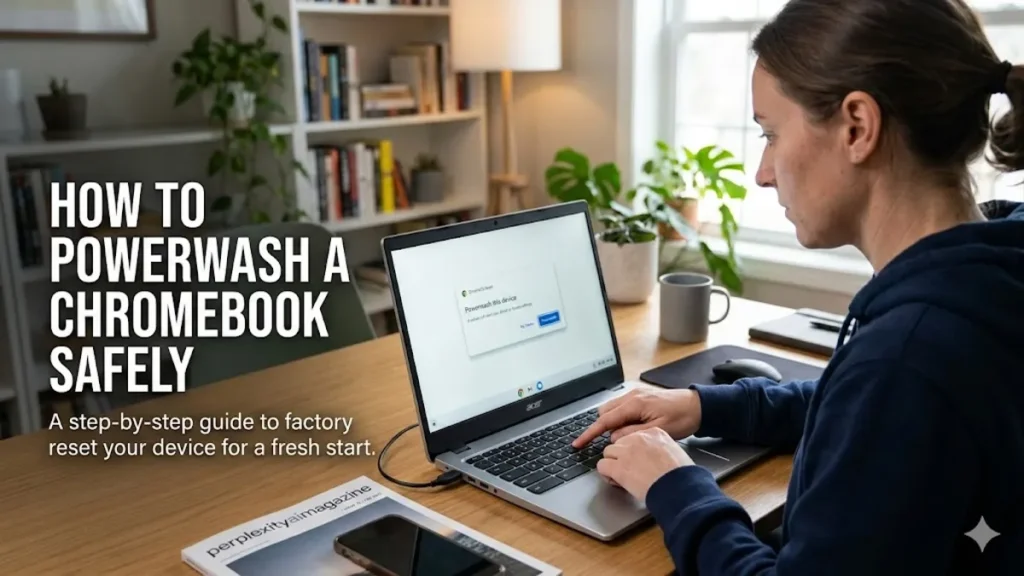
I have come to think of a Chromebook Powerwash not as a technical function, but as a moment of digital reckoning. Within a few clicks or keystrokes, everything local disappears. Files, settings, user profiles, and traces of daily use vanish, leaving behind a clean, almost sterile operating system. For many users, the process sounds intimidating. In reality, it is one of the simplest yet most consequential actions you can take on Chrome OS.
If you are searching for how to powerwash a Chromebook, the answer is straightforward: it is a factory reset that wipes all local data and reinstalls a fresh version of Chrome OS. But the deeper story lies in when and why to do it, and what exactly is erased or preserved.
Chromebooks are designed around cloud computing, which changes the stakes. Unlike traditional laptops, most of your important data likely lives online in your Google account. That means a Powerwash feels less like destruction and more like renewal. Still, anything stored locally is permanently lost.
This article explains the three primary methods of Powerwashing, the logic behind each, and the real consequences of pressing reset. It also explores when the reset is necessary and when it is avoidable, offering a full picture grounded in both technical guidance and everyday use.
Understanding What Powerwashing Actually Does
Powerwashing a Chromebook is often described as a factory reset, but that phrase does not fully capture its scope. When I examine the process closely, I see it as a complete purge of local identity. Chrome OS removes user accounts, deletes stored files, resets system settings, and restores the operating system to its original state.
Unlike Windows or macOS resets, Chrome OS is tightly integrated with cloud services. That distinction matters. According to Google’s official documentation, Powerwash removes “all user data stored locally on the Chromebook” while preserving anything synced to a Google account (Google, 2023).
The result is a device that behaves as if it were just taken out of the box. Yet the cloud quickly restores much of your digital life after sign in. Bookmarks, extensions, and documents reappear almost instantly if sync was enabled.
Technology analyst Dieter Bohn once noted, “Chromebooks are built to assume your data lives elsewhere, which makes resetting them far less disruptive than traditional PCs” (Bohn, 2020). That design philosophy explains why Powerwashing is both simple and powerful.
Still, the simplicity can be deceptive. Anything not backed up is gone permanently. There is no recovery process.
Preparing Before You Reset
Before initiating a Powerwash, I always pause. The preparation stage is where mistakes are either avoided or guaranteed. Chrome OS may be cloud-centric, but not everything is automatically protected.
The most critical step is backing up local files. Downloads folders, offline documents, and media files must be moved to Google Drive, a USB device, or another cloud service. Users often forget that offline files do not sync automatically.
Chrome sync should also be verified. When enabled, it saves bookmarks, browsing history, extensions, and passwords. Without sync, these elements vanish during a reset.
For users who rely on Linux apps through Crostini, the process becomes more complex. Linux containers must be manually backed up through system settings. Otherwise, development environments and data are permanently erased.
“People assume everything is in the cloud, but that is not always true,” said security researcher Brian Krebs. “The danger is in what you forget to save locally” (Krebs, 2021).
Backup Checklist
| Item Type | Backup Method | Risk if Not Backed Up |
|---|---|---|
| Downloads folder | Move to Google Drive or USB | Permanent loss |
| Chrome settings | Enable sync | Loss of bookmarks, history |
| Linux environment | Use built-in backup tool | Full environment deletion |
| Android app data | App-specific backup | Partial or total loss |
Preparation is not optional. It is the difference between a clean reset and irreversible regret.
Method 1: Powerwashing from Settings
This is the most straightforward method and the one I recommend when the Chromebook is functioning normally. It requires access to the system through a logged-in account.
The process begins by opening the system tray in the bottom-right corner. From there, you access Settings, scroll to Advanced, and locate the Reset settings section. Selecting Powerwash initiates the reset sequence.
After clicking Restart, the Chromebook reboots and presents a confirmation screen. Once confirmed, the device wipes itself and returns to the setup interface.
What stands out in this method is its predictability. Everything happens in a controlled environment, with clear prompts and minimal risk of interruption.
According to Google support documentation, this method is “the preferred approach for most users” because it ensures a stable reset process (Google, 2023).
I have found that this approach feels almost routine, especially on newer devices. The system handles everything smoothly, and within minutes, the Chromebook is ready for reconfiguration.
Method 2: Powerwashing from the Login Screen
There are moments when access to the system is no longer possible. Forgotten passwords, corrupted profiles, or login errors can lock users out completely. This is where the second method becomes essential.
The process begins at the login screen. By pressing Ctrl + Alt + Shift + R, a hidden reset menu appears. This shortcut is one of Chrome OS’s most useful features, allowing a reset without authentication.
After selecting Restart, the system presents the Powerwash option. Once confirmed, the reset proceeds just like the settings-based method.
This approach is particularly valuable for users who cannot recover their credentials. However, it comes with a critical limitation. After the reset, you must still sign in with a valid Google account. Without access to account recovery, the device remains unusable.
Cybersecurity expert Troy Hunt has emphasized the importance of account access, stating, “Resetting a device does not eliminate the need for identity verification. Your account is still the key” (Hunt, 2022).
This method highlights a central truth about Chromebooks: the device is secondary. The account is primary.
Method 3: Hard Powerwash Through Recovery Mode
There are rare cases when a Chromebook becomes unresponsive or fails to boot properly. In these situations, a standard reset is not possible. A hardware-based reset becomes necessary.
This method involves shutting down the device completely, then pressing Esc + Refresh while tapping the Power button. This key combination triggers recovery mode, which displays a warning screen.
From there, users can reinstall Chrome OS, effectively achieving a Powerwash-like outcome. The process is slightly more technical but still guided by on-screen instructions.
I see this method as a last resort. It is designed for system-level issues rather than routine resets. When used correctly, it can revive a malfunctioning Chromebook.
Comparison of Powerwash Methods
| Method | Best Use Case | Complexity | Risk Level |
|---|---|---|---|
| Settings | Normal operation | Low | Minimal |
| Login screen | Locked out | Medium | Moderate |
| Recovery mode | System failure | High | Higher if misused |
Each method serves a distinct purpose, and understanding the difference is crucial.
What You Lose and What You Keep
The emotional weight of a Powerwash comes from what disappears. I find it useful to divide the outcome into two categories: permanent loss and preserved data.
Everything stored locally is erased. This includes files, offline app data, browser caches, and device-specific settings. Once deleted, these elements cannot be recovered.
However, anything tied to your Google account remains intact. Gmail, Google Drive, Photos, and synced Chrome settings return after sign in. This distinction reflects Chrome OS’s cloud-first philosophy.
“Chromebooks redefine the idea of ownership,” wrote journalist Kevin Roose. “Your data belongs to your account, not your device” (Roose, 2019).
This design makes Powerwashing less destructive than it initially appears. Still, it demands careful preparation.
When You Should Powerwash and When You Should Not
Powerwashing is not a maintenance routine. It is a targeted solution for specific problems.
I recommend it in three primary situations: transferring ownership, resolving persistent software issues, and addressing security concerns. In each case, the goal is to eliminate existing configurations and start fresh.
However, it is unnecessary for minor slowdowns or routine performance issues. Restarting the device or clearing browser data often resolves these problems without the need for a full reset.
Overusing Powerwash can create unnecessary inconvenience. Each reset requires reconfiguration, reinstallation, and potential data recovery.
Technology columnist David Pogue has observed, “The simplest fix is not always the most appropriate. Resetting should be intentional, not habitual” (Pogue, 2021).
Understanding this balance is key to using Powerwash effectively.
Managed Devices and Hidden Limitations
Not all Chromebooks operate under the same rules. Devices issued by schools or workplaces often fall under administrative control. In these cases, Powerwashing does not remove management policies.
After a reset, the device may automatically re-enroll in the organization’s system. This means restrictions, apps, and settings return immediately.
For users expecting a fresh start, this can be surprising. The reset clears local data but does not override institutional control.
Google’s enterprise documentation makes this clear: “Powerwash does not remove device enrollment” (Google, 2023).
This distinction is crucial, especially for students and employees. The reset affects the device, not the organization’s authority over it.
Takeaways
- Powerwashing completely erases all local data and resets Chrome OS to factory condition
- Cloud-synced data remains safe and restores after sign in
- Three methods exist, each suited to different situations
- Backup is essential before initiating any reset
- Powerwash is best used for ownership transfer or serious system issues
- Managed devices may retain restrictions even after reset
- The process is simple, but the consequences are permanent
Conclusion
I have come to see Powerwashing a Chromebook as both a technical procedure and a moment of clarity. It strips the device down to its essentials, removing clutter, errors, and history in one decisive action. Yet it also forces a kind of awareness. What matters is not what lives on the machine, but what lives in the cloud.
For most users, the process is surprisingly painless. Chrome OS rebuilds your environment quickly, restoring familiar tools and data within minutes. Still, the importance of preparation cannot be overstated. A single overlooked file can disappear forever.
Powerwashing is not something to fear, but it is something to respect. Used wisely, it can solve persistent problems and extend the life of a Chromebook. Used carelessly, it can erase more than intended.
In the end, the reset reflects a broader truth about modern computing. Devices are temporary. Data is portable. And sometimes, starting fresh is the most effective solution of all.
READ: Cloud Security Tips: Practical Ways to Protect Data
FAQs
What is Powerwash on a Chromebook?
Powerwash is a factory reset that removes all local data, user accounts, and settings while reinstalling a clean version of Chrome OS.
Will I lose my Google Drive files?
No. Files stored in Google Drive or synced services remain محفوظ and will reappear after you sign back in.
Can I Powerwash without a password?
Yes. Use the Ctrl + Alt + Shift + R shortcut from the login screen to initiate the reset without logging in.
Does Powerwash remove viruses or malware?
Yes. It removes all local software, including malicious files or extensions, by restoring the system to its original state.
Can I undo a Powerwash?
No. Once completed, the process cannot be reversed, and any unsaved local data is permanently deleted.
