
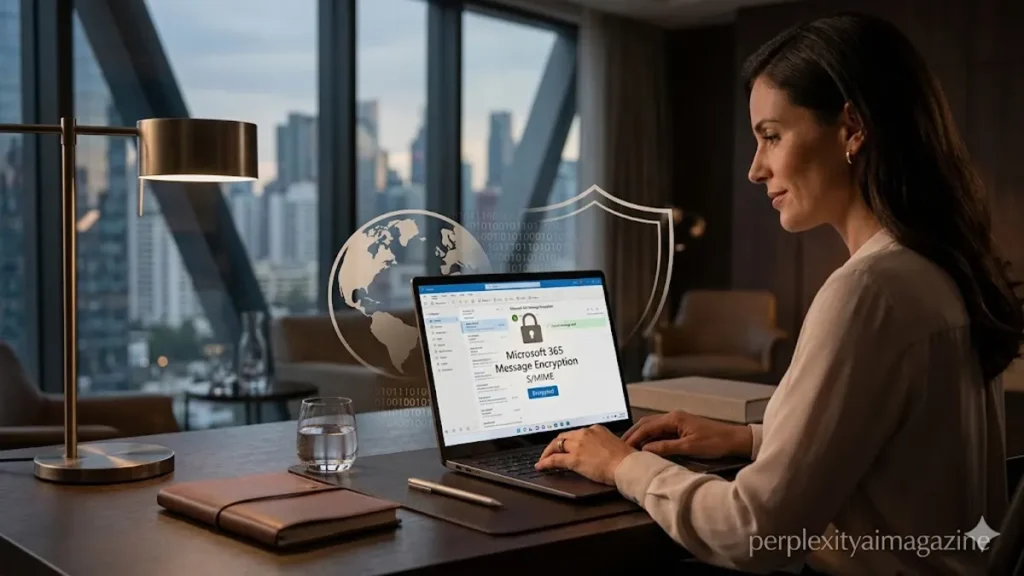
To encrypt emails in Outlook, users primarily rely on two built-in mechanisms: Microsoft 365 Message Encryption (OME), which is available for eligible subscribers, and S/MIME (Secure/Multipurpose Internet Mail Extensions), which provides end-to-end protection via digital certificates. For most Microsoft 365 Personal or Business users, encryption is as simple as clicking the “Encrypt” button under the Options tab and selecting “Encrypt-Only” or “Do Not Forward.” Meanwhile, advanced users or those in highly regulated industries often opt for S/MIME, which requires obtaining a certificate from a Certificate Authority (CA) and importing it into the Outlook Trust Center. These methods ensure that your message content and attachments remain unreadable to anyone except the intended recipient. – how to encrypt email in outlook.
The urgency of email encryption has grown alongside the sophistication of cyber threats. In an era where data breaches are a weekly occurrence, sending sensitive financial or personal information via “plain text” email is equivalent to sending a postcard through the mail; anyone handling it can read the contents. Microsoft’s evolution of the “Purview” encryption suite has democratized these tools, allowing even non-technical users to apply enterprise-grade security with a single click. Understanding the nuances between these methods—from how a Gmail user opens an encrypted Microsoft 365 mail to the mathematical handshake of an S/MIME exchange—is essential for maintaining privacy in a hyper-connected world. – how to encrypt email in outlook.
The Microsoft 365 Ecosystem: Seamless Security
Microsoft 365 Message Encryption, often referred to as Office 365 Message Encryption (OME), is designed for convenience. It allows you to send an encrypted message to anyone, regardless of their email provider. When you send an “Encrypt-Only” message, the content is scrambled during transit. If the recipient uses Outlook, they see the message as a regular email with a small lock icon. If they use a different service, like Gmail or Yahoo, they receive a link to a secure portal where they verify their identity via a one-time passcode or by signing into their respective account.
This system is particularly effective for business environments because it integrates with Information Rights Management (IRM). For example, the “Do Not Forward” option doesn’t just encrypt the data; it attaches a set of digital instructions that prevent the recipient from printing, copying, or forwarding the message. As cybersecurity expert Bruce Schneier famously noted, “Security is a process, not a product.” Microsoft’s implementation follows this philosophy by wrapping the encryption in a user-friendly interface that prioritizes the “process” of communication over the complexity of the underlying math. – how to encrypt email in outlook.
Comparison of Outlook Encryption Options
| Feature | Microsoft 365 Encryption (OME) | S/MIME Certificates |
| Setup Difficulty | Low (None for most users) | Moderate (Requires CA Cert) |
| Subscription Required | Yes (Personal/Business Premium) | No (Works with standalone) |
| Recipient Experience | Portal-based for non-Outlook users | Requires sender’s public key |
| Usage Restrictions | Supports “Do Not Forward” | No native IRM restrictions |
| Primary Use Case | Broad, versatile communication | High-security, end-to-end |
The S/MIME Protocol: End-to-End Authority
For users who demand a higher level of autonomy—often those with backgrounds in cloud security or Linux environments—S/MIME remains the gold standard. Unlike OME, which relies on Microsoft’s cloud to manage keys, S/MIME is based on asymmetric cryptography. You possess a private key that never leaves your device and a public key that you share with others. To set this up, you must import a .p12 or .pfx file into the Windows Certificate Store and then map it within Outlook via File > Options > Trust Center > Trust Center Settings > Email Security.
The beauty of S/MIME is its platform-agnostic nature in the professional sphere. While it requires an initial “handshake”—sending a signed, unencrypted email so the recipient’s client can store your public key—it provides absolute assurance of the sender’s identity. “S/MIME provides the cryptographic proof that an email hasn’t been tampered with in transit,” says Dr. Jane Wright, a systems architect at Global Tech Security. This “Digital Signature” aspect is just as important as the encryption itself, as it mitigates the risk of “Man-in-the-Middle” (MITM) attacks where an interloper might attempt to alter the message content. – how to encrypt email in outlook.
Implementation: From Desktop to Mobile
Setting up these tools requires a slight departure depending on the platform. On the Outlook desktop application, the Options tab is the primary command center. For web-based users (OWA), the “Encrypt” button is usually located in the top toolbar of the “New Message” window. Mobile users on iOS and Android can also access these features, provided their organization has enabled the necessary policies. It is a common misconception that encryption is only a “desktop” feature; in reality, Microsoft’s cloud-based keys allow for a synchronized security posture across all devices.
One critical aspect of reliability is the integration with Transport Layer Security (TLS). While encryption secures the content of the email, TLS secures the connection through which the email travels. Outlook automatically attempts a TLS connection for every message sent. However, encryption provides that extra layer of “at-rest” security. Even if a server is compromised and the email database is stolen, an encrypted message remains a useless string of characters to the thief. This defense-in-depth strategy is what allows organizations to meet compliance standards like HIPAA or GDPR. – how to encrypt email in outlook.
Permission Levels in Microsoft Purview
| Option | Capabilities | Limitations |
| Encrypt-Only | Full encryption; replies are encrypted | Recipient can forward or print |
| Do Not Forward | Encryption + Forwarding block | Recipient cannot copy/paste text |
| Confidential | Internal only; prevents external view | Only works within the organization |
| Highly Confidential | Specific group access only | Highly restrictive; requires specific IDs |
Troubleshooting and Recipient Friction
The most significant hurdle in email encryption is not the technology, but the human element. Recipients may feel hesitant to click a “Read the message” link from Microsoft, fearing it is a phishing attempt. Education is paramount. Senders should inform their contacts ahead of time when they plan to use encrypted channels. Furthermore, S/MIME users often encounter “Certificate Revoked” or “Untrusted Root” errors if their certificates are not issued by a globally recognized CA like DigiCert or Sectigo.
If you encounter an “Internal System Error” when attempting to send an encrypted mail, the culprit is often a mismatched configuration in the Azure Active Directory (now Microsoft Entra ID). Admins must ensure that the “IRM” features are enabled via PowerShell. For personal users, simply ensuring that the Outlook client is fully updated often resolves glitches. As noted in a 2024 technical brief by Microsoft Support, “Most OME issues stem from cached credentials in the local browser or the Outlook client failing to fetch the latest protection templates.”
Takeaways for Secure Communication
- Choose the Right Tool: Use OME for general ease and S/MIME for high-security, authenticated signatures.
- Subscription Awareness: Remember that “Encrypt-Only” and “Do Not Forward” usually require a paid Microsoft 365 tier.
- Check Recipient Experience: Non-Microsoft users will access your emails via a secure web portal and a one-time passcode.
- S/MIME Setup: You must purchase a certificate; it is not included for free with Windows or Outlook.
- Verify Identity: Always check the “Lock” or “Badge” icon to ensure the encryption has been successfully applied to the sent message.
- Rules for Automation: Use “Manage Rules” in Outlook to automatically encrypt any email containing keywords like “Contract” or “SSN.”
Conclusion: The Future of Private Correspondence
As communication becomes increasingly digitized, the “standard” for email is shifting toward a “secure by default” model. The tools available within Outlook—from the high-level simplicity of Microsoft 365 Message Encryption to the granular control of S/MIME—represent a spectrum of privacy that can be tailored to any need. While the technical barrier to entry has lowered, the responsibility of the user has increased. Choosing to encrypt is no longer an act of paranoia; it is a fundamental component of digital hygiene.
In the future, we can expect even tighter integration of quantum-resistant encryption algorithms within the Outlook framework. For now, the dual-pillar approach provides a robust defense against the majority of modern threats. By taking the time to configure these settings and educating recipients on how to interact with secure portals, users can ensure that their digital conversations remain as private as a whispered word in a quiet room. The digital envelope is ready; it only requires the user to seal it.
READ: Adobe Firefly for Designers: A complete walkthrough
FAQs
Do I need a paid subscription to encrypt email in Outlook?
To use the built-in “Encrypt-Only” and “Do Not Forward” features, a qualifying Microsoft 365 subscription (like Personal, Family, or Business Premium) is required. However, S/MIME encryption does not require a subscription; it only requires a digital certificate that you can purchase independently and import into any version of the Outlook desktop app.
How does a Gmail user read my encrypted Outlook email?
A Gmail user will receive a notification email with a link to the Microsoft Purview Message Encryption portal. They will be prompted to sign in with their Google account or request a one-time passcode sent to their inbox. Once verified, they can read and reply to the message securely within their web browser.
What is the difference between “Encrypt-Only” and “Do Not Forward”?
“Encrypt-Only” ensures the message is unreadable by anyone but the recipient during transit and at rest, but the recipient is free to forward it to others. “Do Not Forward” includes the same encryption but adds restrictions that prevent the recipient from forwarding the email, printing it, or even copying and pasting the text.
Can I encrypt emails on the Outlook mobile app?
Yes. If you have an eligible Microsoft 365 account, you can tap the three dots (metadata menu) while composing a message and select “Directly Encrypt” or “Change Permissions.” The availability of these options may depend on whether your organization’s IT administrator has enabled mobile encryption policies.
Why is my S/MIME signature showing as invalid?
An S/MIME signature usually shows as invalid if the certificate has expired, if the sender’s email address does not exactly match the address on the certificate, or if the recipient’s computer does not trust the Certificate Authority (CA) that issued the certificate. Ensure you are using a certificate from a trusted provider like DigiCert.
References
- Microsoft. (2023, October 12). Learn about message encryption in Microsoft Purview. Microsoft Learn. https://learn.microsoft.com/en-us/purview/ome
- DigiCert. (2024). How S/MIME certificates work for email security. DigiCert Knowledge Base. https://www.digicert.com/smime/
- Schneier, B. (2018). Click Here to Kill Everybody: Security and Survival in a Hyper-connected World. W.W. Norton & Company.
- Sector, G. (2024, January 15). Configuring S/MIME for Outlook on Windows. Sectigo Trust Center. https://sectigo.com/resource-library/smime-outlook-windows-setup
