
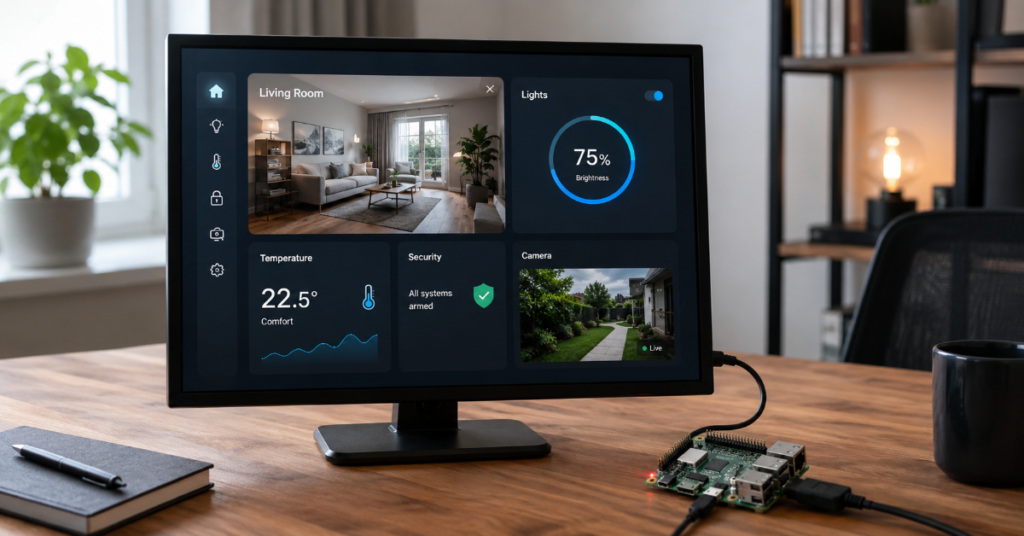
FullPageOS is a Raspberry Pi operating system built to display one webpage full screen as soon as the device starts. It includes Chromium and the startup scripts needed to load a chosen URL at boot, which makes it useful for dashboards, digital signage, menus, wall displays and simple browser-based kiosks. The project describes itself as a Raspberry Pi distribution that displays one webpage in full screen and ships with Chromium plus boot scripts for that purpose.
That simplicity is why many people choose it over building a kiosk manually on Raspberry Pi OS. Instead of installing a desktop environment, configuring Chromium launch flags, creating autostart files and debugging display behavior from scratch, FullPageOS gives users a ready-made image focused on one job.
The typical workflow is straightforward. Flash the image to a microSD card, configure the webpage URL, set Wi Fi if needed, boot the Raspberry Pi and let the browser fill the screen. The current project README notes that Wi Fi configuration is handled through a wifi.nmconnection file on the first partition of the flashed card, while the displayed webpage can be changed through /boot/firmware/fullpageos.txt.
This guide explains what FullPageOS does, how to install it on Raspberry Pi, how well it works on Raspberry Pi 4, what to do with login-protected dashboards and how to troubleshoot the most common startup problems.
What Is FullPageOS?
FullPageOS is a purpose-built Raspberry Pi image for launching Chromium in full-screen mode at startup. It is not a general desktop operating system, a content management system or a full commercial signage platform. Its value comes from reducing a Raspberry Pi to a single visible task: open a webpage and keep it on screen.
The project began as a fork of OctoPi and later joined the group of distributions that use CustomPiOS. Its official GitHub README states that FullPageOS is free, open source and maintained by Guy Sheffer.
In practical terms, it is best understood as a lightweight kiosk layer on top of Raspberry Pi infrastructure. The operating system handles booting, networking, browser launch and full-screen presentation. Your webpage handles the actual content.
That content can be:
• a Grafana dashboard
• a Home Assistant control panel
• a restaurant menu
• a production status board
• a queue display
• a school announcement page
• a web-based clock or calendar
• a network monitoring screen
• a custom internal dashboard
The project also includes FullPageDashboard as the default app, allowing multiple tabs to switch automatically.
How FullPageOS Works
FullPageOS works by starting Chromium automatically after the Raspberry Pi boots. Chromium is launched in a full-screen browser session, then directed to the configured webpage.
The system depends on four main parts:
| Component | Role in FullPageOS |
| Raspberry Pi hardware | Runs the operating system and outputs HDMI video |
| microSD card | Stores the FullPageOS image and boot configuration |
| Network connection | Loads remote dashboards or web apps |
| Chromium browser | Displays the target webpage in full-screen mode |
The key configuration file for the displayed page is /boot/firmware/fullpageos.txt, according to the current README. Older guides may mention /boot/fullpageos.txt, but the current GitHub documentation points to the firmware path.
This difference matters. Many outdated tutorials still refer to older Raspberry Pi OS filesystem paths. If a user edits the wrong file path, the device may boot but fail to load the expected page.
FullPageOS Requirements
The official requirements are modest. The README lists Raspberry Pi 2 and newer or an Armbian device, a Class 10 SD card of 4GB or larger and a 2A power supply. Older Raspberry Pis are not currently supported.
| Requirement | Practical Recommendation |
| Raspberry Pi model | Raspberry Pi 4 for best general use |
| microSD card | 16GB or larger Class 10 card |
| Power supply | Official or high-quality 5V power supply |
| Display | HDMI monitor, TV or signage screen |
| Network | Ethernet preferred, Wi Fi acceptable |
| Cooling | Passive case or small fan for 24/7 operation |
A Raspberry Pi 4 is more than enough for most dashboards, menus and static web apps. The bigger question is not whether the device can run FullPageOS. It is whether the webpage itself is heavy.
A Grafana dashboard with frequent refreshes, large charts and live panels will behave differently from a simple HTML menu. Browser workload matters more than the operating system once the kiosk is running.
Does FullPageOS Work Well on Raspberry Pi 4?
Yes, Raspberry Pi 4 is a sensible choice for FullPageOS. It has stronger CPU performance, more memory options and better display support than older Raspberry Pi boards. For a single full-screen webpage, it is usually enough.
The official project requirements include Raspberry Pi 2 and newer, which covers Raspberry Pi 4.
However, users should treat Raspberry Pi 4 as the practical baseline for serious 24/7 kiosk work. Raspberry Pi Zero 2 W or Raspberry Pi 3 may work for simpler pages, but dashboards with JavaScript-heavy panels can expose performance limits.
| Use Case | Raspberry Pi 4 Suitability |
| Static menu page | Excellent |
| Basic status dashboard | Excellent |
| Grafana or analytics dashboard | Good, depending on panel load |
| Video-heavy webpage | Mixed |
| Multiple rotating URLs | Good |
| Login-protected business dashboard | Possible but needs planning |
| Public interactive kiosk | Needs extra hardening |
The best setup is Raspberry Pi 4 with Ethernet, a reliable microSD card, an official power supply and a dashboard designed for unattended display.
Step-by-Step FullPageOS Install Guide for Raspberry Pi
Step 1: Download the FullPageOS Image
Start from the official FullPageOS GitHub repository or the linked official mirror. The README points users to the official mirror and notes that nightly builds are available.
Use caution with old images. A GitHub issue from July 2024 reported problems with both stable and nightly images at that time, including ignored configuration files and blank screens. A later 0.14.0 RC2 issue from July 2025 showed active work on Raspberry Pi OS Bookworm, Chromium 130, Raspberry Pi 5 support and startup debugging improvements.
For production use, choose the most recent image that has evidence of active maintenance and successful user reports.
Step 2: Flash the Image to a microSD Card
Use Raspberry Pi Imager, Balena Etcher or another reliable flashing tool. Select the downloaded FullPageOS image and write it to the microSD card.
After flashing, safely eject and reinsert the card so your computer can read the boot partition.
Step 3: Configure Wi Fi Before First Boot
If you are using Wi Fi, edit the network configuration file on the first partition of the flashed card. The current README says Wi Fi is configured by editing wifi.nmconnection on the first partition.
Older instructions may reference fullpageos-wpa-supplicant.txt. That may appear in older tutorials or older builds, but current documentation should take priority.
For critical signage or dashboards, Ethernet is better than Wi Fi. It avoids weak signal problems, password mistakes, captive portal issues and random disconnects.
Step 4: Set the Webpage URL
Edit the FullPageOS URL configuration file. Current documentation says the webpage can be changed from:
/boot/firmware/fullpageos.txt
Add the URL you want to display. For example:
Use the full URL, including https:// or http://.
If the page is local, you can use a local address. If using FullPageDashboard, the README notes that it is the default app and can rotate multiple tabs automatically.
Step 5: Boot the Raspberry Pi
Insert the microSD card into the Raspberry Pi, connect HDMI, connect Ethernet if using wired networking, then power the device.
On first boot, FullPageOS should start Chromium and open the configured page in full-screen mode.
The README says the Pi can be reached by SSH at fullpageos.local if the computer supports Bonjour, or by the IP address assigned by the router. It also lists the default username as pi and default password as raspberry, with a recommendation to change the password using passwd.
Step 6: Change Default Passwords
This step is not optional for any device connected to a network.
Change the default SSH password after setup. Also change the VNC password if remote access is enabled. The README mentions preconfigured X11VNC with password raspberry, which should not remain unchanged on a production device.
Step 7: Test Reboot Behavior
A kiosk device is only useful if it recovers cleanly.
Test:
• cold boot
• reboot
• network loss and recovery
• display sleep behavior
• dashboard refresh
• power interruption
• long-running browser stability
Do not mount the screen in a shop, office or factory before testing at least several reboot cycles.
FullPageOS Compared With Other Kiosk Options
FullPageOS is not the only way to run a Raspberry Pi kiosk. It is the fastest route when you want a webpage on screen with minimal custom configuration.
| Option | Best For | Strength | Trade-Off |
| FullPageOS | Simple webpage kiosks | Fast setup and focused behavior | Less flexible than manual builds |
| Raspberry Pi OS with Chromium autostart | Custom kiosk deployments | Full control | More setup work |
| Commercial signage software | Businesses with many screens | Remote management and scheduling | Subscription cost |
| Full-screen browser on Windows mini PC | Heavier dashboards | More processing power | Higher cost and power use |
| Android signage player | Retail displays | App ecosystem | Less Linux control |
The practical choice depends on scale. For one dashboard in an office, FullPageOS is efficient. For 50 screens across multiple locations, a managed signage platform may save time despite higher cost.
Can FullPageOS Display a Dashboard Requiring a Login?
Yes, but login-based dashboards need careful handling.
A public webpage is simple. A dashboard requiring a session, cookie, SSO login or multi-factor authentication is more complicated. FullPageOS can display the page if Chromium has access to a valid session, but unattended authentication creates security and reliability concerns.
Common approaches include:
| Login Method | Works With FullPageOS? | Risk Level |
| Public read-only dashboard URL | Yes | Low |
| Basic username and password | Usually | Medium |
| Persistent browser session | Usually | Medium |
| SSO with MFA | Difficult | High |
| Dashboard with kiosk token | Best option | Low to medium |
| VPN-only internal page | Possible | Medium |
The best practice is to create a read-only dashboard view that does not require a human login every time the device restarts. Grafana-style kiosk links, limited dashboard tokens or internal read-only endpoints are better than storing a full employee session on a device attached to a public screen.
Never use an administrator account for signage.
Risks and Trade-Offs
FullPageOS is simple, but simple does not mean risk-free.
1. Browser Startup Can Fail
Recent GitHub issues show that some users experienced blank screens, ignored URL files or Chromium failing to open automatically on certain builds. One July 2025 issue reported that a nightly image on Raspberry Pi 500 showed a case where Chromium did not open automatically, although the browser could be started manually.
This does not mean FullPageOS is unusable. It means build selection and testing matter.
2. Wi Fi Can Be Fragile
A 2024 issue described Wi Fi problems and a blank Chromium page after setup. The user said Wi Fi was eventually solved through raspi-config, but the webpage still failed to display as expected.
For unattended screens, wired Ethernet is the safer option.
3. Authentication Can Break After Reboot
Dashboards that rely on cookies, SSO, browser profiles or MFA may work during setup, then fail after restart or session expiration. This is a workflow risk, not just a technical bug.
4. Security Defaults Must Be Changed
Default credentials are convenient during installation, but dangerous on a networked device. Change the Pi password, restrict SSH and avoid exposing VNC outside a trusted network.
5. FullPageOS Is Not a Fleet Manager
FullPageOS is useful for one or a few screens. It does not replace enterprise signage software with central scheduling, health monitoring, remote updates and screen grouping.
Practical Setup Recommendations
| Scenario | Recommended Setup |
| Office dashboard | Raspberry Pi 4, Ethernet, read-only dashboard URL |
| Restaurant menu | Static hosted webpage, automatic refresh, power recovery tested |
| Factory display | Wired network, UPS, local fallback page |
| School notice screen | Simple CMS page, restricted admin access |
| Home Assistant panel | Local network URL, touch display testing |
| Login-based analytics screen | Dedicated viewer account or tokenized dashboard |
Three practical insights matter most.
First, design the webpage for kiosk use. Large fonts, dark backgrounds, auto-refresh behavior and clear error states matter more than the operating system.
Second, avoid fragile authentication. A screen that needs someone to log in every morning is not a kiosk. It is a browser with chores.
Third, treat the microSD card as a replaceable component. Keep a cloned backup once the device works.
Troubleshooting: Webpage Fails to Load at Startup
If the page fails to load, isolate the problem in layers.
Check the URL File
Confirm that the URL is in the correct configuration file. Current documentation refers to /boot/firmware/fullpageos.txt.
Make sure the URL includes https:// or http://.
Check Network Access
Try loading the same URL from another device on the same network. If it fails there, FullPageOS is not the cause.
Use Ethernet for Testing
If Wi Fi is failing, plug in Ethernet. This quickly separates browser problems from wireless configuration problems.
Test DNS
Use a direct IP address temporarily if the dashboard is internal. If the IP works but the domain fails, investigate DNS.
Check Whether Chromium Started
The 0.14.0 RC2 discussion specifically mentions adding a desktop background to help distinguish between display failure and browser startup failure. If the screen is active but the browser does not start, you may see the logo or desktop background rather than a completely dead display.
Reflash With a Different Build
If a specific nightly build behaves badly, test another build. GitHub issue history shows that build-specific problems have occurred.
Real-World Impact
FullPageOS sits in a practical category of technology that rarely looks glamorous but often solves real operational problems. A single wall screen can reduce repeated questions, surface outages faster or keep teams aligned without another SaaS dashboard open on every laptop.
For small teams, the cost is attractive. A Raspberry Pi 4, display and microSD card can replace a dedicated PC for a simple status board. For schools, cafés and offices, it lowers the barrier to creating always-on information screens.
The cultural shift is also worth noting. Dashboards used to be tools people opened manually. Now they are becoming ambient workplace infrastructure. A dashboard on a wall changes behavior because nobody has to remember to check it.
That said, a screen is only useful when the information is curated. A cluttered dashboard with ten tiny charts becomes background noise. The strongest FullPageOS deployments show fewer things more clearly.
The Future of FullPageOS in 2027
The future of FullPageOS in 2027 will likely depend on three forces: Raspberry Pi hardware changes, browser security changes and demand for lightweight signage.
The July 2025 FullPageOS 0.14.0 RC2 issue showed movement toward Raspberry Pi OS Bookworm, Chromium 130 and Raspberry Pi 5 support. That direction matters because Raspberry Pi OS has shifted toward newer Debian bases and NetworkManager-based networking, while browser packages continue to change rapidly.
By 2027, the biggest challenge may not be displaying a webpage. It may be maintaining a reliable kiosk in a web environment built around authentication, cross-origin security, certificate rules, SSO flows and heavy JavaScript dashboards.
Expect more users to prefer:
• read-only dashboard tokens
• local fallback pages
• managed browser profiles
• automatic restart scripts
• containerized local dashboards
• Raspberry Pi 5 support for heavier visual workloads
FullPageOS can remain useful if it keeps pace with Raspberry Pi OS changes and Chromium behavior. If maintenance slows, users may shift toward manual Raspberry Pi OS kiosk builds or managed signage software.
Takeaways
• FullPageOS is best for simple, focused browser displays rather than complex interactive kiosk systems.
• Raspberry Pi 4 is a practical hardware choice for most dashboard and signage use cases.
• The correct configuration path matters because older guides may reference outdated file locations.
• Ethernet is strongly recommended for production screens.
• Login-based dashboards should use read-only accounts, tokenized URLs or kiosk-safe authentication flows.
• Build selection matters because some historical nightly and stable builds have produced blank screen or startup issues.
• The webpage design itself often determines whether the kiosk feels professional.
Conclusion
FullPageOS remains one of the most direct ways to turn a Raspberry Pi into a full-screen webpage display. Its appeal is not complexity but focus. Flash the image, set the URL, configure networking and the Raspberry Pi becomes a dashboard or signage device with minimal overhead.
The trade-off is that FullPageOS depends on browser behavior, network reliability and build stability. Users who treat it as a plug-and-forget appliance may run into avoidable problems. Users who test reboots, change default passwords, simplify authentication and choose reliable hardware will get much better results.
For Raspberry Pi 4 owners, FullPageOS is worth trying for dashboards, menus, monitoring screens and kiosk-style displays. For larger fleets or high-security environments, it should be evaluated against managed signage platforms or a custom Raspberry Pi OS kiosk build.
FAQ
What is FullPageOS used for?
FullPageOS is used to display a webpage full screen on a Raspberry Pi after boot. Common uses include dashboards, status boards, menus, information screens, Home Assistant panels and digital signage.
Does FullPageOS work on Raspberry Pi 4?
Yes. Raspberry Pi 4 is supported because the official requirements list Raspberry Pi 2 and newer. It is also a practical choice for smoother dashboard performance compared with older boards.
Where do I set the FullPageOS webpage URL?
Current project documentation says the webpage can be changed from /boot/firmware/fullpageos.txt. Older guides may reference older paths, so use the current README for the image version you install.
Can FullPageOS rotate multiple URLs?
Yes. FullPageOS includes FullPageDashboard as the default app, which lets users add multiple tabs that switch automatically.
Can FullPageOS display a dashboard that requires login?
Yes, but it is better to use a read-only dashboard URL, tokenized view or dedicated viewer account. SSO and MFA-protected dashboards can be unreliable for unattended kiosk displays.
Why does FullPageOS show a blank screen?
Common causes include wrong URL path, failed Wi Fi setup, DNS problems, Chromium startup failure, incompatible image builds or a webpage that does not load correctly in Chromium. Testing with Ethernet and a simple public URL helps isolate the issue.
Is FullPageOS better than manually setting up Chromium kiosk mode?
FullPageOS is faster for simple kiosk displays. Manual Chromium kiosk mode on Raspberry Pi OS is better when you need deeper customization, custom scripts, special browser flags or tighter system control.
Methodology
This article was prepared from the supplied editorial brief and keyword requirements, then checked against the official FullPageOS GitHub repository and recent public GitHub issue discussions. The official README was used to validate the project description, configuration paths, requirements, features and default access notes. Recent issue threads were used only as public field reports for known setup risks, including blank screens, ignored configuration files, Wi Fi problems and startup behavior.
No private lab benchmark was conducted for this draft. Performance recommendations are based on the official requirements, Raspberry Pi hardware realities and documented user reports. Before publication, a human editor should verify the latest FullPageOS image status, test the installation on the target Raspberry Pi model and confirm all commands against the exact image version used.
References
Guysoft. (n.d.). FullPageOS. GitHub. Retrieved May 19, 2026, from the official FullPageOS repository.
Guysoft. (2025, July 7). FullPageOS 0.14.0 RC2 status. GitHub Issues.
Artbild. (2024, July 25). Nightly builds are broken, stable version is broken, no working distribution. GitHub Issues.
Nrace87. (2024, August 16). Only whitescreen in Chromium / no wifi. GitHub Issues.
