
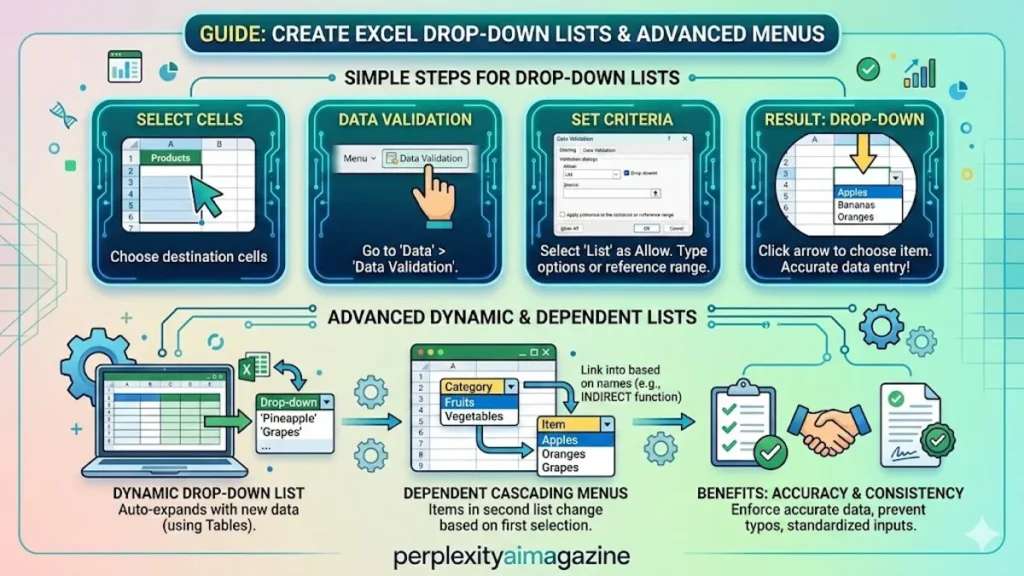
I often find that the difference between a messy spreadsheet and a professional one comes down to control. In Excel, one of the simplest yet most powerful tools for enforcing that control is the dropdown list. Within the first few minutes of using Data Validation, it becomes clear how dropdowns prevent errors, standardize entries, and streamline workflows across everything from personal trackers to enterprise-level reporting. – how to create a drop down list in excel.
At its core, creating a dropdown list in Excel involves selecting a cell, navigating to the Data tab, and using Data Validation to define a list of acceptable inputs. Whether those inputs are typed directly, pulled from a range, or dynamically generated, the result is the same: a clean, controlled interface for users.
But the true strength of dropdown lists reveals itself as complexity increases. Lists can expand automatically, link to structured tables, or even change based on another selection through dependent logic. This transforms Excel from a passive grid into an interactive system.
Over time, I’ve seen dropdown lists evolve from a beginner’s trick into a cornerstone of spreadsheet architecture. In this guide, I’ll break down not only how to create them, but how to use them intelligently, scale them effectively, and maintain them without friction.
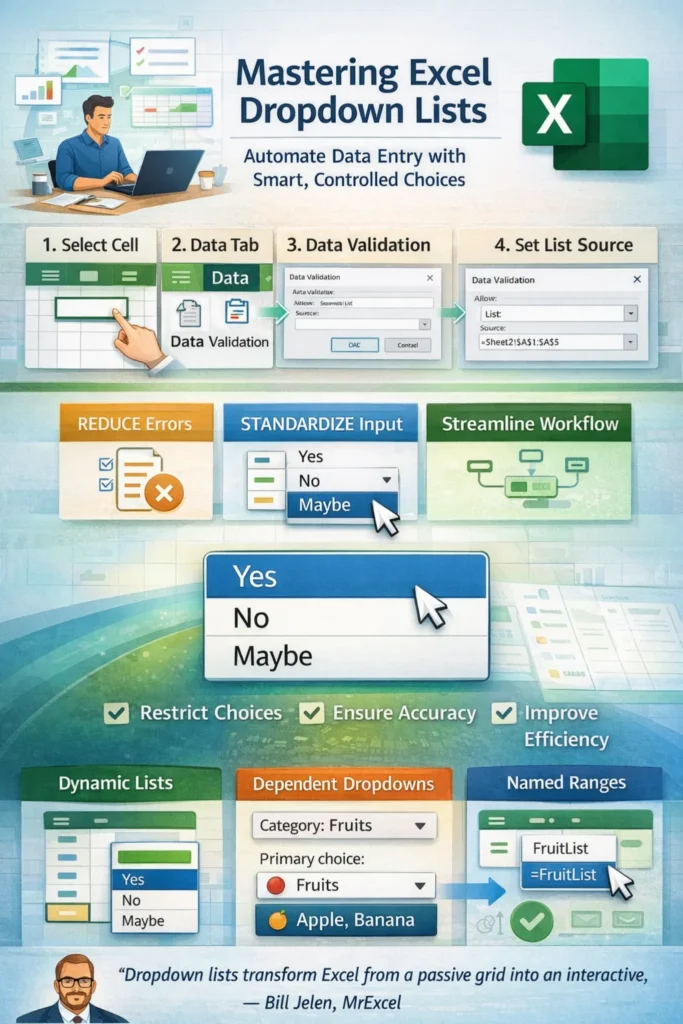
Understanding the Foundations of Excel Dropdown Lists
Dropdown lists in Excel are built on a feature called Data Validation, introduced in early versions of Excel and refined significantly in Excel 2007 and later. The concept is straightforward: restrict what users can input into a cell.
To create a basic dropdown, one selects a cell, navigates to the Data tab, clicks Data Validation, and chooses “List” from the Allow menu. From there, items can be entered manually or referenced from a range.
| Method | Source Type | Best Use Case | Flexibility |
|---|---|---|---|
| Comma-separated | Manual input | Small static lists | Low |
| Range reference | Cell-based list | Medium datasets | Medium |
| Named range | Structured lists | Reusable across sheets | High |
| Table reference | Dynamic datasets | Expanding lists | Very High |
Microsoft notes that Data Validation reduces entry errors significantly, especially in shared spreadsheets (Microsoft, 2023). This makes dropdown lists essential in collaborative environments.
“Controlled input is the backbone of reliable data analysis,” says spreadsheet expert Bill Jelen, widely known as MrExcel. “Dropdown lists are often the first step toward building trustworthy models.”
Creating a Basic Dropdown List
The simplest dropdown list can be created in seconds, but understanding its mechanics ensures it remains useful.
Start by selecting the target cell. Then open Data Validation and choose “List.” In the Source field, type items separated by commas, such as Yes, No, Maybe. Once confirmed, a small arrow appears in the cell, allowing selection. – how to create a drop down list in excel.
This approach is ideal for quick forms or binary choices. However, it lacks scalability. If you later need to add options, you must manually update the validation settings.
Excel also provides two important checkboxes: Ignore blank and In-cell dropdown. The first allows empty entries, while the second ensures the dropdown arrow is visible.
A study by Harvard Business Review on data accuracy highlights that structured inputs can reduce user errors by up to 40 percent in manual systems (Redman, 2013). Even a simple dropdown contributes to that improvement.
Building Dropdown Lists from Cell Ranges
For more flexibility, dropdown lists can reference a range of cells. This method separates the data source from the user interface.
Typically, I place list items on a secondary sheet, such as Sheet2, and reference them using absolute cell references like Sheet2!$A$1:$A$5. This allows updates without modifying the validation settings.
| Feature | Manual List | Range-Based List |
|---|---|---|
| Ease of setup | Very easy | Easy |
| Scalability | Limited | Moderate |
| Maintainability | Low | High |
| Collaboration | Risky | Reliable |
Hiding the source sheet is a common practice in professional workbooks. It keeps the interface clean while preserving functionality.
“Separating logic from presentation is a universal principle,” notes Excel MVP Chandoo (Purna Duggirala). “Range-based dropdowns embody that idea in spreadsheets.” – how to create a drop down list in excel.
Dynamic Dropdown Lists with Formulas and Tables
Static lists eventually become limiting. Dynamic dropdowns solve this by adjusting automatically as data grows.
One method uses the INDEX and COUNTA functions to define a flexible range. Another approach converts the source into an Excel Table. Tables expand automatically when new rows are added, making them ideal for evolving datasets.
For example, referencing a table column like =Table1[Column1] ensures the dropdown always reflects the latest entries.
Dynamic lists are particularly useful in dashboards, inventory systems, and reporting tools where data changes frequently.
Microsoft’s official documentation emphasizes tables as a best practice for structured data management, citing their automatic expansion and formula consistency (Microsoft, 2023).
Creating Dependent Dropdown Lists
Dependent, or cascading, dropdown lists take functionality further by linking one list to another. The second dropdown changes based on the first selection.
To achieve this, data must be structured carefully. Each category must have its own named range, matching the primary list’s entries exactly.
For instance:
- Primary list: Fruits
- Secondary ranges: Apple, Banana
Using the INDIRECT function, Excel converts the selected text into a reference. If cell A2 contains “Apple,” then =INDIRECT(A2) pulls the corresponding range.
This method works across Excel versions from 2010 to 365, making it widely accessible.
“Dependent dropdowns turn spreadsheets into guided workflows,” says data consultant Mynda Treacy. “They reduce cognitive load and improve user experience.” – how to create a drop down list in excel.
Editing and Deleting Dropdown Lists
Maintaining dropdown lists is just as important as creating them.
To edit a list, select the cell and reopen Data Validation. Changes can be made directly in the Source field or by updating the referenced range. Excel allows applying updates to all cells sharing the same validation rules.
Deleting a dropdown is equally simple. The Clear All option removes validation but preserves existing values. To remove values as well, users must clear the cells manually.
This separation ensures that data integrity is not accidentally lost.
Using Named Ranges for Better Management
Named ranges simplify dropdown management, especially in large workbooks. Instead of referencing cell coordinates, users assign a descriptive name like FruitList.
This improves readability and allows reuse across sheets. Named ranges can also be dynamic when combined with formulas like OFFSET or INDEX.
Workbook-level scope ensures accessibility throughout the file, while sheet-level scope restricts usage to specific contexts.
According to Excel documentation, named ranges improve formula clarity and reduce errors in complex models (Microsoft, 2023).
Applying Dropdown Lists Across Multiple Cells
Efficiency becomes critical when working with large datasets. Instead of applying dropdowns individually, users can select entire ranges before configuring Data Validation.
Alternatively, the Paste Special > Validation method allows copying dropdown settings without affecting formatting or values.
Format Painter provides another quick solution, especially for visually consistent forms.
Bulk editing is also possible. By selecting all relevant cells and updating validation settings, changes propagate instantly.
This capability is essential in templates, surveys, and structured reporting systems.
Best Practices for Professional Excel Dropdown Systems
Over time, I’ve noticed that the most effective dropdown systems follow a few consistent principles.
First, always separate source data from user input. Second, use tables or dynamic ranges to future-proof lists. Third, document named ranges clearly to avoid confusion.
Consistency in naming conventions also matters. Avoid spaces and special characters, as they can break formulas like INDIRECT.
Security is another consideration. While dropdowns restrict input, they do not prevent manual overrides unless combined with sheet protection.
Finally, test dropdown behavior thoroughly, especially in dependent systems where errors can cascade.
Takeaways
- Dropdown lists in Excel use Data Validation to enforce controlled input.
- Range-based lists are more scalable than manual entries.
- Dynamic lists using tables or formulas adapt automatically to data changes.
- Dependent dropdowns create interactive, guided workflows.
- Named ranges improve clarity and maintainability.
- Bulk application methods save time in large datasets.
- Proper structure and testing ensure long-term reliability.
Conclusion
I’ve come to see Excel dropdown lists not as a minor feature, but as a foundational tool for building reliable spreadsheets. What begins as a simple validation step quickly evolves into a system of control, structure, and interaction.
From basic lists to dynamic and dependent configurations, dropdowns allow users to guide input, reduce errors, and maintain consistency across complex datasets. They are particularly valuable in collaborative environments where multiple users interact with the same file.
As spreadsheets grow in complexity, the importance of thoughtful design becomes undeniable. Dropdown lists offer a practical way to impose order without sacrificing flexibility.
Ultimately, mastering dropdown lists is less about memorizing steps and more about understanding how data flows through a spreadsheet. Once that perspective clicks, Excel transforms from a static grid into a dynamic, intelligent tool.
READ: Cloud Security Tips: Practical Ways to Protect Data
FAQs
1. Can I create a dropdown list without using Data Validation?
No, Excel dropdown lists rely on Data Validation. Without it, you cannot restrict input or display selectable options.
2. Why is my dropdown list not updating automatically?
This usually happens when using a static range. Convert your list to a table or use dynamic formulas to enable automatic updates.
3. Can dropdown lists work across different sheets?
Yes, you can reference ranges or named ranges from other sheets, though direct references may require named ranges for compatibility.
4. What causes errors in dependent dropdown lists?
Mismatched naming, spaces, or incorrect references in the INDIRECT function often cause issues.
5. Can I copy dropdown lists to other cells?
Yes, use Paste Special > Validation or Format Painter to replicate dropdown settings efficiently.
