
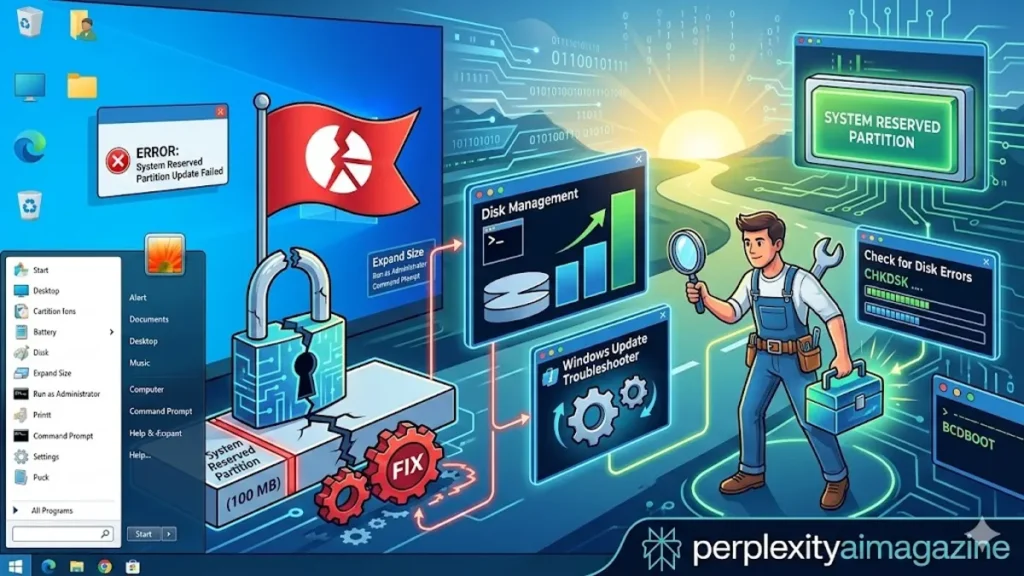
I have seen few Windows errors that confuse users as consistently as the message: “We couldn’t update the system reserved partition.” It appears abruptly during an upgrade or feature update, often paired with codes like 0xc1900104 or 0x800f0922, and leaves little guidance. Yet the cause is surprisingly simple: a hidden partition on your disk, often less than 500 megabytes in size, has run out of space.
In the first moments of encountering this issue, the priority is understanding that nothing is “broken” in the traditional sense. The system reserved partition or EFI System Partition is a critical component that stores boot files, and Windows updates require additional space there to stage new boot data. When that space is insufficient, the update halts entirely.
What follows is not just a troubleshooting exercise but a glimpse into how modern operating systems manage boot processes, legacy compatibility, and storage constraints. From shrinking and extending partitions to manually cleaning boot directories, resolving this issue reveals the layered complexity beneath an otherwise seamless user experience.
Understanding the System Reserved and EFI Partition
The system reserved partition exists quietly at the edge of your disk, typically created automatically during Windows installation. On older BIOS-based systems using MBR (Master Boot Record), it is labeled “System Reserved.” On modern UEFI systems using GPT (GUID Partition Table), it appears as the EFI System Partition.
This partition holds essential boot components such as the Boot Configuration Data (BCD), bootloaders, and sometimes language resources. Without it, Windows cannot start. Its size varies depending on the era of installation, with older systems often allocating just 100 MB.
That historical constraint is the root of today’s problem. As Windows evolved, particularly with Windows 10 and Windows 11 feature updates, the requirements for boot files grew. According to Microsoft, updates may need an additional 13 to 15 MB of free space within this partition (Microsoft, 2023). For systems that began life during the Windows 7 era, that margin simply does not exist.
The result is a silent bottleneck. The system partition becomes full over time, accumulating fonts, language files, and security-related additions from software installations.
Why the Error Occurs During Updates
The error typically appears during feature upgrades, such as moving from one Windows 10 version to another or upgrading to Windows 11. Unlike routine updates, these larger upgrades modify boot components to support new features, security changes, and recovery mechanisms.
During the update process, Windows attempts to write new boot files to the system reserved or EFI partition. If the partition lacks sufficient free space, the process fails immediately. This is not a fallback scenario; the update cannot proceed without modifying boot structures.
An important nuance is that this error is not tied to available space on the main C: drive. Many users mistakenly assume their primary storage is the issue, but the problem resides entirely within the hidden partition.
As Mark Russinovich, Chief Technology Officer of Microsoft Azure, has noted in discussions on Windows internals, “Boot infrastructure changes are among the most sensitive operations in an operating system update” (Russinovich, 2021). This sensitivity explains why Windows refuses to proceed under constrained conditions.
Typical Partition Layouts and Limitations
Understanding disk layouts clarifies why the issue appears more frequently on older systems.
| Disk Type | Partition Name | Typical Size (Legacy) | Recommended Size (Modern) |
|---|---|---|---|
| MBR (BIOS) | System Reserved | 100–350 MB | 500 MB+ |
| GPT (UEFI) | EFI System Partition | 100–260 MB | 500–1000 MB |
Older installations prioritized minimal partition size to conserve disk space, especially when storage devices were smaller. Today’s updates, however, assume significantly larger partitions.
The mismatch between legacy design and modern requirements creates a predictable failure point.
Cleaning the Partition: The Least Invasive Fix
One of the safest approaches involves freeing space within the existing partition. This method does not alter partition structure and minimizes risk.
The primary target for cleanup is the fonts directory within the EFI boot path. These files are not essential for system functionality and can be removed without affecting boot operations.
The process typically involves mounting the partition temporarily using administrative tools, navigating to the boot directory, and deleting unnecessary font files. This can free approximately 15 to 25 MB, often enough to allow the update to proceed.
Microsoft documentation explicitly acknowledges this approach as a valid solution (Microsoft, 2023).
Security researcher Troy Hunt once described similar system-level cleanups as “surgical fixes that restore functionality without altering architecture” (Hunt, 2020). That description applies precisely here.
Resizing the Partition: A Structural Solution
While cleanup offers a quick fix, resizing the partition provides a long-term solution. This involves reallocating space from the main system drive to expand the system reserved or EFI partition.
The process generally includes shrinking the C: drive and extending the adjacent system partition. However, Windows’ built-in Disk Management tool has limitations and cannot always perform this operation directly, particularly when the partition lies before the C: drive.
As a result, many users rely on third-party tools such as MiniTool Partition Wizard or AOMEI Partition Assistant. These tools allow more flexible manipulation of partition boundaries.
| Method | Difficulty Level | Risk Level | Longevity |
|---|---|---|---|
| Cleaning fonts | Low | Minimal | Temporary |
| Resizing partition | Medium | Moderate | Permanent |
| Rebuilding partition | High | High | Permanent |
Resizing requires careful execution, as improper handling can render a system unbootable. Nevertheless, when performed correctly, it eliminates the root cause entirely.
Advanced Repair: Rebuilding Boot Structures
In rare cases where the partition is severely corrupted or misconfigured, rebuilding boot files becomes necessary. This involves using recovery tools such as the Windows installation media and command-line utilities.
Commands like bcdboot recreate boot files, while diskpart allows partition creation and formatting. This method is often considered a last resort due to its complexity and potential risks.
Operating system expert David Solomon has emphasized that “boot configuration errors require precision, as even minor mistakes can prevent system startup” (Solomon & Ionescu, 2017).
Despite the risks, this approach resolves nearly all cases where standard fixes fail.
The Role of Legacy Systems in Modern Failures
The persistence of this error highlights a broader issue: legacy system configurations continue to shape modern computing experiences. Many machines still operate with partitions created more than a decade ago.
These configurations were never designed to accommodate today’s update requirements. Yet they persist, largely unchanged, across multiple operating system upgrades.
This phenomenon reflects what engineers often call “technical debt.” Decisions made under past constraints continue to influence present performance.
In the context of Windows updates, that debt manifests as a lack of space in a critical partition.
Preventive Strategies for Future Updates
Preventing this error in the future involves proactive system management. The most effective strategy is ensuring that the system reserved or EFI partition meets modern size recommendations.
For new installations, Windows typically allocates sufficient space automatically. However, systems upgraded from older versions may retain outdated partition sizes.
Regular maintenance also plays a role. Removing unnecessary language packs, avoiding excessive boot-level modifications, and monitoring disk layout can reduce the likelihood of encountering this issue again.
System administrators often incorporate partition checks into routine maintenance workflows, especially in enterprise environments where update failures can disrupt operations.
Broader Implications for System Design
The system reserved partition error illustrates a key principle in software engineering: hidden dependencies can have visible consequences.
Users rarely interact with this partition, yet its limitations directly affect their ability to update and secure their systems. This disconnect between visibility and importance creates confusion and frustration.
Modern operating systems aim to abstract complexity, but when failures occur, that abstraction breaks down. Users are suddenly confronted with low-level details they were never expected to manage.
As computer scientist Andrew Tanenbaum observed, “The challenge in system design is not eliminating complexity but managing its visibility” (Tanenbaum & Bos, 2015).
Takeaways
- The error occurs when the system reserved or EFI partition lacks sufficient free space for update-related boot files.
- Older installations are more prone due to smaller partition sizes.
- Cleaning boot font files offers a quick and safe temporary fix.
- Resizing the partition provides a permanent solution.
- Advanced repairs involve rebuilding boot structures using recovery tools.
- Preventive maintenance can reduce future update failures.
- The issue reflects broader challenges in managing legacy system configurations.
Conclusion
The message “We couldn’t update the system reserved partition” may appear cryptic, but its underlying cause is rooted in a straightforward limitation: insufficient space in a critical but hidden part of the disk. What makes the issue notable is not its complexity but its origin in decisions made years earlier, when storage constraints and system design priorities differed significantly.
Resolving the error requires stepping beyond everyday user interfaces into the structural layers of the operating system. Whether through careful cleanup or deliberate resizing, the process reveals how deeply interconnected system components are.
More broadly, the issue serves as a reminder that modern computing rests on a foundation shaped by past assumptions. As systems evolve, those assumptions occasionally surface as obstacles. Addressing them is not merely about fixing errors but understanding the architecture that produced them.
READ: Common Array Manager Guide for Sun Storage Systems
FAQs
What does error 0xc1900104 mean?
It indicates insufficient space in the system reserved or EFI partition, preventing Windows from completing a feature update.
Can I safely delete files from the EFI partition?
Only specific non-essential files, such as boot fonts, should be removed. Deleting critical files can make the system unbootable.
Why doesn’t Windows automatically resize the partition?
Resizing system partitions involves risks and hardware variations, making automated changes difficult to implement safely.
Is this issue common on Windows 11?
Yes, especially on systems upgraded from older versions where partition sizes were originally smaller.
Do I need third-party tools to fix it?
Not always. Cleaning files may suffice, but resizing often requires specialized partition management tools.
