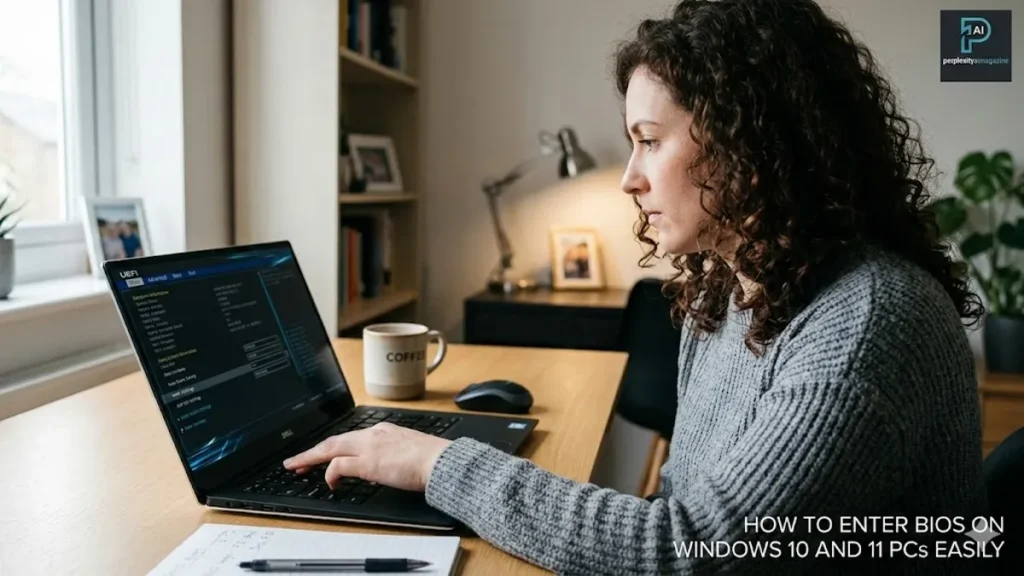
I still remember the first time a black screen with cryptic white text appeared before Windows loaded. It felt like stumbling into a hidden control room. For many users, the BIOS or its modern successor, UEFI firmware, remains mysterious until something goes wrong. If you want to enter the BIOS on a Windows PC, you typically press a specific key such as F2, Delete, F10 or Esc immediately after powering on. Alternatively, you can access it through Windows recovery settings, a command prompt shortcut or by using Shift plus Restart from the login screen. The exact method depends on your manufacturer and whether you can still boot into Windows. – how to enter bios.
Behind that brief instruction lies a system that governs how your hardware initializes, which drive loads first and whether features like Secure Boot or virtualization are enabled. BIOS stands for Basic Input Output System. UEFI, or Unified Extensible Firmware Interface, has largely replaced legacy BIOS on modern systems, offering graphical menus, mouse support and enhanced security.
Learning how to access these settings is not just for enthusiasts. It is often required for installing a new operating system, enabling memory performance profiles or troubleshooting boot failures. With computers shipping from manufacturers such as Dell, HP, Lenovo and ASUS in varying configurations, understanding the pathways into firmware settings has become an essential digital skill.
What BIOS and UEFI Actually Do
Before Windows loads, your firmware initializes the processor, memory, storage and peripheral devices. The original IBM PC BIOS design dates back to the early 1980s. Modern systems rely on UEFI, which supports larger drives, faster startup routines and more secure boot processes.
When you power on a computer, the firmware performs a Power On Self Test, commonly called POST. During this brief window, the system displays a manufacturer logo or diagnostic text. This is the moment when pressing the correct key allows entry into setup mode.
According to Microsoft documentation on UEFI systems, firmware determines how hardware is configured and how the operating system loader is launched. UEFI also supports Secure Boot, a feature designed to prevent unauthorized software from loading during startup.
“Firmware is the foundation of system trust,” says a systems administrator who manages enterprise Windows deployments. “If you misconfigure it, the operating system never gets a chance to start properly.”
Understanding this layer is essential because every change you make in BIOS or UEFI influences how your computer behaves before Windows even appears.
The Startup Key Method
The most direct way to enter BIOS is during startup. Restart your computer. As soon as the screen lights up and before the Windows logo appears, repeatedly press the designated key. Timing matters. Pressing too early does nothing. Pressing too late launches Windows. – how to enter bios.
Common keys include Delete, F2, F10, F12 and Esc. Many systems briefly display a message such as “Press F2 to enter setup” during POST.
Different manufacturers assign different primary keys.
| Brand | Primary BIOS Key | Alternate Key | Notes |
|---|---|---|---|
| Dell | F2 | F12 | F12 opens boot menu |
| HP | F10 | Esc | Esc shows startup menu |
| Lenovo | F2 | F1 or Fn+F2 | ThinkPads often use F1 |
| ASUS | F2 or Delete | None | Press repeatedly at logo |
Laptop keyboards sometimes require pressing the Fn key alongside F2. On certain Lenovo ThinkPad models, users press Enter at startup, then F1 to access setup.
“Watch the first screen carefully,” advises a hardware technician with two decades of field experience. “Manufacturers almost always display the correct key, but the window is short.”
If Fast Boot is enabled, the POST screen may flash by quickly, making key timing more difficult.
Entering BIOS Through Windows Settings
When startup timing fails or Fast Boot interferes, Windows provides an alternative path. This method works if you can still access the operating system.
Open Settings. Navigate to Update and Security. Select Recovery. Under Advanced startup, click Restart now. After the system reboots into the recovery environment, choose Troubleshoot, then Advanced options, then UEFI Firmware Settings. Select Restart.
Your system will reboot directly into BIOS or UEFI without requiring a key press.
Microsoft introduced this feature to simplify firmware access on UEFI systems. It is particularly useful for laptops that boot too quickly to intercept manually.
A Windows deployment specialist explains, “On modern solid state drives, systems can load Windows in seconds. The recovery pathway ensures users do not miss their chance.”
This approach bypasses hardware timing entirely and is often the most reliable solution for newer machines.
The Command Prompt Shortcut
For users comfortable with the command line, Windows offers a direct firmware reboot command. Open Command Prompt as administrator. Type:
shutdown /r /fw /t 0
Press Enter.
The system will immediately restart and enter firmware settings. The /fw switch instructs Windows to reboot into UEFI instead of loading the operating system. The /t 0 parameter eliminates delay.
This method is particularly helpful for remote administrators or power users managing multiple systems. It reduces the need to navigate through graphical menus.
Because the command forces a restart, it should be used only after saving work. While simple, it operates at a low system level.
Shift Plus Restart
Another built in shortcut combines keyboard input with Windows recovery. From the Start menu or login screen, hold the Shift key while clicking Restart. Continue holding Shift until the Advanced startup screen appears.
From there, follow Troubleshoot, Advanced options, then UEFI Firmware Settings.
This method mirrors the Settings pathway but offers quicker access from the login screen. It is especially useful when Windows is accessible but user settings are restricted.
For users whose keyboards respond normally in Windows but fail during early boot, this pathway bypasses the firmware key requirement entirely. – how to enter bios.
When the Keyboard Does Not Respond
Occasionally, users press the correct key repeatedly and nothing happens. The issue often stems from USB initialization delays or wireless keyboards.
If the keyboard is wireless, switch to a wired USB keyboard. Plug it into a USB 2.0 port, typically black rather than blue. Some firmware initializes USB 3.0 controllers later in the boot process.
A hard reset can also help. Power off the computer. Unplug it from power. Hold the power button for 30 seconds. Reconnect and attempt startup again while tapping the BIOS key.
In extreme cases, clearing the CMOS may restore default firmware settings. This involves powering down, removing the coin shaped CMOS battery on the motherboard for five to 10 minutes or using a dedicated CLR_CMOS jumper. This resets BIOS settings, potentially re enabling disabled USB support.
| Issue | Likely Cause | Quick Fix |
|---|---|---|
| USB keyboard not detected | Fast Boot or USB delay | Use USB 2.0 port |
| Key ignored at startup | Fast Boot enabled | Hard reset and retry |
| USB disabled in BIOS | Prior configuration | CMOS reset |
These procedures should be performed carefully, particularly on desktops where internal components are exposed.
Common BIOS Settings Users Change
Once inside BIOS or UEFI, users encounter tabs such as Boot, Advanced and Security. While the interface varies by manufacturer, core categories remain similar.
Boot Order determines which device loads first. Setting the internal SSD as priority often speeds startup. Placing a USB drive first enables operating system installation.
XMP or DOCP profiles allow RAM to operate at advertised speeds. By default, memory often runs at conservative JEDEC standards. Enabling Profile 1 activates higher performance timings.
Secure Boot ensures that only trusted operating systems load. Disabling it may be required for older systems or certain Linux distributions. Virtualization settings, labeled VT-x or AMD-V, enable virtual machine performance.
“Most users only need to adjust boot order or enable memory profiles,” says a PC repair specialist. “Overclocking and voltage changes should be left to experienced users.”
The firmware environment is powerful but should be approached with caution.
Boot Order and Its Risks
Changing boot order is generally safe, but errors can prevent your system from loading the operating system.
If you prioritize a non bootable USB drive, the system will attempt to start from it and fail. The solution is simple: re enter BIOS and restore the internal drive as first priority.
Dual boot systems, such as Windows and Linux installations, require careful sequencing. Selecting the wrong drive may hide the GRUB bootloader, creating confusion though not data loss.
Secure Boot mismatches or Legacy versus UEFI conflicts can also appear. In rare cases, firmware automatically reorders drives if external devices are slow to initialize.
| Risk | Impact Level | Mitigation |
|---|---|---|
| No operating system loads | High temporary | Re enter BIOS or reset defaults |
| Slow startup | Medium | Remove external drives |
| Hidden bootloader | Medium | Adjust drive priority |
| Firmware override | Low | Lock order if supported |
Most issues are reversible. Data is not typically harmed by incorrect boot sequencing.
Fast Boot and Modern Complications
Modern firmware includes Fast Boot, a feature that reduces POST time by limiting hardware checks. While convenient, it narrows the window to press BIOS keys.
Disabling Fast Boot within firmware or through Windows power settings can restore normal detection timing. On systems with ultra fast NVMe drives, POST may complete almost instantly.
Enterprise IT departments sometimes disable Fast Boot for easier troubleshooting. However, everyday users often benefit from the faster startup unless they frequently access firmware settings.
Security, Virtualization and Compatibility
Secure Boot protects against boot level malware by verifying digital signatures. It became standard with Windows 8 and remains enabled on Windows 10 and Windows 11 systems.
Virtualization support in BIOS enables hypervisors such as Hyper-V, VMware or VirtualBox. Without enabling VT-x or AMD-V, virtual machines may fail to start.
Compatibility Support Module, known as CSM, allows legacy operating systems to run on UEFI hardware. Disabling CSM enforces pure UEFI mode, which modern operating systems prefer.
Adjusting these settings requires understanding the goal. Turning off Secure Boot for convenience may reduce protection. Enabling virtualization is safe when needed.
Firmware settings bridge performance and security.
Takeaways
- Press the correct key during startup to access BIOS or UEFI.
- Use Windows recovery or command prompt if timing fails.
- Switch to a wired USB keyboard if input is not detected.
- Change boot order carefully to avoid temporary startup failures.
- Enable XMP or DOCP to achieve full RAM speed.
- Adjust Secure Boot and virtualization settings only when necessary.
Conclusion
I have learned that BIOS is less a secret chamber and more a control room that quietly shapes every startup. Accessing it requires little more than timing or a trip through Windows recovery menus, yet understanding it unlocks meaningful control over hardware behavior.
Whether installing a new operating system, optimizing memory performance or troubleshooting a stubborn boot failure, the pathway into firmware settings is straightforward once understood. Most changes are reversible. The risks are manageable. The key is clarity.
Modern computers are designed to shield users from complexity, but that does not mean the complexity disappears. It simply moves below the surface. Entering BIOS reveals the layer where hardware and software first meet, where decisions about trust, speed and compatibility are made before the operating system begins.
Mastering that entry point equips users not only to fix problems but to better understand the machines they rely on every day.
FAQs
What is the difference between BIOS and UEFI?
BIOS is the older firmware system. UEFI is its modern replacement, offering graphical interfaces, larger drive support and enhanced security features such as Secure Boot.
Why can I not enter BIOS using the key method?
Fast Boot may shorten the timing window, or your USB keyboard may not initialize early enough. Use Windows recovery options or switch to a wired USB 2.0 keyboard.
Is it safe to change boot order?
Yes, if done carefully. Incorrect settings may prevent startup temporarily but rarely cause data loss. You can revert changes in BIOS.
How do I enable virtualization?
Enter BIOS, locate CPU or Advanced settings and enable VT-x or AMD-V. Save changes and restart to activate virtual machine support.
Will clearing CMOS delete my files?
No. Clearing CMOS resets firmware settings only. It does not affect data stored on your drives.