
I have seen how quickly a normal Windows restart can turn stressful when a blue BitLocker screen suddenly asks for a 48-digit recovery key. The good news is that the screen does not normally mean your files are gone or your computer has been hacked. It means Windows could not automatically verify the encrypted drive and now needs an approved recovery method before it will unlock it.
If you are looking at a BitLocker recovery screen right now, do not reset Windows, clear the TPM, or randomly change BIOS settings yet. First, write down the Recovery Key ID displayed on the screen. Then use another phone, tablet, or computer to visit Microsoft’s official aka.ms/myrecoverykey recovery page and look for the 48-digit key whose Key ID matches the one on your locked PC.
This guide walks through that process first. It then covers the harder cases, including missing keys, multiple Microsoft accounts, work or school computers, Windows Home devices, firmware updates, Secure Boot changes, and what your realistic options are if the recovery key cannot be found.
Quick Answer: How to Unlock a BitLocker Recovery Screen
If BitLocker is asking for a recovery key, follow this order:
- Do not reset or reinstall Windows yet.
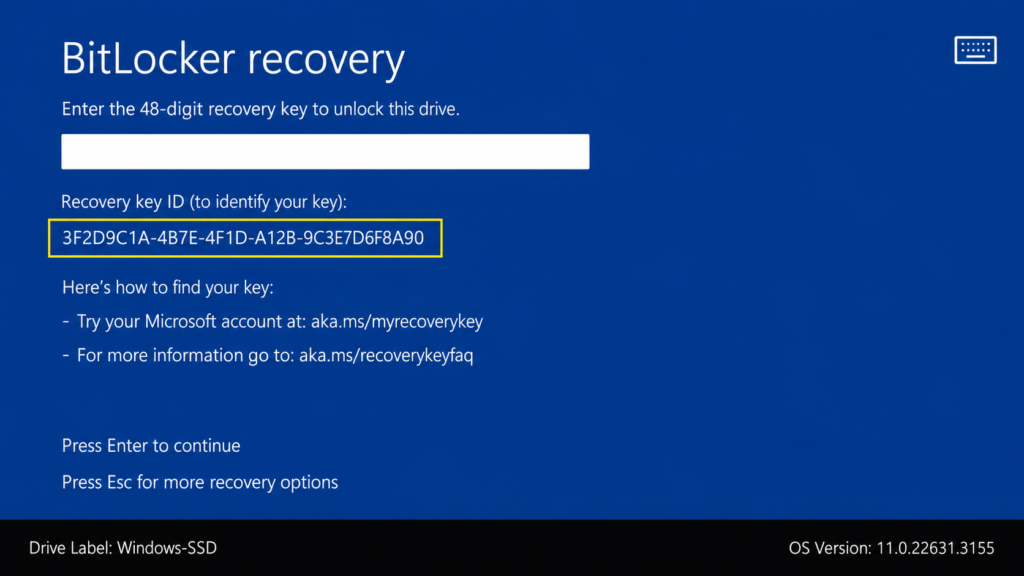
- Write down the first eight digits of the Recovery Key ID shown on the BitLocker screen.
- On another device, open Microsoft’s official
aka.ms/myrecoverykeypage. - Sign in with the Microsoft account associated with the locked PC.
- Find the stored BitLocker entry with the matching Key ID.
- Enter its 48-digit recovery key on the locked computer.
- If no key appears, check other Microsoft accounts you legitimately use.
- If it is a work or school computer, check the organization’s recovery system or contact IT.
- Check for a saved recovery-key file, USB drive, or printed copy.
- Only consider resetting Windows after every legitimate recovery location has been exhausted.
Microsoft confirms that a BitLocker recovery key is a 48-digit number used when Windows cannot automatically unlock an encrypted drive. Microsoft Support also cannot retrieve, provide, or recreate a lost recovery key.
Important: Never post your 48-digit BitLocker recovery key publicly, include it in an unblurred screenshot, or send it to an unknown person offering to “unlock” your computer.
What Is aka.ms/myrecoverykey?
aka.ms/myrecoverykey is Microsoft’s official shortcut for accessing BitLocker recovery keys stored in a personal Microsoft account.
When you open the address on another internet-connected device, Microsoft takes you to the recovery-key area associated with your Microsoft account.
That is usually the fastest recovery method for a personally owned Windows PC if the recovery key was backed up to your Microsoft account.
Microsoft specifically instructs BitLocker users to use aka.ms/myrecoverykey when looking for a recovery key stored in a personal Microsoft account.
Why Do I Need Another Device?
If the computer is stopped at the BitLocker preboot recovery screen, you normally cannot access your Windows desktop and browser.
Use:
- your phone
- a tablet
- another laptop
- another desktop computer
The second device only needs an internet connection and a browser.
Recovery Key ID vs 48-Digit Recovery Key
This causes a lot of confusion.
The Recovery Key ID is not the key you type into BitLocker.
There are two different values.
| Item | Purpose |
|---|---|
| Recovery Key ID | Helps identify which stored recovery key belongs to the locked drive |
| 48-digit recovery key | Unlocks the BitLocker-protected drive |
| Windows PIN | Normally signs you into Windows |
| Microsoft account password | Signs you into your Microsoft account |
| BitLocker recovery key | Used when automatic drive unlocking fails |
Microsoft recommends recording the first eight digits of the Recovery Key ID displayed on the recovery screen. If your Microsoft account contains several recovery keys, those digits help identify the correct one.
Example
Imagine your BitLocker recovery screen shows a Key ID beginning with:
A1B2C3D4
Your Microsoft account contains three saved recovery keys.
Do not simply choose the newest one or the one with the most familiar device name.
Look for the entry whose Key ID begins with A1B2C3D4.
Then use the corresponding 48-digit recovery key.
How to Find Your BitLocker Recovery Key in a Microsoft Account
This is the recovery path I would try first on a personal Windows computer.
Step 1: Record the Recovery Key ID
Look at the BitLocker recovery screen.
Write down at least the first eight digits of the Recovery Key ID.
Do not confuse this with the 48-digit recovery password that Windows is requesting.
Step 2: Open aka.ms/myrecoverykey on Another Device
Use another internet-connected device and open:
aka.ms/myrecoverykey
Make sure you are using the real Microsoft page rather than a website found through an advertisement or unofficial search result.
Step 3: Sign Into Your Microsoft Account
Sign in with the Microsoft account that was used with the locked Windows computer.
This may be:
- an Outlook address
- a Hotmail address
- another email address registered as a Microsoft account
The important part is not the email provider. It is whether that Microsoft account was connected to the device when encryption was configured.
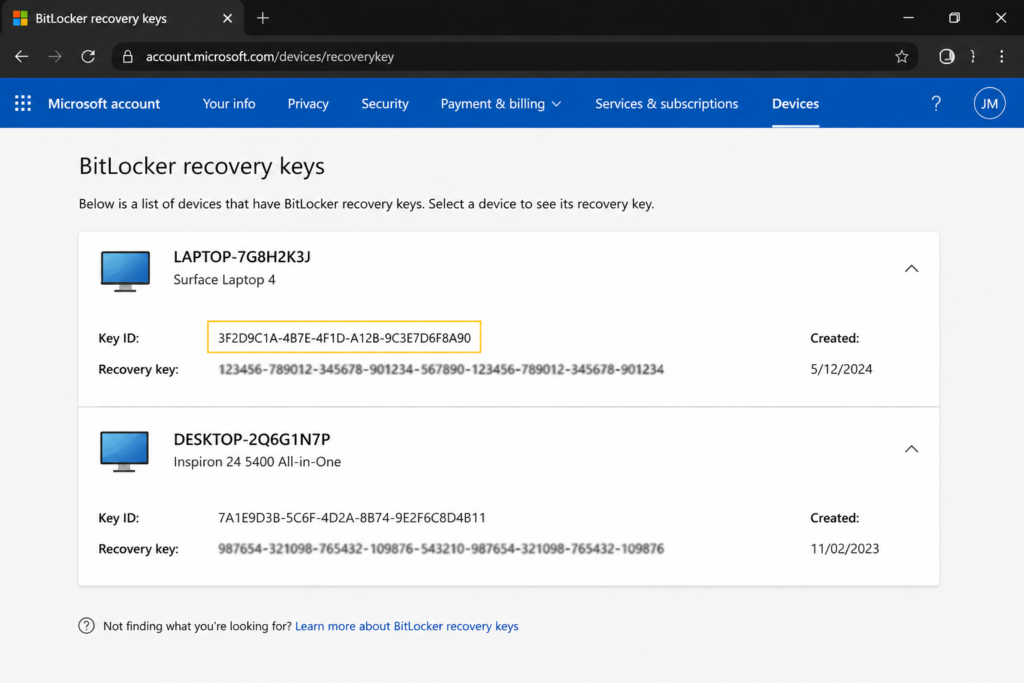
Step 4: Find the Matching Key ID
Your account may contain one recovery key or several.
Compare the Key ID from your locked PC with the stored entries.
Microsoft specifically recommends using the Key ID to identify the right recovery key when more than one is available.
Step 5: Enter the 48-Digit Key
Once you find the matching entry, enter its 48-digit recovery key on the BitLocker screen.
Enter the numbers carefully.
If it is the correct recovery key for that encrypted drive, BitLocker can unlock the volume and continue the recovery process.
I Have Multiple BitLocker Recovery Keys. Which One Should I Use?
Use the Key ID.
Do not choose based only on:
- device name
- creation date
- which PC you think it belongs to
- where the entry appears in the list
Microsoft built the Key ID specifically to help identify the correct recovery password.
The Simple Rule
Key ID on locked PC → matching Key ID in Microsoft account → associated 48-digit recovery key
If the IDs do not match, do not assume the key will work simply because the device name looks familiar.
I Do Not Know Which Microsoft Account Has My BitLocker Key
This is one of the most frustrating BitLocker situations, but there are several things worth checking before assuming the key is lost.
Look for the Microsoft Account Hint
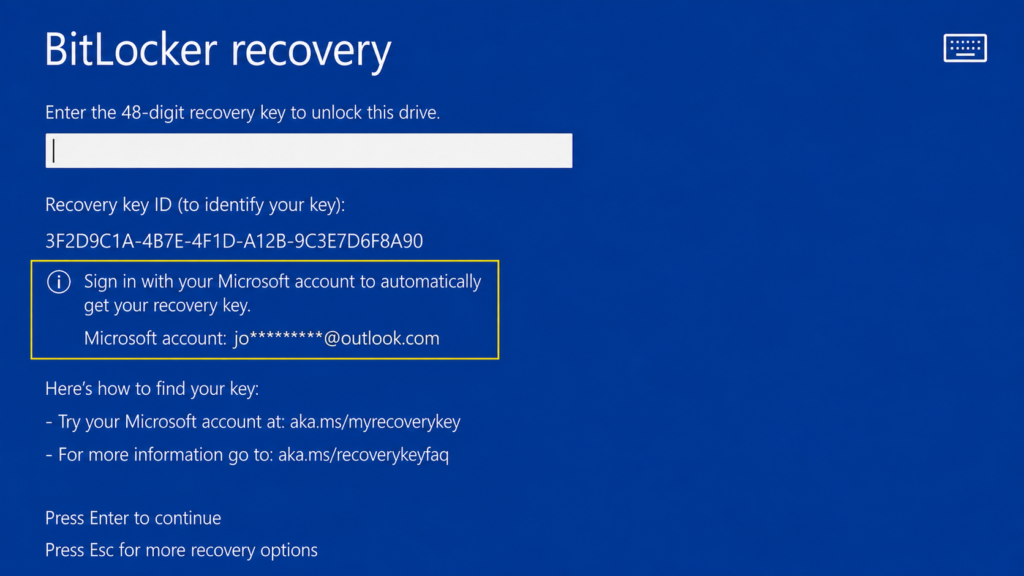
Starting with Windows 11 version 24H2, Microsoft says the BitLocker recovery screen can show a hint for the Microsoft account associated with the recovery key.
Look carefully at the recovery screen for account-related information.
If available, that hint can save you from trying every Microsoft account you have ever created.
Check Who Originally Set Up the PC
Ask yourself:
Who performed the initial Windows setup?
Microsoft notes that if somebody else set up the device or enabled BitLocker, the recovery key might be stored in that person’s Microsoft account.
This commonly matters when:
- a parent configured the PC
- a spouse configured it
- another family member installed Windows
- the computer was previously owned by someone else
- a technician set up Windows
- an employer originally managed the device
Only ask another person to check their account if they genuinely set up or managed your device. Do not attempt to access somebody else’s account without permission.
Check Your Other Legitimate Microsoft Accounts
If you have used several Microsoft accounts over the years, check the ones that could realistically have been involved in Windows setup.
You might have:
- an old Outlook account
- a personal Microsoft account
- a gaming/Xbox-associated Microsoft account
- a work-related Microsoft identity
- an account created specifically during Windows setup
Do not assume your current primary email address is automatically the correct one.
My Microsoft Account Says No BitLocker Recovery Key Was Found
Do not immediately reset the computer.
“No recovery key found” in one account only tells you that the required key is not available in that particular recovery-key library.
It does not prove the key was never backed up anywhere.
Check these possibilities next:
| Situation | What to check |
|---|---|
| Wrong Microsoft account | Check other accounts legitimately used during setup |
| Someone else set up Windows | Their Microsoft account may hold the key |
| Work or school PC | Organization account or IT department |
| Manually enabled BitLocker | USB, file, printout, or organizational storage |
| Previously managed PC | Former organization may have managed the recovery information |
| Recovery key backed up offline | Search USB drives, secure files, and printed records |
Microsoft supports several recovery-key storage methods, including Microsoft accounts, work or school accounts, USB drives, files, and printed copies.
How to Find a BitLocker Key for a Work or School Computer
A business, university, or school computer can use a different recovery process.
Do not assume the key must appear in your personal Microsoft account.
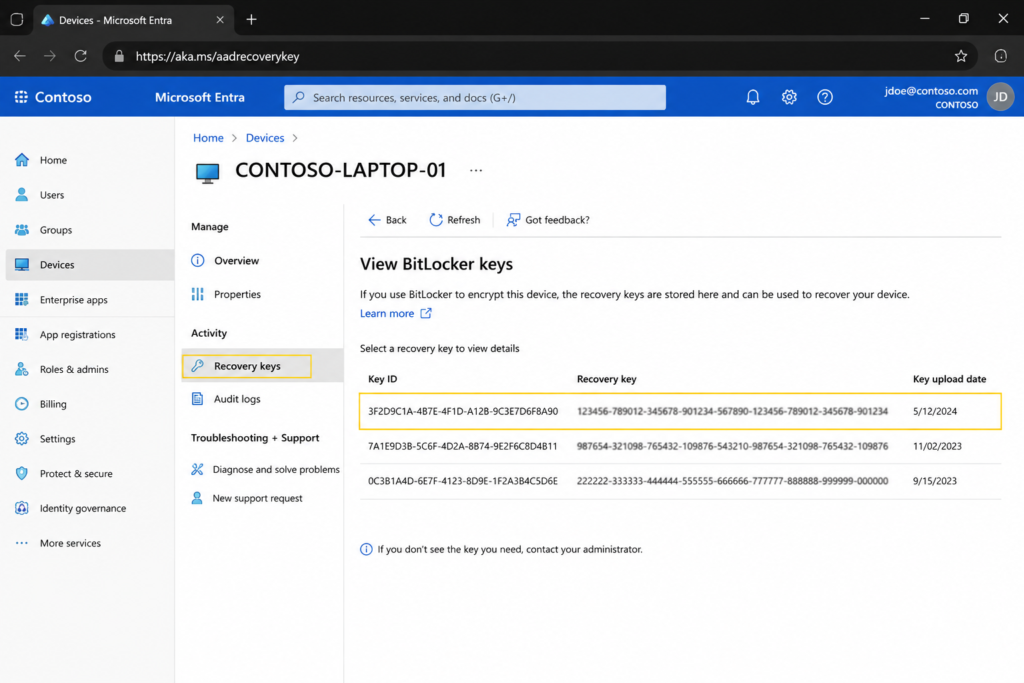
Microsoft says a device that has been associated with a work or school organization may have its recovery information stored with that organization. Depending on its policies, you might be able to retrieve the key yourself or need help from IT.
Try the Work or School Recovery Portal
From another device, open:
aka.ms/aadrecoverykey
Then:
- Sign in with your work or school account.
- Select Devices.
- Find and expand the affected computer.
- Select View BitLocker Keys.
- Compare the Key ID with the one shown on the locked PC.
- Use the matching recovery key.
These are the current recovery steps Microsoft gives for keys stored with a work or school identity.
What Does “AAD” Mean in aka.ms/aadrecoverykey?
You may still see “AAD” in Microsoft’s shortcut even though Microsoft renamed Azure Active Directory to Microsoft Entra ID.
The old abbreviation in the shortcut does not mean you are necessarily on an outdated or unofficial site.
What if My Organization Does Not Let Me View the Key?
Contact your IT department or helpdesk.
Give them useful identification information such as:
- your name
- computer name, if available
- company asset tag
- serial number, if requested
- the Recovery Key ID shown by BitLocker
Do not post the information publicly.
An organization-managed device may have recovery information stored through Microsoft Entra ID, Active Directory, or other management infrastructure.
Check a USB Flash Drive for the Recovery Key
If BitLocker was configured manually, the person enabling it might have saved the recovery information to USB storage.
Check flash drives that were used during:
- initial PC setup
- Windows installation
- BitLocker configuration
- company onboarding
- security setup
Microsoft lists a USB flash drive as one of the supported BitLocker recovery-key storage locations.
If the key is stored as a text file, you can use another computer to open the file.
Check for a Saved BitLocker Recovery-Key File
BitLocker also supports saving recovery information as a file.
Search places where you normally keep important computer records, such as:
- another hard drive
- external storage
- secure cloud storage
- OneDrive
- an encrypted backup location
- a dedicated password or recovery archive
Microsoft notes that a recovery-key text file cannot be saved to the same BitLocker-encrypted drive it is protecting.
Search Carefully
Useful search terms can include:
BitLockerRecovery KeyBitLocker Recovery Key
Be cautious with cloud or shared storage. A recovery key gives powerful access to an encrypted drive and should be treated as sensitive security information.
Check for a Printed BitLocker Recovery Key
BitLocker supports printing the recovery key.
If you or whoever set up the computer chose that option, check:
- important-document folders
- office filing cabinets
- home safes
- computer setup paperwork
- IT records
- device documentation
Microsoft specifically lists printed recovery information as a supported backup method.
Do not keep a printed recovery key physically attached to the protected laptop.
If somebody steals both the encrypted computer and its recovery key, the encryption provides much less protection.
Why Is BitLocker on My Windows Home Computer?
This is a very common question.
Microsoft distinguishes between BitLocker Drive Encryption and Device Encryption.
Full BitLocker Drive Encryption management is available on Windows Pro, Enterprise, and Education editions. However, Windows Device Encryption is available on a wider range of supported computers, including compatible Windows Home systems.
So it is completely possible to encounter a BitLocker recovery screen even if:
- you use Windows Home
- you never manually opened “Manage BitLocker”
- you do not remember turning encryption on
How Device Encryption Can Turn On Automatically
Microsoft says Device Encryption can automatically turn on when a supported PC is set up or signed into using:
- a Microsoft account
- a work account
- a school account
The recovery key is then attached to the corresponding account. If the PC is using only a local account, Microsoft says Device Encryption does not turn on automatically.
This explains why many people are surprised by BitLocker recovery.
They may never have manually enabled traditional BitLocker Drive Encryption at all.
Why Is BitLocker Suddenly Asking for a Recovery Key?
BitLocker protects data by encrypting the drive and checking whether the computer’s boot environment appears trustworthy.
Normally, the process happens quietly.
But if BitLocker detects an unexpected change to the hardware, firmware, boot configuration, or security state, it may refuse to release the drive’s encryption key automatically.
Windows then asks for the recovery key.
Microsoft explains that legitimate hardware, firmware, or software changes can trigger recovery because BitLocker cannot always distinguish an authorized change from a possible attack.
Possible triggers can include:
- firmware updates
- BIOS or UEFI changes
- TPM changes or failures
- Secure Boot changes
- changes to boot configuration
- certain hardware changes
- unexpected boot media
- some boot-component updates
- security-related configuration changes
A recovery prompt by itself does not prove malware or hacking occurred.
BitLocker Asked for the Recovery Key After a Windows or Firmware Update
This can happen.
BitLocker uses measurements of the system’s boot state as part of its protection process. If a firmware or boot-related update causes those expected measurements to change, Windows can enter recovery.
Microsoft specifically documents firmware and boot-component update scenarios in which BitLocker protection should be suspended before certain non-Microsoft updates to prevent unnecessary recovery prompts.
If You Already Have the Recovery Key
Use the legitimate recovery key first.
Once Windows starts successfully, investigate why BitLocker entered recovery before making additional firmware changes.
Before Future Manufacturer Firmware Updates
For updates where the manufacturer or Microsoft specifically recommends it, you may need to suspend BitLocker protection temporarily before performing the update.
Suspending BitLocker is not the same as permanently decrypting your disk.
Microsoft documents the suspension procedure specifically for certain:
- computer-manufacturer firmware updates
- TPM firmware updates
- non-Microsoft applications that modify boot components
After the update, BitLocker protection should be resumed as directed.
Do not suspend security protections casually for unrelated software installations.
BitLocker Appeared After a BIOS Change
If you recently changed BIOS or UEFI settings, that change might explain the recovery prompt.
However, this is where I strongly recommend avoiding random experimentation.
Do not repeatedly change:
- TPM settings
- Secure Boot
- boot mode
- storage-controller modes
- UEFI options
without knowing what the settings were before.
Each change can affect the environment BitLocker is trying to verify.
If you know exactly which setting was changed immediately before the BitLocker prompt appeared, consult the computer manufacturer’s documentation for that specific model.
Should I Disable Secure Boot to Bypass BitLocker?
No, not as a general BitLocker recovery strategy.
Secure Boot changes can themselves affect BitLocker’s boot measurements.
Microsoft documents a specific BitLocker recovery condition where Secure Boot has been disabled. In that case, re-enabling Secure Boot may restore the expected configuration.
That is why advice such as “just disable Secure Boot” can make troubleshooting worse.
If you did not deliberately change Secure Boot before this problem began, do not change it simply because BitLocker is asking for a key.
Should I Clear or Disable the TPM?
Do not clear or disable the TPM simply to experiment with a BitLocker recovery problem.
The Trusted Platform Module, or TPM, plays an important role in how BitLocker protects and releases encryption material during startup.
Microsoft documents several TPM-related conditions that can trigger BitLocker recovery, including a disabled TPM, an invalidated TPM, a TPM that cannot be detected, and failures involving expected platform measurements.
If you have important encrypted data and do not currently possess the recovery key, avoid making unnecessary TPM changes.
What Does Pressing Alt on the Windows 11 BitLocker Screen Do?
On newer Windows 11 recovery screens, there may be more diagnostic information available.
Microsoft says that starting with Windows 11 version 24H2, the BitLocker preboot recovery experience can provide additional information about the recovery error.
Users can press the Alt key to review additional recovery details, including an error category and error code.
Possible categories include:
- boot configuration
- TPM
- protector
- code integrity
- device lockout
- user initiated
- unknown
This can be useful when BitLocker keeps returning after you have already recovered the PC.
BitLocker Says Secure Boot Changed
Microsoft documents two particularly relevant Secure Boot conditions.
Secure Boot Was Disabled
BitLocker may expect Secure Boot to remain enabled.
If Secure Boot was unexpectedly disabled, Microsoft says re-enabling it and rebooting might resolve that particular recovery condition. Otherwise, an approved recovery method is required.
Secure Boot Configuration Changed
A change to Secure Boot measurements can also trigger recovery even when Secure Boot itself is not simply switched off.
In that situation, Microsoft says a recovery method is required to unlock the device.
The key point is that there is no one BIOS toggle that fixes every BitLocker recovery screen.
BitLocker Says the Device Configuration Changed
On Windows 11 24H2, Microsoft documents a recovery condition called a PCR mismatch, which can occur when the device configuration changes unexpectedly.
Examples include:
- bootable media being inserted
- a firmware update being applied without updating the TPM protector
In some cases, removing unexpected bootable media and restarting may resolve the underlying configuration mismatch. Other situations still require the recovery key.
If you have:
- a bootable USB drive
- recovery media
- external boot storage
connected unexpectedly, disconnecting it before another normal boot attempt can be worth checking.
Do not disconnect storage that contains your only recovery key.
Can I Unlock BitLocker Without the 48-Digit Recovery Key?
There is no supported universal method that magically bypasses a properly functioning BitLocker-protected drive.
If Windows cannot automatically release the required encryption material, you need an authorized recovery method.
Microsoft states clearly that Microsoft Support cannot retrieve, provide, or recreate a lost recovery key.
That restriction is part of the point of full-disk encryption.
If a stranger could generate a new recovery password just by knowing your laptop model or Windows username, BitLocker would provide little protection against theft.
Be Careful With “BitLocker Bypass” Claims
Treat any website, software, video, or stranger promising guaranteed decryption without legitimate recovery material with extreme caution.
Especially avoid giving unknown people:
- your recovery key
- Microsoft account credentials
- remote desktop access
- payment for a guaranteed “master key”
A legitimate technician may be able to diagnose a computer or help locate recovery information. They cannot invent Microsoft’s missing 48-digit recovery key.
Can Command Prompt Find My Missing BitLocker Recovery Key?
Command-line tools such as manage-bde can display and manage BitLocker information in circumstances where you already have appropriate system access.
That is different from recovering a lost password from a drive that is already locked at startup.
A command cannot manufacture the missing 48-digit recovery password required to decrypt a properly protected BitLocker drive.
For a normal user staring at the preboot recovery screen, focus on locating the legitimate recovery material first.
That is why I do not recommend jumping immediately to Command Prompt tutorials when the real problem is that the recovery key is missing.
Can PowerShell Reveal the Recovery Key?
The same principle applies.
PowerShell provides powerful BitLocker management functions for administrators and accessible Windows systems. It is not a universal bypass for a locked system whose required recovery material has been lost.
If you are an IT administrator managing BitLocker across an organization, command-line recovery and management deserve their own technical workflow.
For a personal computer already stopped at the BitLocker recovery screen, Microsoft’s supported recovery locations should come first.
What if My BitLocker Key Is Not Stored Anywhere?
Before concluding the key is gone, work through this checklist carefully.
BitLocker Missing-Key Checklist
- Check
aka.ms/myrecoverykey. - Match the first eight digits of the Recovery Key ID.
- Look for the Windows 11 account hint if available.
- Check other Microsoft accounts legitimately associated with the computer.
- Ask the person who originally set up the PC.
- Check your work or school account if the device was organization-associated.
- Contact current or former organizational IT if appropriate.
- Check USB flash drives.
- Search secure backup locations for recovery-key files.
- Check printed records.
If none of those locations contains a usable recovery key and you cannot restore the configuration that allowed the drive to unlock normally, the encrypted files may no longer be recoverable through normal BitLocker recovery.
Microsoft explicitly says it cannot recreate the missing recovery key.
I Bought the Computer Used. Where Is the BitLocker Key?
A second-hand computer can create a difficult situation.
If the previous owner set up Windows and encryption under their Microsoft account, the recovery material might be associated with them rather than you.
If possible, contact the seller and ask whether:
- they originally configured BitLocker
- the recovery key remains in their Microsoft account
- they have a printed or saved copy
- the device was previously organization-managed
Do not ask them to send you their Microsoft account password.
They only need to provide the appropriate recovery information for a computer they legitimately transferred to you.
If You Cannot Contact the Previous Owner
If Windows is already locked and no recovery material was transferred with the computer, you may eventually need to erase the drive and reinstall or reset Windows.
That makes the computer usable again but does not recover the previous encrypted files.
This is one reason I recommend checking BitLocker and encryption status immediately after buying a used Windows PC.
What if the Original Owner Is Deceased or Unavailable?
BitLocker encryption does not change based on why an account holder is unavailable.
The technical requirement for the recovery material remains.
Before considering destructive recovery:
- check securely stored documents
- check authorized account access
- inspect external backup drives
- determine whether the device was managed by an organization
- seek appropriate account-estate procedures where relevant
Do not rely on companies claiming they have a universal BitLocker master key.
What if I Do Not Have a Microsoft Account?
A Microsoft account is only one possible BitLocker recovery-key location.
If BitLocker was manually enabled, the key may have been backed up to:
- USB storage
- a file
- a printout
- organizational systems
Microsoft’s backup interface supports multiple recovery-key storage options.
However, on compatible devices using automatic Windows Device Encryption, Microsoft says encryption normally turns on when a Microsoft account or work/school account is used. Automatic Device Encryption does not turn on when the device is using only a local account.
So if you genuinely never used a Microsoft or organizational account, investigate how encryption was originally enabled.
Can Microsoft Support Give Me My BitLocker Recovery Key?
No.
Microsoft states that its support organization does not have the ability to retrieve, provide, or recreate a lost BitLocker recovery key.
Microsoft can explain where to look.
It cannot create a new recovery password that decrypts your existing encrypted data.
Can Dell, HP, Lenovo, ASUS, Acer, or Another PC Manufacturer Give Me the Key?
A computer manufacturer may help diagnose:
- firmware problems
- BIOS updates
- TPM configuration
- hardware problems
- boot issues
But the computer manufacturer does not automatically possess every customer’s BitLocker recovery key.
The key’s location depends on how BitLocker or Device Encryption was configured.
For many personal devices, the most important place remains the Microsoft account associated with encryption.
For managed business computers, contact the organization’s IT department.
What Happens if I Reset Windows Without the BitLocker Recovery Key?
This needs a very clear warning.
Resetting the PC is not a way to decrypt your existing files.
Microsoft states that if you cannot find the BitLocker recovery key and cannot undo the change that caused recovery, you may need to reset the device using Windows recovery options.
Resetting the device removes your files.
Before You Reset
Stop and ask:
- Are important files stored only on this PC?
- Have I checked every relevant Microsoft account?
- Did someone else set up the computer?
- Was the machine ever connected to work or school?
- Have I contacted IT if relevant?
- Have I checked USB drives?
- Have I searched for saved recovery-key files?
- Have I checked printed records?
If important files are still encrypted and irreplaceable, do not treat “Reset this PC” as an ordinary troubleshooting button.
Will Reinstalling Windows Recover My Files?
No.
Reinstalling or resetting Windows can make the hardware usable again by creating a new Windows installation, but it does not decrypt files that you could not access because the BitLocker key was missing.
Encryption is doing exactly what it was designed to do.
Can Data-Recovery Software Recover a BitLocker Drive Without the Key?
Traditional file-recovery software and encryption recovery are two different problems.
Data-recovery software can sometimes help when files were accidentally deleted or a storage device has certain types of logical damage.
A correctly encrypted BitLocker volume is different.
If the required cryptographic recovery material is unavailable, ordinary deleted-file recovery tools cannot simply turn encrypted data back into readable files.
If the drive also has physical damage and you do possess the correct BitLocker recovery information, a reputable data-recovery specialist may be able to help with the hardware side of the problem.
That is very different from claiming they can bypass BitLocker.
Why Does BitLocker Keep Asking for the Recovery Key at Every Restart?
If the correct 48-digit key unlocks Windows but BitLocker asks for it again on the next boot, do not assume the solution is to keep typing the key forever.
A repeated prompt suggests that the underlying condition triggering recovery may still be present.
Possible areas to investigate include:
- TPM state
- Secure Boot configuration
- firmware
- boot configuration
- recent hardware changes
- unexpected boot media
Microsoft recommends root-cause analysis when a device experiences repeated BitLocker recovery events so the platform validation can be corrected rather than repeatedly relying on the recovery password.
For a managed device, involve IT.
For a personal device, check your manufacturer’s support documentation if the problem began after a firmware or BIOS update.
What Should I Do After BitLocker Successfully Unlocks?
Do not stop at “the computer boots again.”
This is the ideal time to prevent the next emergency.
Verify That You Can Access a Recovery-Key Backup
Microsoft recommends making sure the recovery key exists and is accessible.
On supported Windows editions, search for:
Manage BitLocker
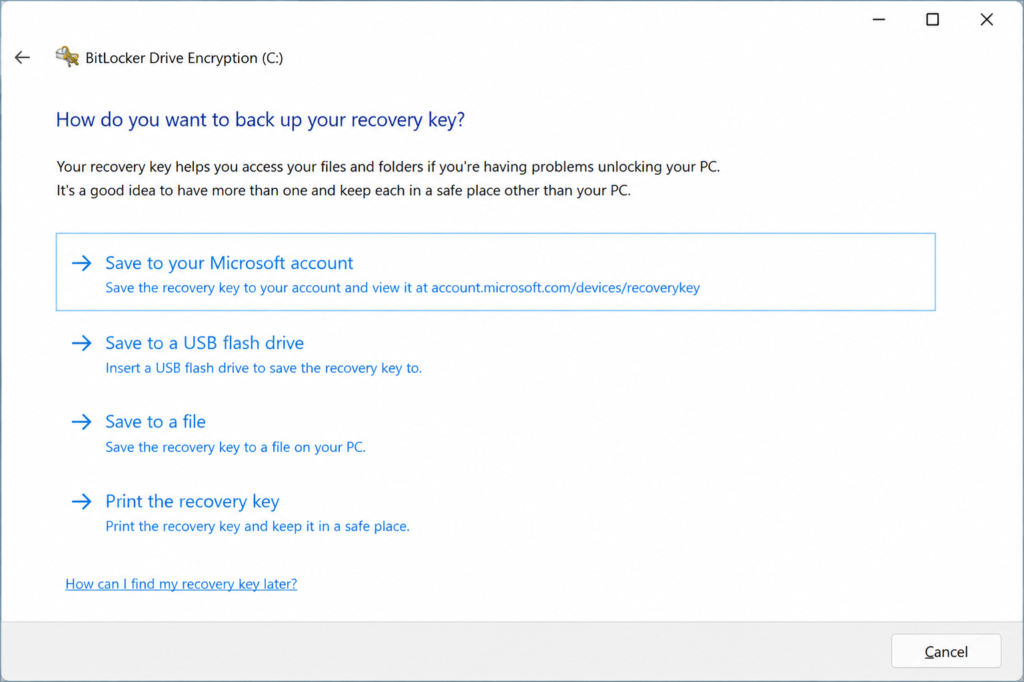
Then locate the relevant drive and choose:
Back up your recovery key
Depending on the device and configuration, Windows can offer options such as:
- saving to your Microsoft account
- saving to USB
- saving to a file
- printing the key
Keep More Than One Secure Backup
Microsoft allows multiple BitLocker recovery-key backups and notes that having more than one can be useful.
A sensible arrangement could include:
- account-based backup
- a securely stored offline copy
Do not put every backup in the same place.
Do Not Store the USB Recovery Key With the Laptop
Microsoft specifically warns against keeping a USB drive containing the recovery key with the protected computer. If both are stolen together, the recovery key can defeat the protection BitLocker was meant to provide.
The same common-sense principle applies to printed copies.
How to Prepare BitLocker Before a Firmware or BIOS Update
Do not automatically suspend BitLocker before every Windows update.
However, Microsoft specifically recommends temporarily suspending BitLocker protection for certain non-Microsoft changes, including some:
- manufacturer firmware updates
- TPM firmware updates
- applications that modify boot components
Failing to suspend protection in those situations can result in BitLocker requesting the recovery key after restart.
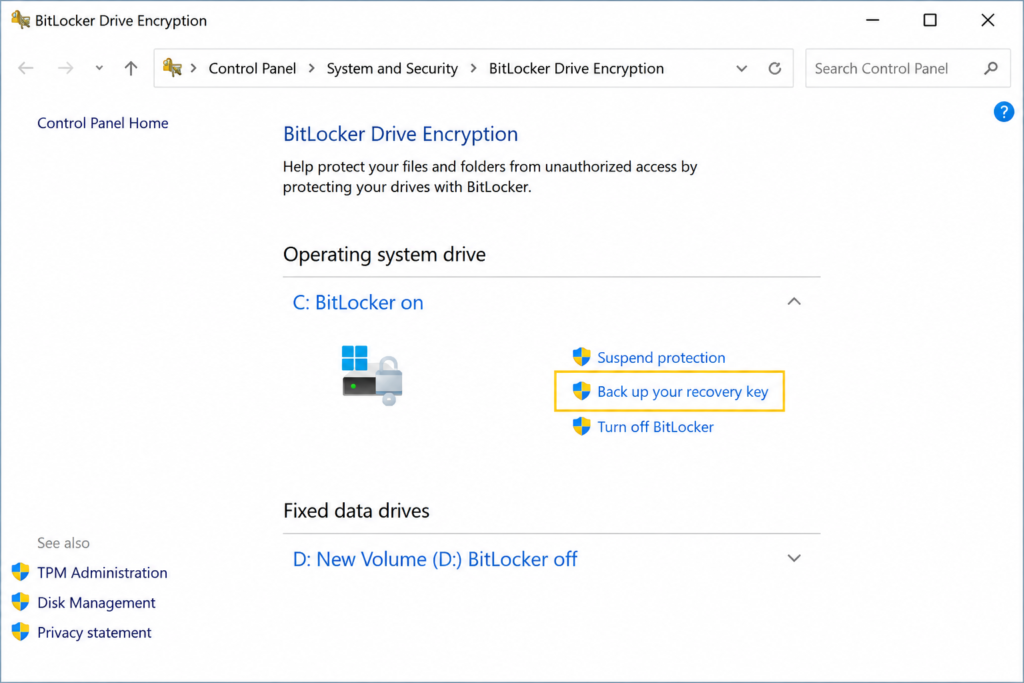
Using the Windows Interface
On supported systems:
- Open Control Panel.
- Select System and Security.
- Open BitLocker Drive Encryption.
- Select Suspend protection.
- Confirm the action.
- Perform the update according to the manufacturer’s instructions.
- Resume BitLocker protection afterward.
Follow the documentation for the exact update you are performing.
Do not leave BitLocker suspended unnecessarily.
BitLocker Recovery Troubleshooting Table
| Problem | Best next step |
|---|---|
| Personal computer asking for 48-digit key | Check aka.ms/myrecoverykey |
| Several keys appear | Match the Recovery Key ID |
| Cannot remember Microsoft account | Check account hint and accounts used during setup |
| Someone else set up the PC | Ask that person to check their Microsoft account |
| Work or school laptop | Check organizational recovery or contact IT |
| Microsoft account has no key | Check other legitimate storage locations |
| Windows Home asks for BitLocker key | Device Encryption may be enabled |
| Prompt began after firmware update | Recover first, then investigate firmware/BitLocker configuration |
| Secure Boot was recently disabled | Restore the known correct configuration if appropriate |
| USB boot media is attached | Remove unexpected boot media and retry if appropriate |
| BitLocker asks every restart | Investigate the recurring recovery trigger |
| No key exists anywhere | Microsoft cannot recreate it |
| Thinking about resetting | Understand that reset removes inaccessible files |
How to Protect Your BitLocker Recovery Key
Your BitLocker recovery key should be treated like an emergency master credential for the encrypted drive.
Do Not
- publish the 48 digits online
- include the key in screenshots
- email it casually
- give it to unknown support accounts
- store a printed copy with the laptop
- keep the only USB backup in the laptop bag
- type it into unofficial recovery websites
Do
- keep the recovery information in a secure location
- verify that you can actually access your backup
- maintain more than one secure copy when appropriate
- keep physical recovery material separate from the protected computer
- know which Microsoft or organization account is associated with the device
Frequently Asked Questions
What is aka.ms/myrecoverykey used for?
aka.ms/myrecoverykey is Microsoft’s official shortcut for locating BitLocker recovery keys stored in a personal Microsoft account. Microsoft tells users to access it from another device when a BitLocker-protected computer is locked.
Is aka.ms/myrecoverykey a legitimate Microsoft address?
Yes. Microsoft uses aka.ms/myrecoverykey in its official BitLocker recovery instructions.
How many digits are in a BitLocker recovery key?
A BitLocker recovery key is a 48-digit numerical recovery password.
Is the Key ID my BitLocker recovery key?
No. The Key ID identifies the correct stored recovery key. The corresponding 48-digit number is what you enter to unlock the drive.
How much of the Recovery Key ID do I need to match?
Microsoft tells users to note the first eight digits of the Recovery Key ID when identifying the correct stored recovery key.
Why are there several BitLocker keys in my Microsoft account?
You can have recovery keys for multiple drives, devices, or previous BitLocker configurations. Use the Key ID on the locked computer to identify the relevant entry rather than guessing.
Why does my Microsoft account show no BitLocker key?
You may be signed into the wrong account, another person may have configured the computer, the device may be managed by an organization, or the key may have been saved to USB, a file, or a printed copy.
Can I unlock BitLocker using my Microsoft account password?
Your Microsoft account password allows you to sign into your account and retrieve a stored BitLocker key. It is not itself the 48-digit BitLocker recovery password.
Can I use my Windows PIN instead?
Not when the preboot BitLocker recovery screen specifically requires the recovery password.
Your normal Windows PIN and BitLocker recovery key serve different purposes.
Why did BitLocker activate if I never turned it on?
Compatible Windows devices can automatically enable Device Encryption when they are set up with a Microsoft account or work/school account. Device Encryption uses BitLocker technology and is available on a wider range of computers, including compatible Windows Home devices.
Can Windows Home have BitLocker?
Windows Home does not include the full BitLocker Drive Encryption management feature found in Pro, Enterprise, and Education. However, compatible Windows Home devices can use Windows Device Encryption, which uses BitLocker encryption technology.
Can Microsoft recreate my lost BitLocker key?
No. Microsoft Support explicitly states that it cannot retrieve, provide, or recreate a lost BitLocker recovery key.
Can a computer repair shop bypass BitLocker?
A technician can help diagnose hardware, firmware, Windows, or account issues and may help you locate legitimate recovery information. You should be skeptical of anyone promising a universal method for decrypting a properly protected drive without valid recovery material.
Can I turn BitLocker off from the recovery screen?
The immediate purpose of the recovery screen is to restore authorized access. If Windows cannot automatically unlock the drive, you normally need a valid recovery method before changing BitLocker settings inside Windows.
Why did BitLocker appear after a BIOS update?
Firmware changes can alter the boot measurements that BitLocker expects. Microsoft documents situations where firmware updates can trigger BitLocker recovery and recommends suspending BitLocker before certain non-Microsoft firmware updates.
Should I disable TPM to fix BitLocker?
Do not disable or clear TPM settings at random. TPM-related changes can themselves affect BitLocker recovery behavior. Microsoft documents disabled, invalidated, missing, and failed TPM conditions among possible recovery causes.
Should I disable Secure Boot?
Not as a general solution. Microsoft specifically documents recovery situations caused by Secure Boot being disabled or changed.
What should I do if BitLocker keeps asking for the key?
Recover the device, then investigate why the recovery condition keeps returning. Microsoft recommends root-cause analysis after repeated recovery events rather than simply entering the key every time.
Will resetting Windows remove BitLocker?
A reset can make the device usable again by replacing the existing Windows installation, but Microsoft warns that resetting when the recovery key cannot be found removes your files. It does not recover the inaccessible encrypted data.
