
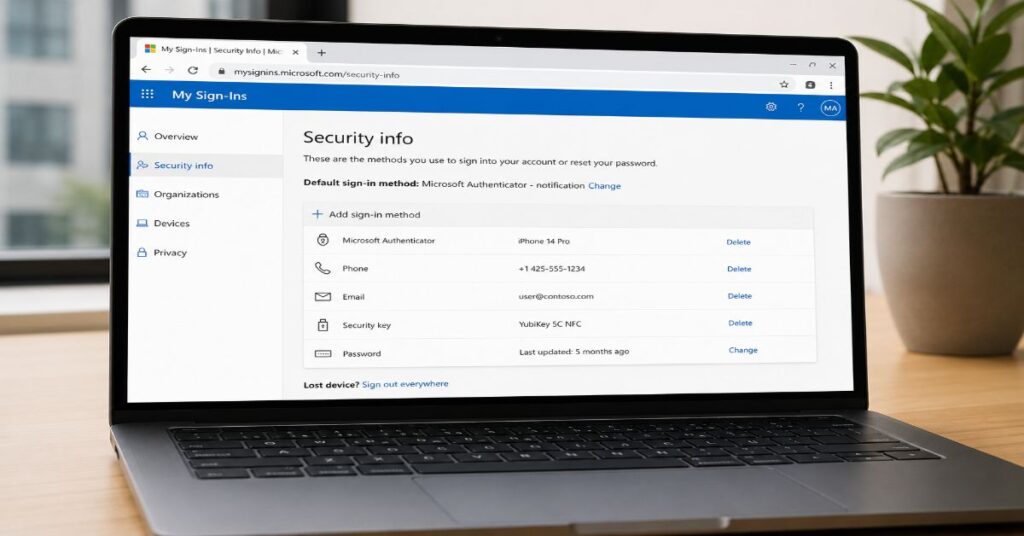
Mysignins.microsoft.com security-info is the Microsoft My Sign-Ins page where employees, students and administrators manage security information for a work or school account. In practical terms, it is where a user adds Microsoft Authenticator, registers a phone number, removes outdated sign-in methods, checks recent sign-in activity and prepares account recovery before a lockout happens.
The page matters because Microsoft identity is now the front door to Outlook, Teams, SharePoint, OneDrive, Azure, Microsoft 365 Copilot and many enterprise apps connected through Entra ID. A weak authentication method can expose far more than email. It can expose files, meetings, admin tools, cloud resources and AI-assisted workflows that summarize or retrieve sensitive company data.
For most users, the portal is simple: go to https://mysignins.microsoft.com/security-info or https://aka.ms/mysecurityinfo, sign in with a work or school email, then review Security Info. For IT teams, the page sits inside a larger system of Conditional Access, authentication strengths, self-service password reset and mandatory MFA enforcement for cloud admin portals.
That distinction is important. A user can usually add or remove methods only if the organization allows it. Some tenants permit SMS, phone call, Authenticator push and passkeys. Others restrict weaker methods, require number matching or mandate phishing-resistant MFA for administrators. The page looks personal, but the rules behind it are organizational.
This guide explains what the portal does, how to set it up safely, which MFA methods are stronger, what risks remain and how Microsoft’s identity direction is likely to change through 2027.
What mysignins.microsoft.com/security-info Actually Is
mysignins.microsoft.com/security-info is part of Microsoft’s My Account experience for work and school identities. It is not the same as the personal Microsoft account security dashboard at account.microsoft.com. The work and school portal is governed by Microsoft Entra ID, the identity platform many organizations use to manage access to Microsoft 365, Azure and connected SaaS apps.
The Security Info page usually lets users manage these authentication methods:
| Function | What the user can do | Why it matters |
| Add sign-in method | Register Authenticator, phone, SMS, hardware token, passkey or other approved method | Enables MFA and account recovery |
| View methods | See existing authentication options | Helps identify outdated or risky entries |
| Delete methods | Remove old phone numbers, lost devices or unused authenticators | Reduces account recovery risk |
| Change default method | Choose preferred sign-in verification | Improves reliability and user experience |
| Review recent activity | Check sign-in attempts and locations | Helps spot suspicious access |
| Change password | Update password when allowed by policy | Useful after unusual activity |
| Sign out everywhere | End active sessions across devices where supported | Reduces exposure after device loss or suspected compromise |
A common misunderstanding is that this page “turns on MFA” by itself. It does not always do that. The page registers methods. Whether MFA is required depends on tenant policy, Conditional Access, security defaults or administrator configuration.
For enterprise readers following Microsoft productivity coverage, this connects directly to Microsoft’s broader workplace ecosystem. Perplexity AI Magazine has separately covered how Microsoft 365 Copilot is becoming embedded inside work apps, and that makes account security more important because identity now governs access to AI-assisted documents, emails and meetings: https://perplexityaimagazine.com/ai-news/microsoft-ai-37-billion-arr-copilot-20-million-seats-m365-e7-2026/
How to Access the Microsoft Security Info Page
The cleanest route is direct access:
- Open https://mysignins.microsoft.com/security-info
- Sign in with your work or school email.
- Complete any required verification prompt.
- Review the Security Info page.
- Select Add sign-in method if you need to register a new method.
- Remove outdated phone numbers, unused apps or lost devices.
- Confirm your default sign-in method is still available.
The shortcut https://aka.ms/mysecurityinfo usually redirects to the same area. Some tenants also let users reach the page from My Account, then Security Info in the left navigation.
If the page does not load, the most common causes are simple:
| Problem | Likely cause | Practical fix |
| Personal account used | The portal expects a work or school identity | Sign out, then sign in with the organization email |
| Access denied | Admin policy blocks self-service changes | Contact IT or help desk |
| Method cannot be deleted | It is the only active method or required by policy | Add a replacement method first |
| Authenticator QR setup fails | Camera, app permission or session timeout issue | Restart setup and scan again |
| Phone option missing | Tenant disabled SMS or voice methods | Use an approved method such as Authenticator or security key |
| Repeated verification loop | Browser cookies, device compliance or stale session problem | Try private window, approved browser or managed device |
The first practical rule is to add a backup method before deleting anything. Many lockouts happen because users remove an old phone or Authenticator registration before confirming the new method works.
The Step-by-Step MFA Setup Workflow
The safest standard setup for most work users is Microsoft Authenticator plus at least one backup method approved by the organization.
1. Start from a trusted device
Use a device you control. Avoid public computers. Do not begin MFA setup from a link in a suspicious email or Teams message. Type the address manually or use the aka.ms shortcut.
2. Add Microsoft Authenticator
On the Security Info page, select Add sign-in method, choose Authenticator app and follow the on-screen setup. The usual workflow is:
- Install Microsoft Authenticator on your phone.
- Choose Authenticator app in the Security Info page.
- Scan the QR code with the app.
- Approve the test prompt.
- Confirm the method appears in your list.
If number matching is enabled, the sign-in page shows a number and the user must enter that number in Authenticator. This reduces accidental approval of fraudulent push prompts.
3. Add a backup method
A backup method protects against phone loss, app reinstall problems, travel issues or device replacement. Depending on policy, this may be another Authenticator registration, a phone number, a Temporary Access Pass issued by IT or a hardware security key.
4. Set the default method
Set the most secure and reliable method as default. For many users, that is Authenticator notification or passwordless Authenticator. For privileged users, IT may require passkeys, Windows Hello for Business or FIDO2 security keys.
5. Test before closing
Sign out, then sign back in from a normal browser session to confirm the method works. Do not wait until a deadline, flight, new phone migration or password reset event to discover the method is broken.
This is where mysignins.microsoft.com security-info becomes operationally important. It is not only an enrollment page. It is a maintenance page for identity hygiene.
Microsoft MFA Methods Compared
Not every MFA method offers the same security. SMS is better than password-only access, but it is weaker than phishing-resistant options. Authenticator is stronger, especially with number matching and device protections. FIDO2 security keys and passkeys are stronger again because they bind authentication to the legitimate sign-in surface.
| Method | Security level | Reliability | Main weakness | Best use case |
| SMS code | Basic MFA | Medium | SIM swap, phishing, mobile network issues | Low-risk backup where allowed |
| Voice call | Basic MFA | Medium | Social engineering, number recycling, call interception risk | Accessibility or backup use |
| Authenticator push | Stronger MFA | High | Push fatigue if poorly configured | Everyday work account use |
| Authenticator with number matching | Stronger MFA | High | Requires user attention and device access | Standard enterprise MFA |
| Software OATH code | Moderate to strong | High | Phishable if entered into fake site | Offline code backup |
| Hardware OATH token | Moderate to strong | High | Loss, procurement and lifecycle management | Shared or restricted environments |
| Passkey or FIDO2 security key | Phishing-resistant | High | Hardware cost, browser and device support | Admins, sensitive apps and high-risk users |
| Windows Hello for Business | Phishing-resistant in supported setups | High | Device dependency and deployment complexity | Managed Windows environments |
The strategic lesson is clear: MFA is not a single security level. It is a spectrum. A tenant that allows SMS fallback for every user has a different risk profile than a tenant that requires phishing-resistant MFA for administrators and sensitive apps.
For readers comparing Microsoft ecosystem tools, this is also why identity controls matter when organizations adopt Microsoft Copilot or similar AI assistants. AI does not remove access boundaries. It often makes existing permissions more consequential. A useful related comparison is Perplexity AI Magazine’s analysis of Perplexity AI vs Microsoft Copilot: https://perplexityaimagazine.com/perplexity-hub/perplexity-ai-vs-microsoft-copilot/
Security Info vs Recent Activity vs My Apps
Microsoft’s work account experience can feel fragmented because several portals sound similar.
| Microsoft page | Main purpose | Who uses it |
| Security Info | Manage MFA and sign-in verification methods | Employees, students, admins |
| My Sign-Ins Recent Activity | Review recent work or school sign-ins | Users investigating account activity |
| My Apps | Launch organization-approved cloud apps | Employees and students |
| My Account | Broader work or school account settings | Users managing account profile and security |
| Entra admin center | Tenant-wide identity and access administration | IT administrators |
The Security Info page is about proving identity. The Recent Activity page is about reviewing whether identity was used suspiciously. My Apps is about accessing applications after identity is verified.
A good user workflow joins all three. Register strong methods in Security Info. Review Recent Activity after suspicious prompts. Use My Apps only after confirming you are in the correct organization account. Perplexity AI Magazine’s separate explainer on the Microsoft My Apps portal gives useful context for that application access layer: https://perplexityaimagazine.com/blog/myapps-microsoft-work-app-portal/
Practical Signs of Unauthorized Sign-In Activity
Users should review sign-in activity whenever they see an unexpected MFA prompt, receive a password reset alert, lose a device or notice unusual emails, Teams messages or file activity.
Warning signs include:
• A successful sign-in from a city, country or device you do not recognize.
• Repeated failed sign-in attempts followed by a successful one.
• Access to an app you do not use.
• MFA prompts when you are not actively signing in.
• A newly added authentication method you did not register.
• Email forwarding, inbox rules or file sharing changes you did not create.
If any of these appear, the safest response is to change the password, remove unfamiliar security methods, sign out everywhere if available and notify IT. For managed organizations, the help desk can also revoke sessions, reset MFA registration, inspect risky sign-ins and review audit logs.
The risk is not theoretical. Modern attackers often target session tokens, OAuth consent, device code login flows and recovery methods rather than only passwords. That makes mysignins.microsoft.com security-info a useful user-facing control point, but not a complete security system by itself.
Hidden Limitations Most Guides Miss
1. The page only shows what policy allows
A user may read that Microsoft supports passkeys or FIDO2 security keys, then find no such option in the portal. That does not always mean the feature is unavailable globally. It often means the tenant has not enabled it or the user is outside the assigned group.
2. Backup methods can become the weakest link
Adding a backup phone number improves recovery, but it can also create a weaker fallback path. Administrators should consider whether privileged accounts should be allowed to use SMS or voice fallback at all.
3. Removing a method may not revoke every active session
Deleting an old method reduces future risk, but it does not automatically guarantee that every already-issued session token is invalidated. After suspected compromise, users and admins should pair method cleanup with password change, session revocation and sign-out actions.
4. Authenticator migration is a common failure point
New phones are one of the most common moments of account trouble. Users should not wipe or trade in an old phone before confirming the new Authenticator setup works. In some organizations, IT must issue a Temporary Access Pass or reset MFA registration.
5. Personal and work Microsoft accounts are often confused
A user may have a personal Outlook.com account and a work Microsoft 365 account with the same email address or similar login flow. Security settings for one do not necessarily control the other. That confusion can delay recovery during a real incident.
These are not edge cases. They are the routine friction points that explain why organizations need both user education and strong tenant policy.
Real-World Impact for Microsoft 365, Azure and Copilot Users
Identity security now sits close to business productivity. A compromised work account can expose email, calendar records, Teams chats, SharePoint libraries, OneDrive files and app access. For administrators, the blast radius can extend into Azure subscriptions, Entra policies, Intune device controls and security tooling.
Microsoft began enforcing MFA for Azure portal, Microsoft Entra admin center and Microsoft Intune admin center operations starting in October 2024, with Microsoft 365 admin center enforcement beginning in phases from February 2025. That policy direction shows where the enterprise market is moving: MFA is no longer optional for high-value cloud administration.
The Copilot layer raises the stakes. If an attacker gains access to an account with broad file permissions, AI-assisted search and summarization can make discovery faster. The issue is not that Copilot creates the permission problem. The issue is that identity compromise can make existing permission sprawl easier to exploit.
That is why Security Info hygiene belongs in the same operational category as device patching, data loss prevention and least-privilege access. It is not just a login preference.
Recommended Setup by User Type
| User type | Recommended methods | Methods to avoid where possible | Notes |
| Standard employee | Authenticator with number matching plus backup method | SMS as primary | Good balance of usability and security |
| Student account | Authenticator plus recovery phone or backup code where allowed | Single device only | Prevents lockout after phone changes |
| Executive | Authenticator plus phishing-resistant method | SMS fallback | High phishing risk due public profile |
| IT admin | FIDO2 key, passkey or Windows Hello for Business | SMS, voice, weak fallback | Should meet phishing-resistant policy |
| Shared workstation user | Hardware token or approved device-bound method | Personal phone-only setup | Needs operational continuity |
| Contractor | Authenticator plus Conditional Access controls | Long-lived unmanaged access | Review access expiration and app scope |
The strongest configuration is not always the most practical for every user. A hospital floor, school lab, warehouse, offshore contractor team and software engineering group may need different enrollment patterns. The principle is the same: use the strongest method the workflow can sustain without creating lockout chaos.
Troubleshooting Microsoft Authenticator Issues
Authenticator problems usually fall into a few categories.
| Issue | Likely reason | Fix |
| No prompt received | Notifications disabled, network issue or wrong account | Open the app manually, check notifications and confirm account |
| Number matching fails | User enters wrong number or prompt expired | Restart sign-in and enter the displayed number carefully |
| QR code will not scan | Camera permission or expired setup page | Allow camera access or restart Add method |
| New phone does not work | Authenticator was not re-registered | Use backup method or contact IT for reset |
| App shows old account | Duplicate registration or stale tenant entry | Confirm account name and remove outdated registration |
| User is locked out | No working method remains | Contact IT for Temporary Access Pass or MFA reset |
A practical maintenance habit is to review Security Info after every phone replacement, role change, international move or organization migration. Do not treat MFA setup as a one-time event.
Risks and Trade-Offs
The central trade-off is security versus recoverability. If an organization allows many backup methods, users are less likely to be locked out. Attackers also have more recovery paths to target. If an organization requires only phishing-resistant methods, account takeover risk drops, but rollout becomes harder for contractors, legacy devices and users without compatible hardware.
There is also a support cost. Hardware keys require procurement, inventory, replacement workflows and training. Authenticator requires phone access and user familiarity. SMS requires the least education, but it carries more interception and social engineering risk.
The best policy is usually layered. Standard users can use Authenticator with number matching. High-risk users can be moved to passkeys or FIDO2 security keys. Administrators can be required to use phishing-resistant MFA. Break-glass accounts should be tightly controlled, monitored and excluded only where Microsoft guidance supports that exception.
The Future of Microsoft Security Info in 2027
By 2027, Microsoft’s account security direction is likely to be more passwordless, more phishing-resistant and more policy-driven. That forecast is grounded in current Microsoft documentation, not hype. Microsoft already documents authentication strengths in Entra ID, including built-in categories for multifactor authentication, passwordless MFA and phishing-resistant MFA. It also documents passkeys and FIDO2 authentication as a way to improve sign-in security.
The practical change for users is that mysignins.microsoft.com security-info may become less about adding a phone number and more about managing device-bound credentials. More organizations will likely push users toward Authenticator, passkeys, Windows Hello for Business and hardware-backed methods.
The uncertain part is rollout speed. Legacy devices, contractor access, frontline work, education accounts and cross-platform browser support can slow adoption. Organizations that move too quickly can create lockout spikes. Organizations that move too slowly may leave SMS and voice fallback exposed for sensitive accounts.
The likely 2027 winner is not one method for everyone. It is adaptive policy: stronger authentication for riskier users, apps and sessions, with enough recovery planning to keep business operations moving.
Takeaways
• The Security Info portal is a user-facing identity control, not just a settings page.
• Microsoft Authenticator is usually a better default than SMS, especially when number matching is enabled.
• Passkeys and FIDO2 security keys are the stronger direction for administrators and sensitive roles.
• Backup methods reduce lockout risk but can increase attack surface if they are weaker than the primary method.
• Sign-in history should be reviewed after unexpected MFA prompts, device loss or suspicious account behavior.
• Copilot and Microsoft 365 adoption make identity hygiene more important because one account can unlock many connected work surfaces.
• Admin policy controls what users see, so missing options often reflect tenant configuration rather than user error.
Conclusion
mysignins.microsoft.com security-info deserves more attention than most users give it. It is the page that determines whether a Microsoft work or school account has reliable MFA, safe recovery paths and fewer outdated authentication methods waiting to be abused.
For everyday users, the priority is simple: register Microsoft Authenticator, keep a verified backup method, remove old devices and review recent activity when something feels wrong. For administrators, the larger challenge is policy design. SMS may be acceptable as a temporary bridge for some users, but sensitive accounts need stronger protection through authentication strengths, passkeys, FIDO2 security keys or Windows Hello for Business.
The portal will not solve every identity risk. It will not replace Conditional Access, audit logs, device compliance or least-privilege permissions. But it is the part of Microsoft identity that normal users can actually see and maintain. That makes it one of the most important security pages in the Microsoft 365 ecosystem.
FAQ
What is mysignins.microsoft.com/security-info used for?
It is used to manage security information for a Microsoft work or school account. Users can add MFA methods, set up Microsoft Authenticator, manage phone verification, remove old methods and review account security options allowed by their organization.
Is mysignins.microsoft.com security-info for personal Microsoft accounts?
No. It is mainly for work or school accounts managed through Microsoft Entra ID. Personal Microsoft accounts use the Microsoft account security dashboard, which has a different account management experience.
Why can’t I add SMS or a security key?
Your organization controls which authentication methods are available. If SMS, phone call, passkeys or FIDO2 keys do not appear, the tenant policy may not allow them for your account or group.
Should I use Microsoft Authenticator or SMS?
Microsoft Authenticator is usually stronger than SMS. SMS is vulnerable to SIM swap, interception and phishing. Authenticator with number matching gives better protection while remaining practical for most users.
What should I do before changing phones?
Add or confirm a backup sign-in method before wiping the old phone. Then register Authenticator on the new phone and test sign-in. If you lose access, your organization’s IT team may need to reset MFA or issue a Temporary Access Pass.
Can Security Info show if someone accessed my account?
Security Info manages methods. For sign-in evidence, use the My Sign-Ins Recent Activity page. It can show recent work or school account sign-ins, locations, apps and suspicious access patterns where available.
What is the safest Microsoft MFA method?
For sensitive accounts, phishing-resistant methods such as passkeys, FIDO2 security keys or Windows Hello for Business are generally stronger than SMS or standard push approval. The best option depends on device support and organization policy.
Methodology
This article was prepared from Microsoft’s official documentation on My Sign-Ins, Microsoft Entra multifactor authentication, authentication strengths, passkeys and mandatory MFA enforcement for admin portals. It also used Microsoft Support documentation for recent sign-in activity and account security workflows.
References
Microsoft. (2025, July 15). Microsoft Entra multifactor authentication overview. Microsoft Learn. https://learn.microsoft.com/en-us/entra/identity/authentication/concept-mfa-howitworks
Microsoft. (2025, October 24). Overview of Conditional Access authentication strengths. Microsoft Learn. https://learn.microsoft.com/en-us/entra/identity/authentication/concept-authentication-strengths
Microsoft. (2026, April 3). Mandatory multifactor authentication for Azure and admin portals. Microsoft Learn. https://learn.microsoft.com/en-us/entra/identity/authentication/concept-mandatory-multifactor-authentication
Microsoft. (2026, April 6). Passkeys authentication method in Microsoft Entra ID. Microsoft Learn. https://learn.microsoft.com/en-us/entra/identity/authentication/concept-authentication-passkeys-fido2
Microsoft Support. (n.d.). View your work or school account sign-in activity from My Sign-ins. https://support.microsoft.com/en-us/accounts-billing/work-school/view-your-work-or-school-account-sign-in-activity-from-my-sign-ins
Microsoft Support. (n.d.). Microsoft account security info and verification codes. https://support.microsoft.com/en-us/accounts-billing/manage/microsoft-account-security-info-verification-codes
Meyer, L. A., Romero, S., Bertoli, G., Burt, T., Weinert, A., & Lavista Ferres, J. (2023). How effective is multifactor authentication at deterring cyberattacks? arXiv. https://arxiv.org/abs/2305.00945
Ang, K. W., Chekole, E. G., & Zhou, J. (2024). Excavating vulnerabilities lurking in multi-factor authentication protocols: A systematic security analysis. arXiv. https://arxiv.org/abs/2407.20459
