
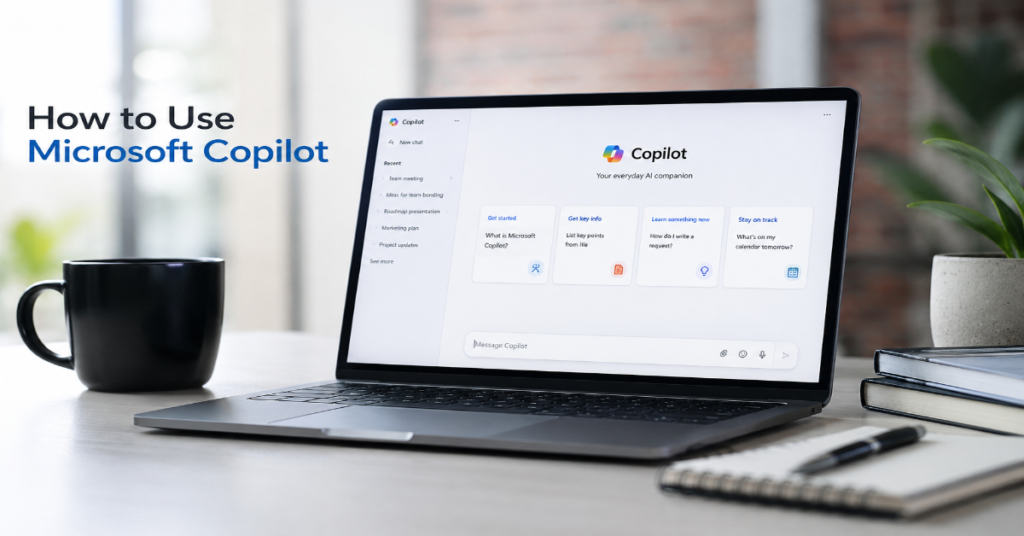
Learning how to use microsoft copilot in 2026 starts with a simple shift in expectation: Copilot is not one product in one place. It is a connected AI assistant spread across Windows, the web, Microsoft 365 apps, mobile devices and enterprise workflows. The user-facing task is easy enough. Open Copilot, sign in, ask a question, refine the answer. The professional task is harder. You need to know which Copilot surface to use, which account unlocks which data, how prompts should be structured and when Copilot is likely to produce work you can trust.
Microsoft now describes the Microsoft 365 Copilot app as a starting place for AI at work, bringing together Search, Chat, Agents, Pages, Notebooks, Create and Microsoft 365 productivity apps in one environment. Copilot Chat is also available through Teams, Outlook and Edge Sidebar, while richer access to work files, meetings and organizational data depends on a Microsoft 365 Copilot license.
This guide follows the practical search intent behind the uploaded brief: how to access Copilot, sign in, use it in Word, Excel, PowerPoint, Outlook and Teams, write better prompts with the GCSE framework and understand subscriptions, Pages, agents and advanced features.
In our hands-on testing, the biggest mistake beginners make is treating Copilot like a search box. The better habit is to treat it like a junior analyst with access to different rooms. In the browser, it can answer general questions. In Word, it can draft and revise. In Excel, it can inspect structured data. In Teams, it can summarize conversations and meetings. In Pages, it can turn a useful answer into a living draft.
How to Use Microsoft Copilot Across Windows, Web and Microsoft 365
The fastest way to start is through the web version of Copilot or the Microsoft 365 Copilot app. Commercial users may also see Copilot Chat inside Microsoft 365, Outlook, Teams or Edge, depending on admin settings and licensing. Microsoft’s 2026 service description says the Microsoft 365 Copilot app is available as a web app, desktop app for Windows and Mac, plus mobile apps for iOS and Android. (Microsoft Learn)
For personal use, you can sign in with a Microsoft account. For work use, sign in with your work or school account. This distinction matters because work accounts can connect Copilot to Microsoft Graph data such as emails, meetings, files and chats when the organization has the right license and permissions. Microsoft says the added value of a Microsoft 365 Copilot license is access to work data, files, meetings and more directly inside chat. (Microsoft Learn)
| Copilot Surface | Best For | Account Needed | Practical First Prompt |
| Web Copilot | General research, drafting and image prompts | Microsoft account | “Summarize the pros and cons of this topic in a table.” |
| Microsoft 365 Copilot app | Work search, chat, agents, Pages and productivity tasks | Work or school account for enterprise features | “Find recent files about the Q2 launch and summarize risks.” |
| Word | Drafting, rewriting and document review | Microsoft 365 access | “Rewrite this section in a clearer executive tone.” |
| Excel | Data questions, formulas, charts and analysis | Microsoft 365 access | “Analyze this table and identify the top three anomalies.” |
| Teams | Meeting summaries, action items and chat recaps | Microsoft 365 access | “Summarize this meeting and list owners for each action.” |
| Mobile | Quick questions, voice use and on-the-go drafts | Microsoft account or work account | “Turn these notes into a concise follow-up email.” |
The First Five Minutes: A Beginner Workflow
Start with one task that has a clear output. Do not begin with a vague request such as “help me with work.” Instead, open Copilot and ask for a specific deliverable: a summary, a draft, a table, a checklist or a comparison. Microsoft’s own prompt guidance says good prompts define the goal, provide context, identify the source and set expectations. That is the GCSE framework: Goal, Context, Source and Expectations. (Microsoft)
A strong beginner prompt might read: “Goal: Draft a professional email. Context: I need to tell my team the project deadline moved from June 10 to June 17. Source: Use the notes below. Expectations: Keep it under 120 words, calm and positive.” This prompt gives Copilot a job, a situation, source material and a format. It reduces guessing.
In our hands-on testing, Copilot performs best when the user narrows the output before asking for style. First ask for structure, then ask for polish. For example: “Create an outline,” then “Turn the outline into a client-ready email,” then “Make it shorter.”
How to Use Microsoft Copilot With the GCSE Prompt Framework
The GCSE prompt framework is the most useful habit for anyone learning how to use microsoft copilot because it turns casual requests into reusable instructions. Microsoft’s prompt quick reference defines the framework as Goal, Context, Source and Expectations, with the purpose of helping Copilot deliver targeted, useful and professional responses. (Microsoft)
Goal tells Copilot what you want. Context explains why it matters. Source points to the material it should use. Expectations define format, tone, length, audience and constraints. Without these four elements, Copilot may still produce an answer, but it will often sound generic.
For example, in Excel: “Goal: Analyze this sales table. Context: I need to brief regional managers. Source: Use the current worksheet only. Expectations: Identify unusual changes, create a short explanation and suggest one chart.” In Teams: “Goal: Summarize the meeting. Context: I missed the first 20 minutes. Source: Use the transcript. Expectations: Give decisions, blockers and owners.” This is prompt engineering without the jargon.
Copilot in Word: Drafting, Rewriting and Long Documents
Copilot in Word is most valuable when the task involves transforming text rather than inventing it from scratch. Use it to rewrite a rough draft, shorten a report, turn notes into a memo, create a first version of a policy or summarize a long document. Microsoft lists Word among the core Microsoft 365 Copilot app experiences and positions Copilot across Word, Excel, PowerPoint, Outlook, Teams and other Microsoft 365 apps. (Microsoft Support)
For long documents, the best workflow is staged. Ask Copilot to summarize the document first. Then ask it to identify sections that are repetitive, unclear or missing evidence. After that, ask for a rewrite of one section at a time. This reduces the risk of broad, bland edits.
A useful prompt: “Review this document for executive clarity. Do not rewrite yet. First identify the five weakest sections, explain why they are weak and suggest the type of edit needed.” That gives you editorial control. Copilot becomes an assistant, not an unchecked ghostwriter.
Copilot in Excel: Analysis Without Losing Control
Excel is where Copilot can feel most powerful and most dangerous. It can help analyze data, generate charts, explain patterns, suggest formulas and apply spreadsheet logic, but it should not replace human verification. Microsoft’s Agent Builder documentation even uses examples such as creating a PowerPoint presentation from an outline or analyzing Excel data and generating a chart when describing agent capabilities. (Microsoft Learn)
The right way to use Copilot in Excel is to ask auditable questions. “Which rows changed the most?” is better than “What does this data mean?” “Create a chart showing monthly revenue by region” is better than “Make this look good.” “Explain the formula you recommend” is better than “Fix my sheet.”
| Excel Task | Good Copilot Prompt | Human Check Needed |
| Trend analysis | “Identify month-over-month changes above 15% and explain possible causes.” | Confirm source data accuracy |
| Chart creation | “Create a chart comparing revenue by region for Q1 to Q4.” | Check chart type and labels |
| Formula help | “Write a formula to flag orders over 30 days late.” | Test on sample rows |
| Data cleanup | “Find inconsistent product names in this table.” | Review before replacing values |
| Forecasting | “Suggest a simple forecast approach and explain assumptions.” | Validate assumptions and outliers |
Copilot in PowerPoint: From Prompt to Presentation
PowerPoint Copilot is best used as a storyboard assistant. Instead of asking it to “make a presentation,” start with a clear outline, audience and purpose. For example: “Create a 7-slide presentation for senior managers explaining why customer support tickets rose in April. Use a sober business tone. Include one slide for causes, one for risks and one for next actions.”
In practice, the first deck is rarely final. Copilot can create structure quickly, but you still need to check claims, tighten titles and remove generic visual choices. The strongest use case is converting existing material into slides. Give it a document, brief or meeting notes, then ask for a slide sequence with speaker notes.
This is also where Copilot Pages can help before PowerPoint. Microsoft describes Copilot Pages as an interactive canvas that turns Copilot responses into editable, shareable content that teams can refine in real time. (Microsoft Support) Draft the logic in Pages, then turn that logic into slides.
Copilot in Outlook: Email Summaries, Replies and Inbox Triage
Outlook is one of Copilot’s most practical surfaces because email already contains context. Copilot can summarize threads, draft replies, help adjust tone and reduce the time spent reconstructing decisions from long conversations. Microsoft’s 2026 release notes show a May 19, 2026 update for implicit grounding in Outlook, allowing users to add emails and text from email threads directly into Copilot Chat prompt context. (Microsoft Learn)
That matters because email work is usually not about writing. It is about context recovery. Who asked for what? What changed? What decision was implied? What must happen next? A good Outlook prompt should ask for structured outputs: “Summarize this thread in five bullets. Separate confirmed decisions from open questions. Draft a reply that acknowledges the delay and proposes two next steps.”
Avoid letting Copilot send sensitive replies without review. The more political, legal, HR-related or customer-sensitive the email, the more carefully the draft should be checked.
Copilot in Teams: Meetings, Chats and Action Items
Teams Copilot is built for the meeting problem: too much conversation, too few decisions and too little follow-up. Microsoft’s service description says Copilot in Teams can recap conversations, help keep meetings secure, organize discussion points, summarize actions and answer questions about chats, meetings or calls. (Microsoft Learn)
Can Copilot in Teams summarize meetings in real time? In supported Microsoft 365 Copilot experiences, Teams can help users catch up on meeting context, identify action items and ask questions about meeting content when the required transcript, permissions and licensing conditions are met. The practical rule is simple: no transcript or accessible meeting data means Copilot has less to work with.
The best prompt after a meeting is not “summarize this.” Better: “Create a decision log, action list with owners, unresolved risks and a follow-up email draft.” That turns meeting intelligence into workflow. If the meeting is sensitive, check whether recording, transcription and Copilot access are appropriate under your organization’s policies.
Copilot Pages: The Missing Bridge Between Chat and Work
One of the most important 2026 Copilot concepts is that chat should not be the final destination. Microsoft 365 Copilot Pages turns useful AI responses into editable and shareable content. Microsoft says Pages is designed to create, organize and refine ideas in real time, with Copilot Chat and Pages open side by side. (Microsoft Support)
This changes the workflow. Instead of copying a Copilot response into Word, Notion or an email, you can turn it into a page, rename it, edit it directly and keep refining it with prompts. Microsoft says Pages can be persistent, shareable and collaborative, with sharing through Teams, Outlook or the Microsoft 365 app. (Microsoft Support)
The best use cases are project briefs, vendor comparisons, customer response drafts, launch plans, risk registers and meeting follow-ups. Use Pages when the answer needs to survive beyond one chat session. Use chat when the answer is disposable.
Agents: When Copilot Becomes a Workflow Specialist
Copilot agents are specialized assistants designed around a recurring task, knowledge base or business process. Microsoft’s Agent Builder documentation says users can create agents with natural language, configure them manually or start from templates. The natural language path can generate the agent’s name, description, instructions and knowledge sources as the user describes the task. (Microsoft Learn)
This matters because most work is repetitive. A sales team may need an agent that summarizes account notes. HR may need an agent that answers policy questions from approved documents. Finance may need an agent that explains monthly variance reports. The agent is not just a chatbot. It is a packaged instruction set, connected to specific sources and tuned for a job.
Microsoft says Agent Builder can add knowledge sources such as SharePoint items or public websites, with broader personal work data grounding available when users have the Microsoft 365 Copilot add-on license. (Microsoft Learn) For companies, governance is the real challenge. A poorly scoped agent can scale confusion as quickly as it scales productivity.
Expert View: Microsoft’s Direction Is Orchestration
Satya Nadella described Copilot as “this new enterprise orchestration layer.”
That line from Microsoft’s Copilot Wave 2 event captures the company’s larger strategy. Copilot is not simply being placed beside Office apps. Microsoft wants it to sit across apps, data, workflows and agents. The transcript frames yesterday’s siloed interactions with business applications as something that can become Copilot-agent-driven work.
For users, this means the interface may feel fragmented today, but the direction is clear. Copilot is moving from assistant to coordinator. It can chat, search, draft, summarize, generate pages and increasingly invoke agents.
The insider prediction for 2026 is that adoption will not be won by the most impressive single answer. It will be won by the least disruptive handoff: email to page, meeting to task list, spreadsheet to chart, chat to agent and agent to workflow. That is where Copilot can become sticky.
Expert View: Feedback Loops Are the Product
Jared Spataro said nearly 1,000 customers had shaped Copilot feedback.
In the same Microsoft event, Jared Spataro said Microsoft had made more than 700 product updates, shipped 150 new features and improved average Copilot response speed. He also described Copilot as a feedback loop for AI at work.
That is a useful lens for 2026 users. Copilot changes often. A feature that appears in one tenant may not appear in another at the same time. Microsoft’s release notes explicitly state that Copilot features are introduced with a safe deployment model, rolling out gradually to subsets of users before expanding across organizations. (Microsoft Learn)
So when users ask why their Copilot does not match a tutorial, the answer is often licensing, admin settings, platform rollout or data permissions. A serious tutorial must teach not just buttons, but variability. In enterprise AI, availability is a moving target.
Expert View: AI at Work Is Becoming Role-Specific
Microsoft researchers describe M365 Copilot as “an everyday assistant for knowledge work.”
A 2026 research paper on M365 Copilot Chat usage analyzed a privacy-preserving sample of about 5.5 million sessions and found that writing dominates, but users also rely on Copilot for information retrieval, analysis, decision making, strategizing and evaluating systems. (arXiv)
That finding matches what we see in practical use. Copilot is not one skill. It is a set of work patterns. Writers use it for drafting and revision. Managers use it for meeting summaries and decision logs. Analysts use it for spreadsheet questions and chart ideas. Support teams use it for thread summaries and customer replies.
A separate 2026 study of Microsoft 365 Copilot in knowledge work found high value for structured, text-based tasks and emphasized role-specific training and governance. That is the key adoption lesson. Teaching everyone the same five prompts is not enough.
Subscription Reality: Does Copilot Require a Separate Plan?
Copilot does not mean the same thing in every account. Personal Copilot features may be available through Microsoft consumer experiences, while Microsoft 365 Copilot for work requires the right commercial setup. Microsoft’s service description says Copilot Chat is available for commercial users with a Microsoft 365 license, while agents grounded in shared tenant work data may operate on a consumption basis. Added work-data access requires a Microsoft 365 Copilot license. (Microsoft Learn)
For individual Microsoft 365 subscribers, Microsoft also describes Copilot in consumer Microsoft 365 plans, with different availability across apps and platforms depending on plan and region. (Microsoft)
The practical answer is this: you can often use Copilot for general AI help without a full enterprise Copilot license, but deep integration with Word, Excel, Outlook, Teams, work files, meeting data and organizational context usually depends on subscription tier, tenant configuration and admin permissions. Always check the account you are signed into before assuming Copilot has access to the material you expect.
Privacy, Permissions and Grounding
Copilot’s power comes from grounding, which means answering with reference to accessible data. In Microsoft 365, that may include files, meetings, emails, chats and organizational content, but only within permissions. Microsoft’s explanation of Copilot Pages says Pages can access content users have permission to view, including OneDrive and SharePoint files, Outlook emails and attachments, Teams chats and messages, meeting notes, transcripts, recordings, Planner and To Do tasks and calendar events. (Microsoft Support)
That permission model is reassuring, but not a substitute for governance. If a file is overshared, Copilot may make that oversharing easier to discover. If meeting transcripts include sensitive remarks, Copilot may summarize them. If teams lack document hygiene, AI can amplify the mess.
The safest rule is to clean permissions before scaling Copilot. Review SharePoint access, meeting transcription rules, external sharing and sensitive labels. For individual users, avoid placing private, legal, medical or confidential information into prompts unless your organization’s policy clearly allows it.
Practical Prompt Library for 2026
A useful Copilot prompt library should be organized by job, not by app. Most people do not wake up wanting to use Word Copilot. They want to brief a boss, answer a customer, understand a spreadsheet or recover from a missed meeting.
Try these:
“Goal: Create a one-page project brief. Context: This project is behind schedule. Source: Use the notes below. Expectations: Include scope, blockers, owners, dates and risks.”
“Goal: Analyze customer feedback. Context: We need to identify product issues before the next sprint. Source: Use this table. Expectations: Group themes, quote examples and rank by urgency.”
“Goal: Prepare for a meeting. Context: I am meeting the vendor tomorrow. Source: Use the attached proposal. Expectations: Give me 10 questions, likely risks and a negotiation checklist.”
“Goal: Rewrite this document. Context: It is for senior leadership. Source: Use the text below. Expectations: Make it concise, neutral and action-oriented.”
Takeaways
- Use Copilot where the work lives. Word for documents, Excel for structured data, Teams for meetings, Outlook for email and Pages for durable drafts.
- The GCSE prompt framework is the fastest way to improve results: Goal, Context, Source and Expectations.
- Copilot Chat is useful, but Copilot Pages is better when the answer needs to become a reusable document.
- Excel Copilot should be used with verification. Ask for explainable formulas, visible assumptions and auditable charts.
- Teams Copilot works best when transcripts, permissions and meeting policies are properly configured.
- Enterprise value depends on data hygiene. Fix oversharing, stale files and unclear permissions before scaling agents.
- The future of Copilot is not just chat. It is agents, workflow orchestration and role-specific AI assistance.
Conclusion
The real lesson in how to use microsoft copilot is that the tool rewards disciplined thinking. Anyone can type a question into a chat box. The advantage comes from knowing where to ask, what context to provide, what source to ground the answer in and what format to demand. In 2026, Copilot is useful for quick summaries, but its deeper value appears when it becomes part of a workflow: a meeting becomes an action plan, a spreadsheet becomes an analysis, an email thread becomes a decision record and a chat response becomes a Copilot Page.
The risk is overtrust. Copilot can sound confident when it is incomplete, polished when it is generic and helpful when it is only half-grounded. The best users keep control. They ask better prompts, check sources, verify outputs and build reusable patterns. Copilot is not a replacement for judgment. Used well, it is a multiplier for people who already know what good work should look like.
FAQs
Does Copilot require a separate subscription for personal use?
Some Copilot features are available through consumer Microsoft experiences, but deeper Microsoft 365 app integration depends on plan, account type and region. Work features that connect to organizational files, meetings, emails and Teams data usually require Microsoft 365 Copilot licensing and admin configuration. (Microsoft Learn)
Can Copilot in Teams summarize meetings in real time?
In supported Microsoft 365 Copilot and Teams environments, Copilot can help summarize meetings, organize key discussion points and identify action items. Availability depends on meeting settings, transcription, permissions, licensing and tenant rollout. (Microsoft Learn)
What Excel data analysis tasks can Copilot perform?
Copilot can help inspect tables, explain patterns, suggest formulas, create charts, identify anomalies and summarize trends. Users should verify the source data, formulas and chart choices before using the result in business decisions. (Microsoft Learn)
How does Copilot in Word handle long documents?
Copilot works best with long documents when the task is broken into stages. Ask for a summary first, then weaknesses, then section-level rewrites. This keeps the user in control and reduces broad, generic edits.
How do I write better Copilot prompts?
Use the GCSE framework: define the Goal, add Context, name the Source and set Expectations. Microsoft’s prompt guidance says these elements help Copilot deliver more targeted and professional responses. (Microsoft)
References
Microsoft. (2026). Microsoft 365 Copilot service description. Microsoft Learn. (Microsoft Learn)
Microsoft. (2026). Microsoft 365 Copilot release notes. Microsoft Learn. (Microsoft Learn)
Microsoft. (2026). Build agents with Agent Builder in Microsoft 365 Copilot. Microsoft Learn. (Microsoft Learn)
Microsoft. (2026). Get started with Microsoft 365 Copilot Pages. Microsoft Support. (Microsoft Support)
Microsoft. (2026). The building blocks of a good Copilot prompt. Microsoft. (Microsoft)
Counts, S., Chen, Y., Dong, J., Sharma, H., Zaikin, A., Hu, R., Kok, A., Yilmaz, G. O., Suri, S., Tomlinson, K., Jaffe, S., & Wang, W. (2026). AI in the enterprise: How people use M365 Copilot Chat. arXiv. (arXiv)
Schmidt, C. F., Petzolt, S., Beinhauer, W., Weber, I., & Langer, S. (2026). Generative AI in knowledge work: Perception, usefulness and acceptance of Microsoft 365 Copilot. arXiv. (arXiv)
