

I have relied on Skype in moments that mattered: long distance family calls, urgent interviews, quick troubleshooting sessions across time zones. For many people, the question is simple: how do you actually use Skype? The answer begins with downloading the app from skype.com or your device’s app store, signing in with a Microsoft account, adding contacts and using the chat, phone or video icons to communicate. From there, features such as group calls, screen sharing and file transfer expand what began as a simple calling platform into a full communication hub.
Launched in 2003 and later acquired by Microsoft in 2011, Skype became one of the earliest mainstream internet calling platforms. Today it supports voice calls, video chats, messaging and screen sharing across Windows, macOS, Linux, iOS, Android and web browsers. According to Microsoft documentation, Skype supports group calls with up to 100 participants and video grids displaying dozens of people simultaneously.
Understanding how to use Skype is less about memorizing buttons and more about recognizing its structure. Contacts anchor communication. Chats organize conversations. Calls add real time connection. Once these fundamentals are clear, the platform becomes intuitive.
4
Setting Up a Skype Account
Getting started begins with installation. I download Skype from the official website or through the Microsoft Store, Apple App Store or Google Play Store. After launching the app, I sign in using a Microsoft account, email address or phone number. New users create an account, choose a secure password and enter a display name.
During setup, Skype requests access to the camera and microphone. Granting these permissions is essential for video calls. On mobile devices, the operating system prompts for microphone and camera approval. On desktop systems, device settings within Skype allow manual selection of input and output hardware.
Read: ChromiumFX: Embedding Chromium in .NET Apps
Security experts recommend enabling two factor authentication through Microsoft account settings to protect login credentials. Because Skype is tied to Microsoft’s account ecosystem, password recovery and identity verification occur through account.microsoft.com.
A cybersecurity consultant explains, “Most Skype login issues stem from Microsoft account sync problems. Securing the account protects every connected service.”
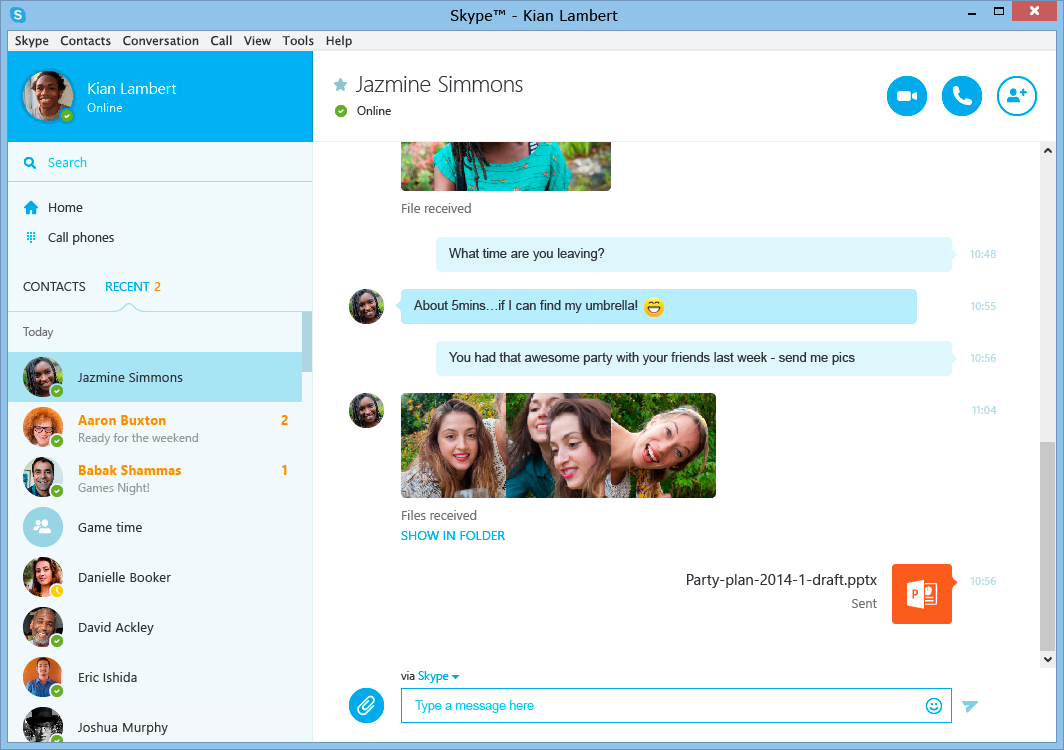
Once logged in, the main interface displays tabs for Chats, Calls and Contacts.

Understanding the Interface on Desktop and Mobile
On desktop, Skype presents a left sidebar listing Chats, Calls and Contacts. The main window displays conversation threads. A search bar at the top allows quick navigation. Profile settings and notifications appear near the upper corner.
On mobile devices, the layout shifts to bottom navigation tabs. Chats show recent conversations. Calls displays call history and a new call button. Contacts contains a searchable list, often synced from your phone’s address book if permissions are granted.
The plus icon or speech bubble initiates new chats or calls. In group conversations, additional options allow participant management.
A software usability researcher notes, “Skype’s design evolved toward simplicity after its 2017 redesign. The goal was to mirror messaging apps while preserving enterprise call features.”
The interface may differ slightly between iPhone and Android, but the functional structure remains consistent across platforms.
Adding and Managing Contacts
Contacts form the backbone of Skype communication. I click or tap the Contacts tab and use the search field labeled “Find people.” Entering a Skype ID, email address or phone number locates users.
After sending a contact request, the recipient must approve it before messaging begins. Incoming requests appear in notifications.
Skype can sync phone contacts on mobile devices. This feature scans your address book for associated Skype accounts, simplifying discovery.
Managing contacts includes renaming, blocking or removing users. Blocking prevents calls and messages.
| Action | How to Do It | Result |
|---|---|---|
| Add Contact | Search name or email | Sends approval request |
| Block User | Open profile > Block | Stops messages and calls |
| Remove Contact | Profile options | Deletes from list |
Maintaining an organized contact list improves efficiency, especially for users participating in multiple group conversations.

Sending Messages and Sharing Files
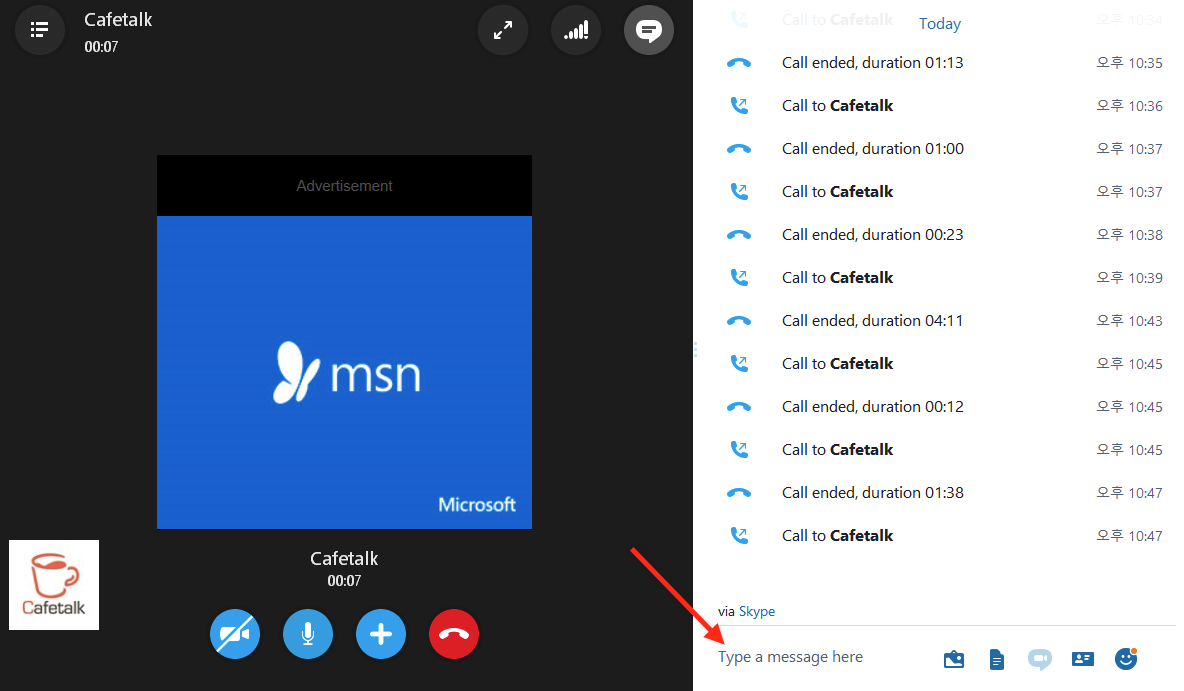
Messaging in Skype resembles other chat applications. I select a contact, type into the bottom text field and press Enter or tap the paper plane icon. Emojis, GIFs and stickers are accessible through icon menus.
File sharing is straightforward. Clicking the attachment icon allows uploading documents, images or videos. Skype transfers files directly within the chat window.
Location sharing is available on mobile devices. This feature sends a map preview of your current position.
Business users often rely on chat history for reference. Conversations are saved and searchable.
A communications consultant explains, “Chat remains the quiet engine of collaboration. Even when video calls dominate headlines, messaging handles the daily details.”
These features allow Skype to function not only as a calling app but as a collaborative workspace.
Making Voice and Video Calls
Initiating a call requires selecting a contact and clicking the phone icon for voice or the camera icon for video. The recipient receives a ringing notification and can answer or decline.
During calls, controls appear along the bottom of the screen. Users can mute microphones, disable cameras or adjust device settings. A red button ends the call.
Skype supports group calls by selecting multiple contacts under the Calls tab. According to Microsoft support documentation, Skype group calls can include up to 100 participants, with video grids showing up to 49 at once depending on platform and device capability.
Stable internet connectivity is critical. Experts recommend broadband speeds of at least 1.5 Mbps for standard video quality.
| Feature | Voice Call | Video Call |
|---|---|---|
| Requires Camera | No | Yes |
| Bandwidth Needs | Lower | Higher |
| Screen Sharing | Yes | Yes |
Call quality depends heavily on network stability.

Creating and Managing Group Calls
Group chats begin by clicking New Chat or the plus icon and selecting multiple contacts. Naming the group helps organization. Additional members can be added later through group settings.
Starting a group video call is as simple as opening the group chat and clicking the camera icon. Participants join individually. The call starter can remove participants if necessary.
During group calls, users can raise their hands, send chat messages or record sessions where permitted. Only one participant can share a screen at a time.
Microsoft states that Skype supports cross platform participation, meaning desktop and mobile users join seamlessly.
A remote team leader explains, “Group calls work best when someone moderates. Skype provides the tools, but structure prevents chaos.”
Group communication remains one of Skype’s strongest capabilities.

Screen Sharing on Desktop, Web and Mobile
Screen sharing transforms Skype from a chat tool into a collaboration platform. On desktop, during a call, I click the Share screen icon, often displayed as a box with an upward arrow. Options include sharing the entire screen or a specific window. Toggling computer sound allows participants to hear system audio.
On the web version, supported browsers such as Microsoft Edge or Google Chrome prompt permission before sharing.
On mobile devices, tapping the three dots during a call reveals the Share screen option. Mobile sharing transmits the entire device screen but does not share system audio.
A red border indicates active sharing. Only one participant can share at a time.
| Platform | How to Share | Audio Support |
|---|---|---|
| Desktop App | Share icon in call | Yes |
| Web Version | Share icon + browser permission | Limited |
| Mobile | Three dots > Share screen | No system audio |
Reliable Wi Fi ensures smooth screen streaming.

Troubleshooting Common Issues
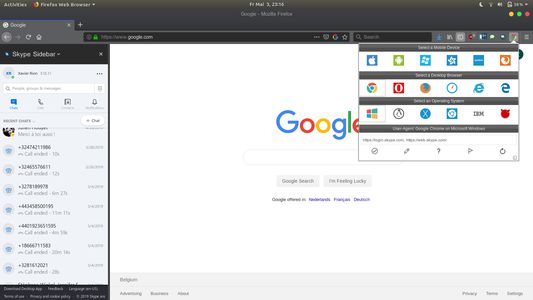
Connectivity problems often stem from unstable internet. Restarting routers, switching to wired connections or checking firewall settings can resolve dropped calls. Updating Skype ensures compatibility with operating system updates.
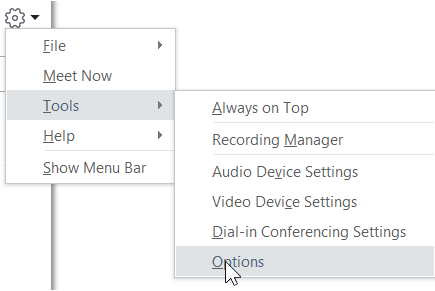
Audio and video issues require checking device settings under Settings > Audio and Video. Selecting the correct microphone and camera solves most glitches.
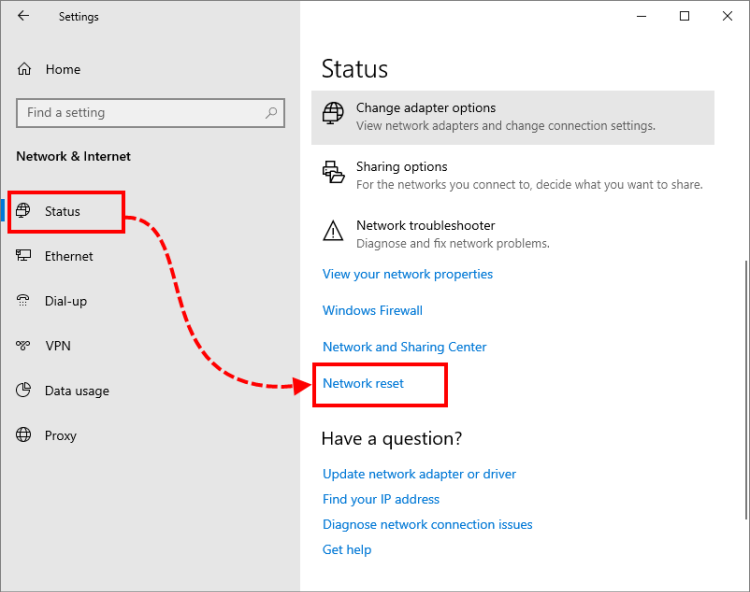
Login failures on Windows 11 may require updating through the Microsoft Store, resetting network adapters or repairing the app via Settings > Apps.
Running system scans such as sfc /scannow can repair corrupted system files.
A network engineer advises, “Most Skype problems trace back to bandwidth or device permissions. Start with the basics.”
| Issue | Likely Cause | Fix |
|---|---|---|
| No Audio | Wrong device selected | Adjust in settings |
| Call Drops | Weak internet | Restart router |
| Login Error | Account sync issue | Reset password |
| App Crash | Outdated version | Update or reinstall |
Troubleshooting requires patience but rarely advanced technical skills.
Takeaways
- Download Skype and sign in with a secure Microsoft account.
- Add contacts by searching email, phone or Skype ID.
- Use phone and camera icons to start calls.
- Create group chats for multi person conversations.
- Share screens during calls for collaboration.
- Troubleshoot issues by checking network and device settings.
Conclusion
I have come to see Skype less as a relic of early internet calling and more as a flexible communication tool that adapts to everyday needs. Its structure is simple. Contacts connect people. Chats sustain conversation. Calls add immediacy. Screen sharing deepens collaboration.
While newer platforms compete aggressively in the video meeting space, Skype remains relevant because it blends messaging, calling and Microsoft account integration under one roof. Its cross platform availability ensures that a laptop, tablet or smartphone can become a communication bridge.
Learning how to use Skype is ultimately about familiarity. Once the icons and menus feel natural, the platform recedes into the background, allowing conversations to take center stage. And that, perhaps, is its quiet achievement.
FAQs
What do I need to use Skype?
A device with internet access, a Microsoft account and microphone and camera permissions for calls.
Can I use Skype without installing it?
Yes. The web version at skype.com allows calls and chats through supported browsers.
How many people can join a Skype group call?
Up to 100 participants can join, with video grids displaying dozens depending on platform.
Why is my Skype video not working?
Check camera permissions and ensure the correct device is selected in Audio and Video settings.
Is Skype free?
Skype to Skype calls and messages are free. Calling landlines or mobile numbers may require Skype Credit.
